Patch 127
Save Fixture
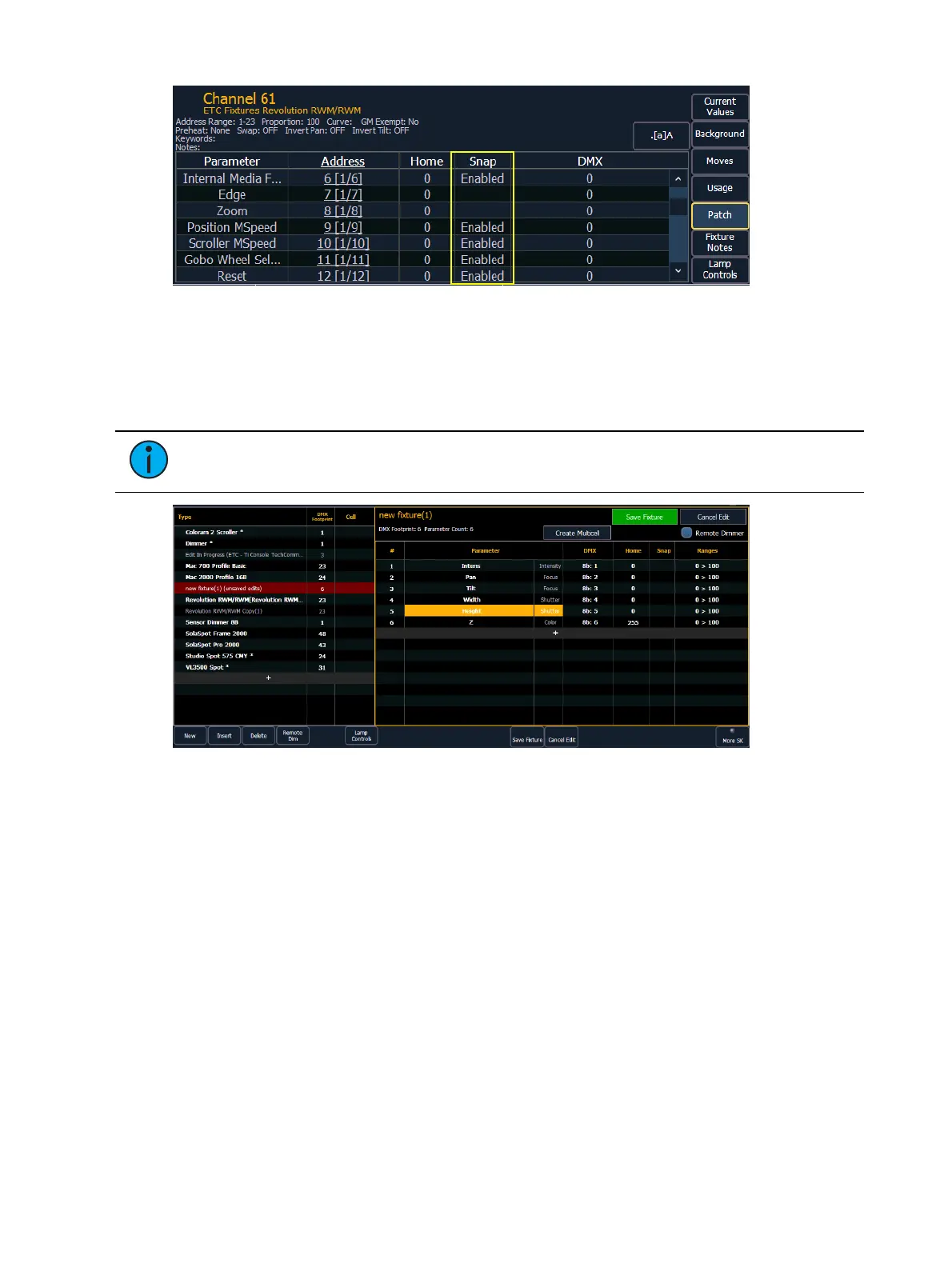
Unsaved fixture profiles will have a red background in the fixture editor.
Press {Save Fixture} to store the new profile, or {Cancel Edit} to exit out and not save your
changes.
Note: If you leave the patch display without saving or using {Cancel Edit}, an advisory
will display above the command line letting you know that you have unsaved data.
Creating Multicell Fixtures
Multicell fixtures can be created by using the fixture editor. You can either create a new fixture,
or copy an existing fixture to edit.
To create a new fixture, press {New}. A new fixture will be added to the fixture list.
Naming a New Fixture
Once the new fixture appears in the list, it is recommended that you name the fixture you are
about to create.
To name a fixture in the creator list:
1. Use the [Page] keys, mouse, or touchscreen to select the new fixture.
2. Press [Label] or tap on the new fixture. You can press [Label] twice to clear the name. The
virtual keyboard will open in the CIA.
3. Enter the desired name for the new fixture on the virtual (or attached alphanumeric)
keyboard.
4. Press [Enter]. The name will appear in the “Type” column of the fixture list.



 To Next Page