Basic Manual Control 163
- plays / resumes the color fade.
- skips to the end of the color fade.
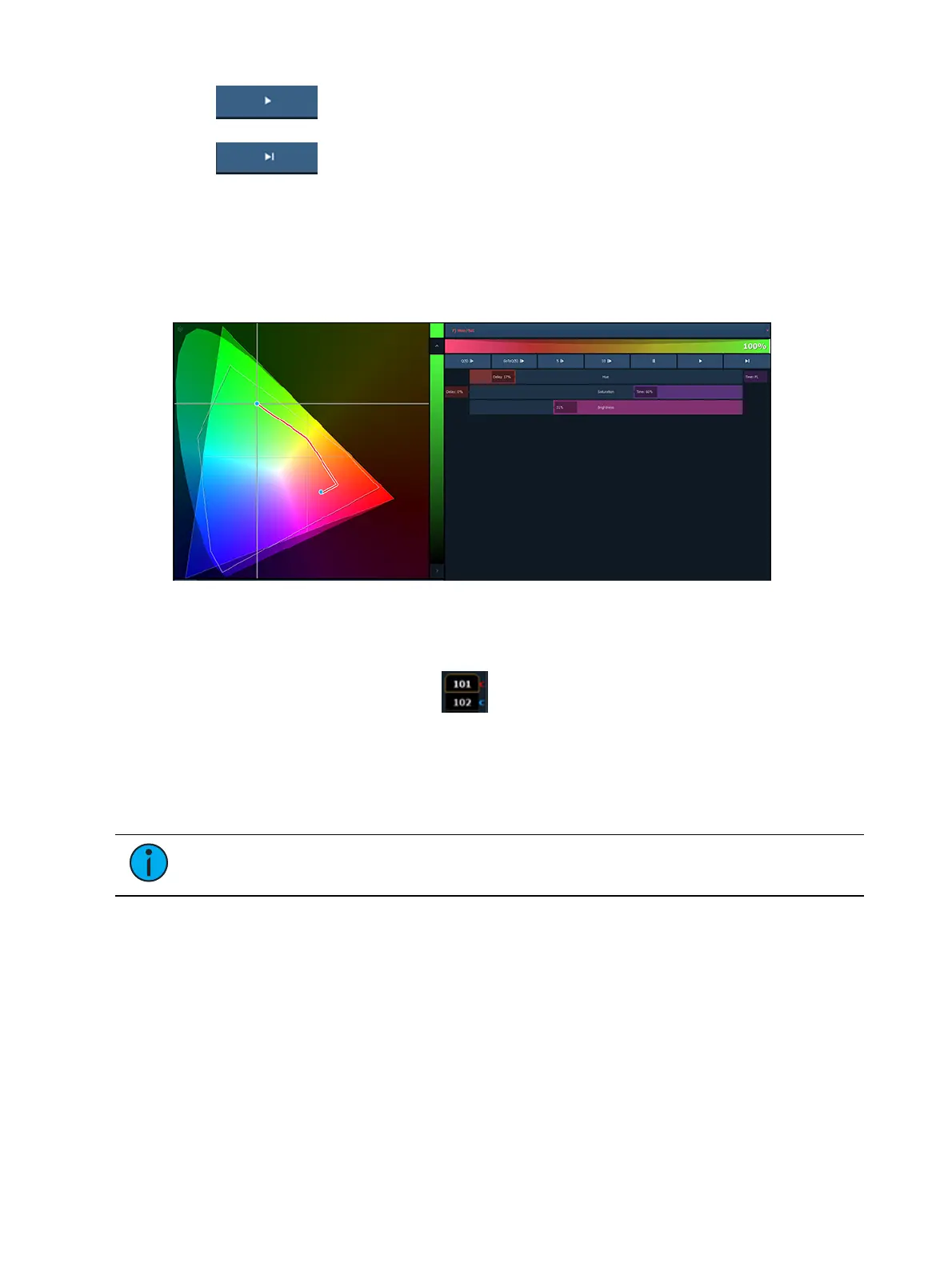
You can also click on the color path preview bar to scrub to any point along the fade.
Additional controls may be available based on the color path selected. For example, Color Path
7 has additional controls for Hue, Saturation, and Brightness. You can move those controls to
adjust the fade, and you'll see a representation of those changes in both the color path preview
bar and in the color space.
Changes can be stored in the destination cue as absolute data by using [Update] or [Record].
When there's a change to the color path information, a red c will display next to the channel
number and the color path's name will display in red in the color path display. When that data
has been saved, a blue c will display. The color path's name will also display in blue in
the color path display.
You can save changes to a new color path by using [Record]{Color Path} [n]. That data will then
be referenced, and any changes made to that path will be used anytime that path is used press
[About] & {Path} to see the values behind the referenced data.
Note: If multiple channels are selected that have different color paths assigned to
them, a + will display by the color path name in the color path preview bar.
See
[About] Color Path (on page329)
and
{Attribute} Display and Settings (on page105)
for
more information.
Spectrum Tools
The Spectrum option is found by clicking on the display configuration tool (the gear icon) in the
bottom left corner of the display tab bar.
This option displays all the color parameters across the color spectrum, and allows for individual
control of each parameter. Press a color point to move it.
This display is a good visual of what the fixture is outputting.



 To Next Page