422 Eos Family v2.9.0 Operations Manual
{Upgrade I/O Firmware} is used to upgrade the firmware in the desk’s I/O card.
When you first open the I/O Downloader, it will look for the connected console. This may take a
second or two.
Once the console is found, the downloader will search for the needed files. If it finds the file, it
will list it and you can click {Download}. If it doesn't find the file, you can use {Browse} to look
for the needed file and selected it. Once finished, click {Exit}.
Network Drives
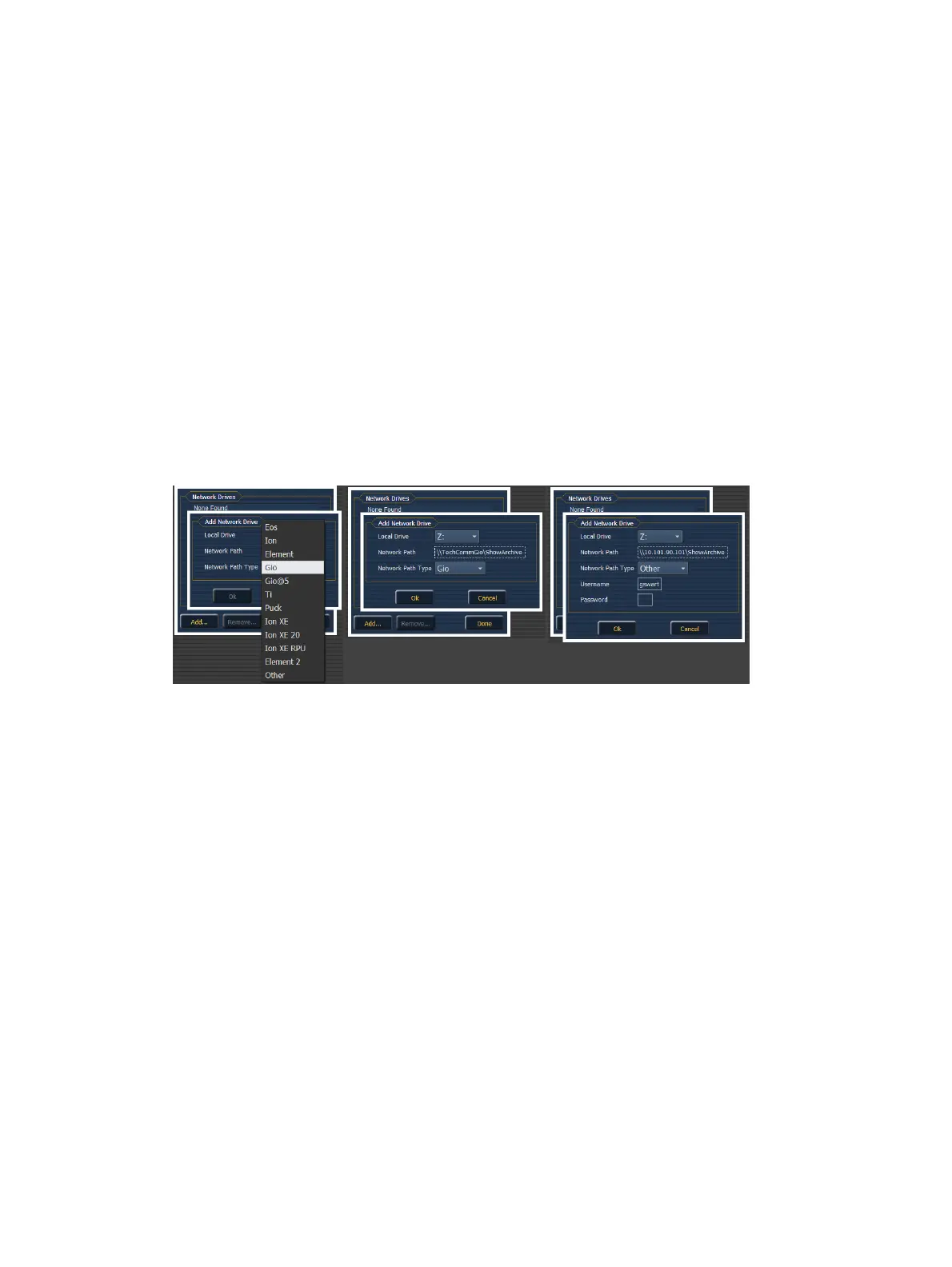
{Network Drives...} allows you to select an alternative show file storage location on another
desk or computer. After setting this location, it will appear as an option within the save and
open dialogs in Element.
In the {Network Drives...} dialog box, there is a {Add} button for mapping a network drive. In the
In the Add Network Drive dialog box, select the drive letter that is appropriate, the network
path, and the path type. The network path can use either the IP Address or the Device Name.
(Example: \\10.101.90.101\ShowArchive or \\YourDeviceName\ShowArchive) The network path
type can be Eos, Eos Ti, Gio, Gio @ 5, Ion, Ion Xe, Ion Xe 20, Ion Xe RPU, Element, Element 2,
or ETCnomad Puck. If Other is selected, you will have additional fields to fill out for Username
and Password.
Shared Folders
{Shared Folders...} allows you to see if any folders are currently being shared by the desk. You
can select the folder and click {Don’t Share} if you no longer want to share the folder. By
selecting {Don’t Share} here, you will also uncheck the box for
Share Show Archive (on
page408)
in the General tab.
Log Off
This will log off the current user. This should only be done under the direction of ETC Technical
Services for administrative purposes.
Firmware Update
The firmware update window will display any detected devices that use firmware and may
require an update. Devices that need to be updated will display in red.
When a device is selected, the {Update} button will display in yellow if the device can be
updated using this window. This includes devices that do not currently need to be updated. If the
button is grayed out, the device can not be updated using this window.



 To Next Page