7.3.1.1 Calling the Funkwerk Configuration Interface
(1) Check whether the device is connected and switched on and that all the necessary
cables are correctly connected (see Technical data on page 26).
(2) Check the settings of the PC from which you want to configure your device (see Con-
figuring a PC on page 17).
(3) Open a web browser.
(4) Enter http://192.168.0.252 (or the IP address dynamically assigned by your
DHCP server or the address statically assigned by you with the ComPoint Manager)
in the Web browser's address field.
(5) Enter admin in the User field and funkwerk in the Password field and click LOGIN.
You are not in the status menu of your device's Funkwerk Configuration Interface (see
State on page 83).
7.3.1.2 Operating elements
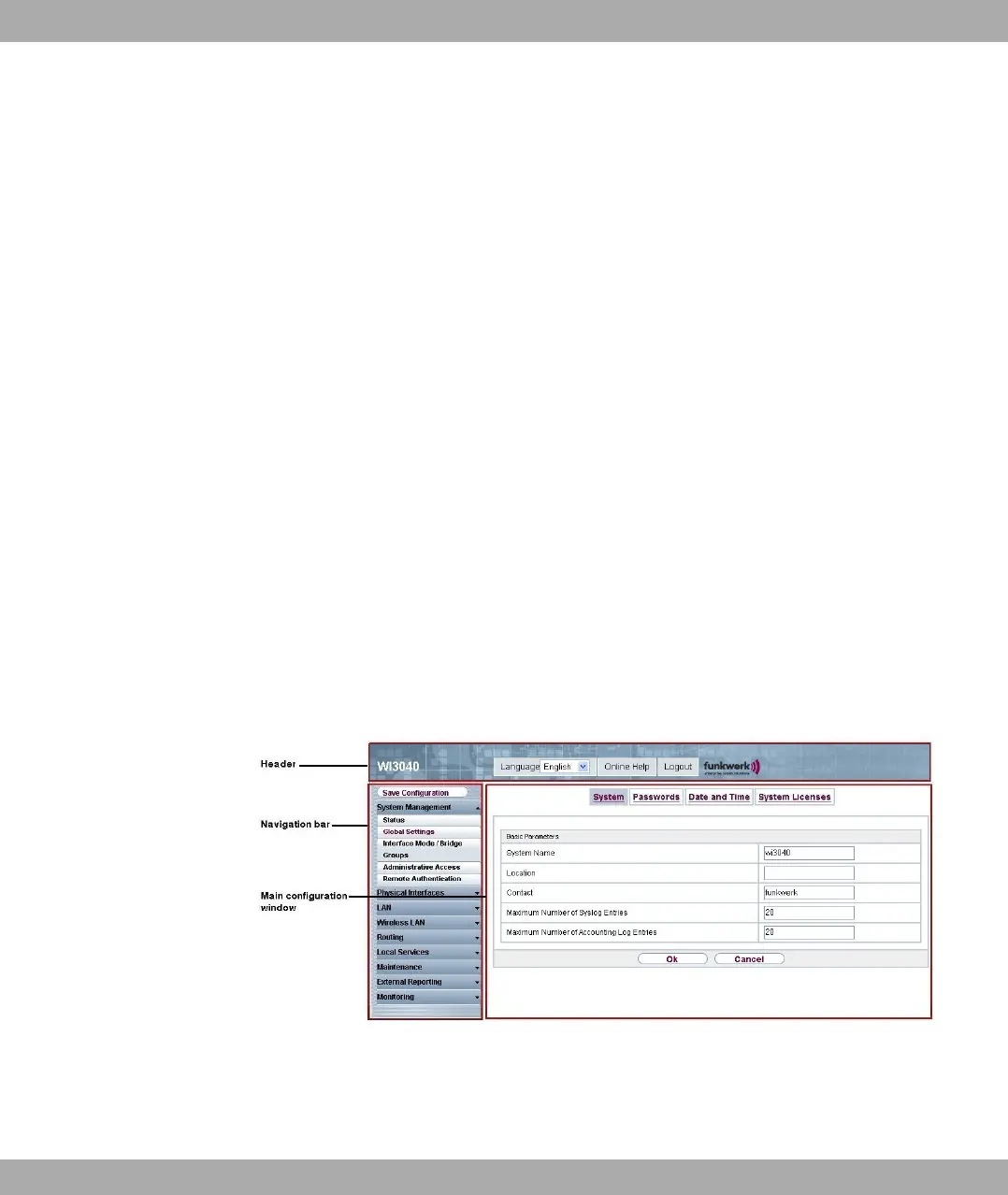
Funkwerk Configuration Interface window
The Funkwerk Configuration Interface window is divided into three areas:
• The header
• The navigation bar
• The main configuration window
Fig. 28: Areas of the Funkwerk Configuration Interface
Header
7 Access and configuration Funkwerk Enterprise Communications GmbH
62 bintec W1002/W1002n/W2002/WIx040/WIx065


 To Next Page