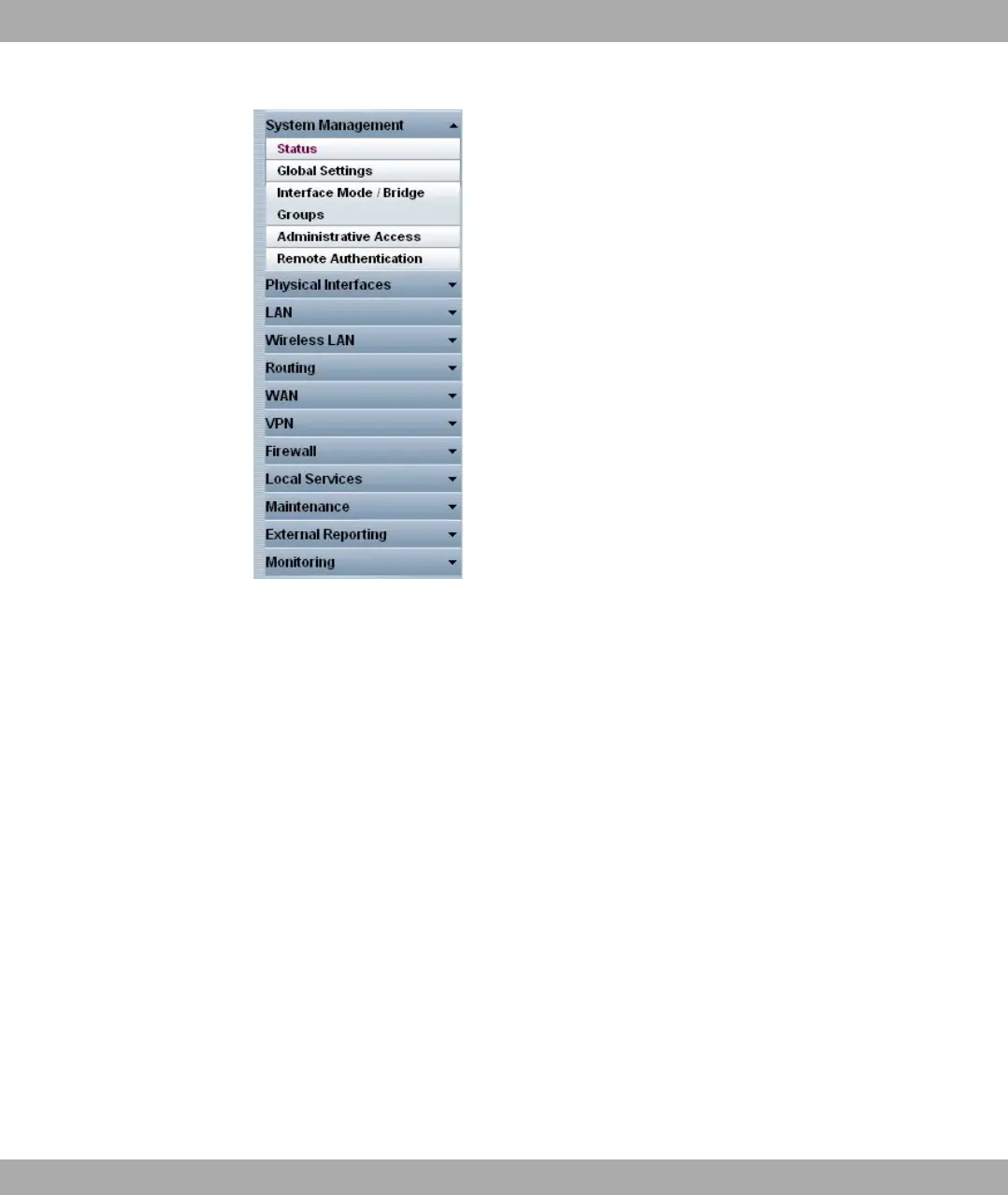
Fig. 31: Menus
The Save Configuration button is found in the navigation bar. Click the Save Configura-
tion button to save all configuration changes, so that they are loaded as the boot configura-
tion the next time you start the device.
The navigation bar also contains the main configuration menus and their sub-menus.
Click the main menu you require. The corresponding sub-menu then opens.
If you click the sub-menu you want, the entry selected will be displayed in red. All the other
sub-menus will be closed. You can see at a glance the sub-menu you are in.
Status page
If you call the Funkwerk Configuration Interface , after you log in the status page of your
device is displayed. The most important data of your device can be seen on this at a
glance.
Main configuration window
The sub-menus generally contain several pages. These are called using the buttons at the
top of the main window. If you click a button, the window is opened with the basic paramet-
ers. You can extend this by clicking the Advanced Settings tab, which displays the addi-
tional options.
7 Access and configuration Funkwerk Enterprise Communications GmbH
64 bintec W1002/W1002n/W2002/WIx040/WIx065


 To Next Page