Pub. 42004-550C
Elemec3 Console Manual—Version 3 Page 8 of 109
P:\Standard IOMs - Current Release\42004 Instr. Manuals\42004-550C.docx
07/21
Select the NEW CONFIGURATION button to create a new configuration or select the LOAD
CONFIGURATION button to open an existing configuration.
—Elemec3 Networking—See GAI-Tronics Pub. 42004-521 for instructions on networking multiple
Elemec3 systems (see the Reference Documentation section).
Click the MANAGE SYSTEM CONFIGURATIONS button to access the MANAGE CONFIGURATIONS screen.
Use the MANAGE CONFIGURATIONS screen to import and export configurations to the working directory
on the local computer.
Manage Configurations
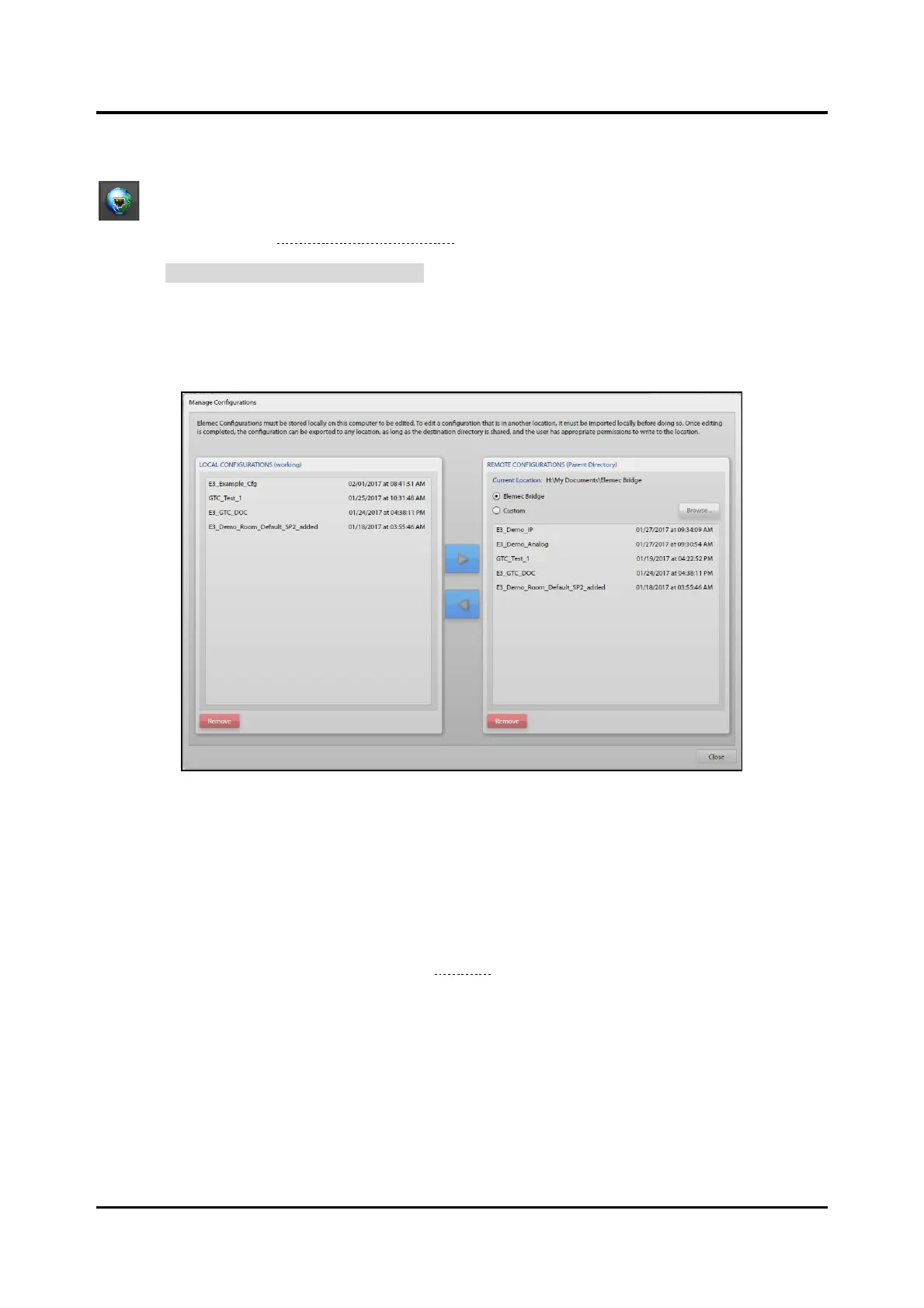
Figure 2. Manage Configurations
LOCAL CONFIGURATIONS (Working Directory)
Open an Elemec3 configuration, in the working directory on the local computer, in the E3 Console for
editing. Import configuration files, from remote storage locations to the local working directory, to work
on them. Export a configuration file back to a remote custom storage location or to the Elemec3 bridge
folder for upload to an E3 controller or IP controller using the E3 Portal application.
Use the MANAGE CONFIGURATIONS screen (see Figure 2) to transport configuration files between the
working directory on the host computer and a remote storage location. The local working directory
configurations appear in the left, LOCAL CONFIGURATIONS (WORKING), pane. Remotely stored
configurations appear on the right, REMOTE CONFIGURATIONS (PARENT DIRECTORY), pane. All
configurations sort and list by their modified date, from newest to oldest.
Select a configuration in the remote storage list and click the left arrow key to import the configuration to
the working directory. To export a configuration to the remote directory, highlight the configuration file
in the working directory list and click the right arrow key. The import/export operation copies the
configuration file to the local or remote folder respectively.



 To Next Page