Pub. 42004-550C
Elemec3 Console Manual—Version 3 Page 39 of 109
P:\Standard IOMs - Current Release\42004 Instr. Manuals\42004-550C.docx
07/21
Button Screen
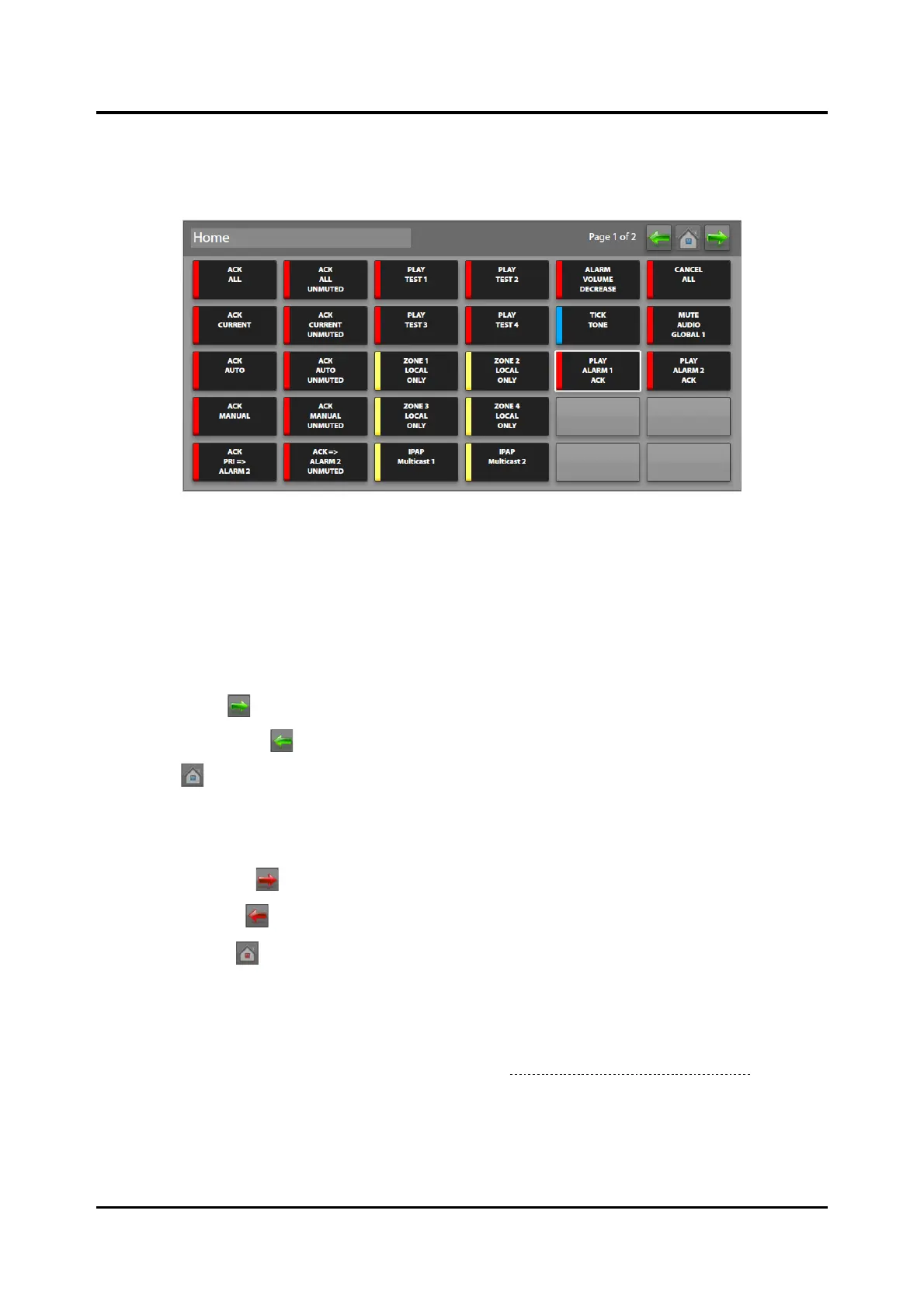
The bottom section of the IP ACCESS PANEL BUTTON CONFIGURATION screen displays the button
panels.
Figure 41. IPAP Button Page
Button Screen Navigation
The left end of the button screen contains the name of the current button screen. There are three
navigation buttons located at the top, right side of the button screen. The current page number of the total
screen pages appears to the left of these buttons.
The navigation buttons have dual functionality. Click the navigation buttons without pressing the Shift
key for the following functionality:
• NEXT PAGE —navigate to the next button panel page.
• PREVIOUS PAGE —navigate to the previous button panel page.
• HOME —navigate to the page defined as home.
Button Screen Order
Press the Shift key and click the navigation buttons for the following functionality:
• Move Page Right —move this page up in the order of pages.
• Move Page Left —move this page down in the order of pages.
• Set Page Home —set the current page as the home page.
Button Definitions
Create, copy, paste, modify, move, or remove buttons from button pages. Undefined buttons are two-tone
gray. The currently selected button has a white outline. Click on a button to select it and define its
properties in the IPAP BUTTON PROPERTIES pane (see the Access Panel Button Configuration section).
The differences between hardware access panel buttons and IPAP buttons are as follows:



 To Next Page