Pub. 42004-550C
Elemec3 Console Manual—Version 3 Page 26 of 109
P:\Standard IOMs - Current Release\42004 Instr. Manuals\42004-550C.docx
07/21
Speaker Remotes Not applicable to the IP controller
Speaker remotes control the transformer tap setting of each speaker driven from a central amplifier
channel and obtains audio coil status from the connected speaker.
Add Speaker Remotes
1. Click the SPEAKER REMOTES button from the
SYSTEM PROPERTIES screen.
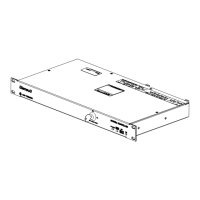
The SPEAKER REMOTES SETUP screen
displays (see Figure 29).
2. Click ADD SPEAKER REMOTES to add speaker
remotes to the Elemec3 system.
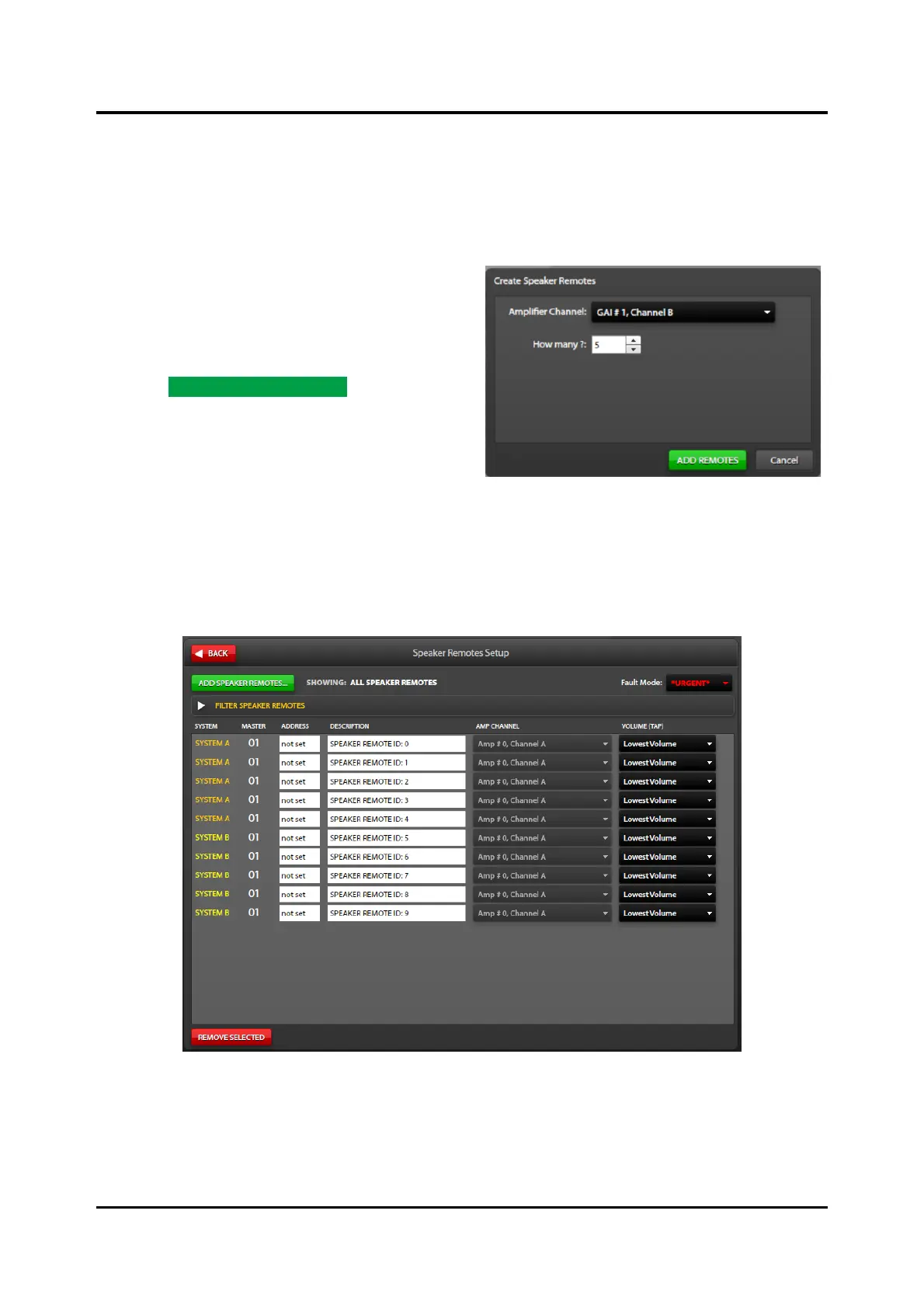
The CREATE SPEAKER REMOTES dialog box
displays:
3. Select the amplifier channel to assign the
speaker remotes to.
4. Use the HOW MANY? selector to enter the
number of speakers with speaker remotes on the amplifier channel.
• Specify the number of remotes to add to the A system and the B system in A-B systems.
• The speaker remotes appear in the list if the filter does not prevent their display:
Figure 29. Speaker Remotes Setup
The speaker remotes display in a list format with columns for SYSTEM, SPEAKER MASTER, SPEAKER
REMOTE ADDRESS, DESCRIPTION, AMP CHANNEL, and VOLUME (TAP) parameters.
Showing:—displays the textual result of the filter selections.



 To Next Page