Pub. 42004-550C
Elemec3 Console Manual—Version 3 Page 43 of 109
P:\Standard IOMs - Current Release\42004 Instr. Manuals\42004-550C.docx
07/21
Create APLite buttons:
1. Click CREATE BUTTON to create buttons for the
access panel(s).
The CREATE NEW AP LITE BUTTON dialog box
appears requesting a description for the button.
2. Enter a description for the button and click CREATE
NEW AP LITE BUTTON.
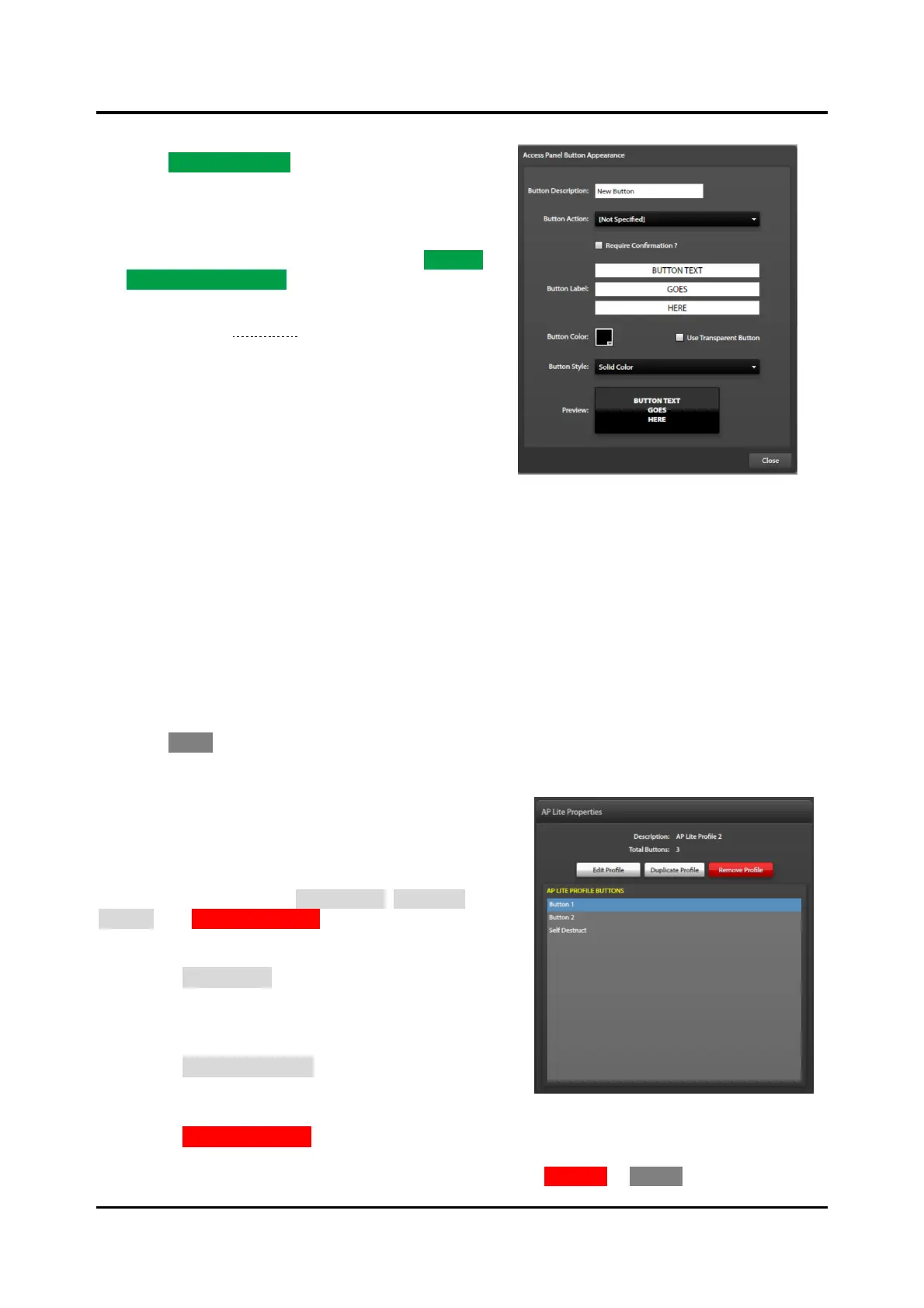
The ACCESS PANEL BUTTON APPEARANCE dialog
box opens (see Figure 45).
Button Description:—Enter a description for the button.
Button Action:—Use the drop-down list control to select
the action to initiate.
Require Confirmation?—Select the check box for
events that will require confirmation.
Button Label:—Enter the text to appear on the button in
the three fields.
Button Color:—Click the button color palette and select the desired color for the button.
Use Transparent Button:—Select this check box to make a transparent button. This disables the button
color and button style options.
Button Style:—Select the desired button style; color ribbon or solid color from the drop-down list.
Preview:—view-only field displays what the button will look like.
3. Click CLOSE to return to the previous screen.
AP Lite Properties
The right pane in the AP LITE PROFILES screen contains
the properties of the AP lite panel currently selected in the
APLITE PROFILES list pane. The pane contains the
description of the currently selected AP lite profile, the
number of assigned buttons, EDIT PROFILE, DUPLICATE
PROFILE, and REMOVE PROFILE action buttons, and the AP
LITE PROFILE BUTTONS field listing the assigned buttons.
• Use the EDIT PROFILE button to access the APLITE
PROFILE BUILDER screen. Edit the profile description,
PIN, add/remove, and reorder the buttons for the
selected APLite HUBBCOM access panel.
• Use the DUPLICATE PROFILE button to create a new copy
of an existing APLite HUBBCOM access panel to
simplify creating new panels.
• Use the REMOVE PROFILE button to delete the
currently selected profile. A confirmation dialog box
displays requesting confirmation to remove the panel. Click REMOVE or CANCEL.



 To Next Page