Pub. 42004-550C
Elemec3 Console Manual—Version 3 Page 9 of 109
P:\Standard IOMs - Current Release\42004 Instr. Manuals\42004-550C.docx
07/21
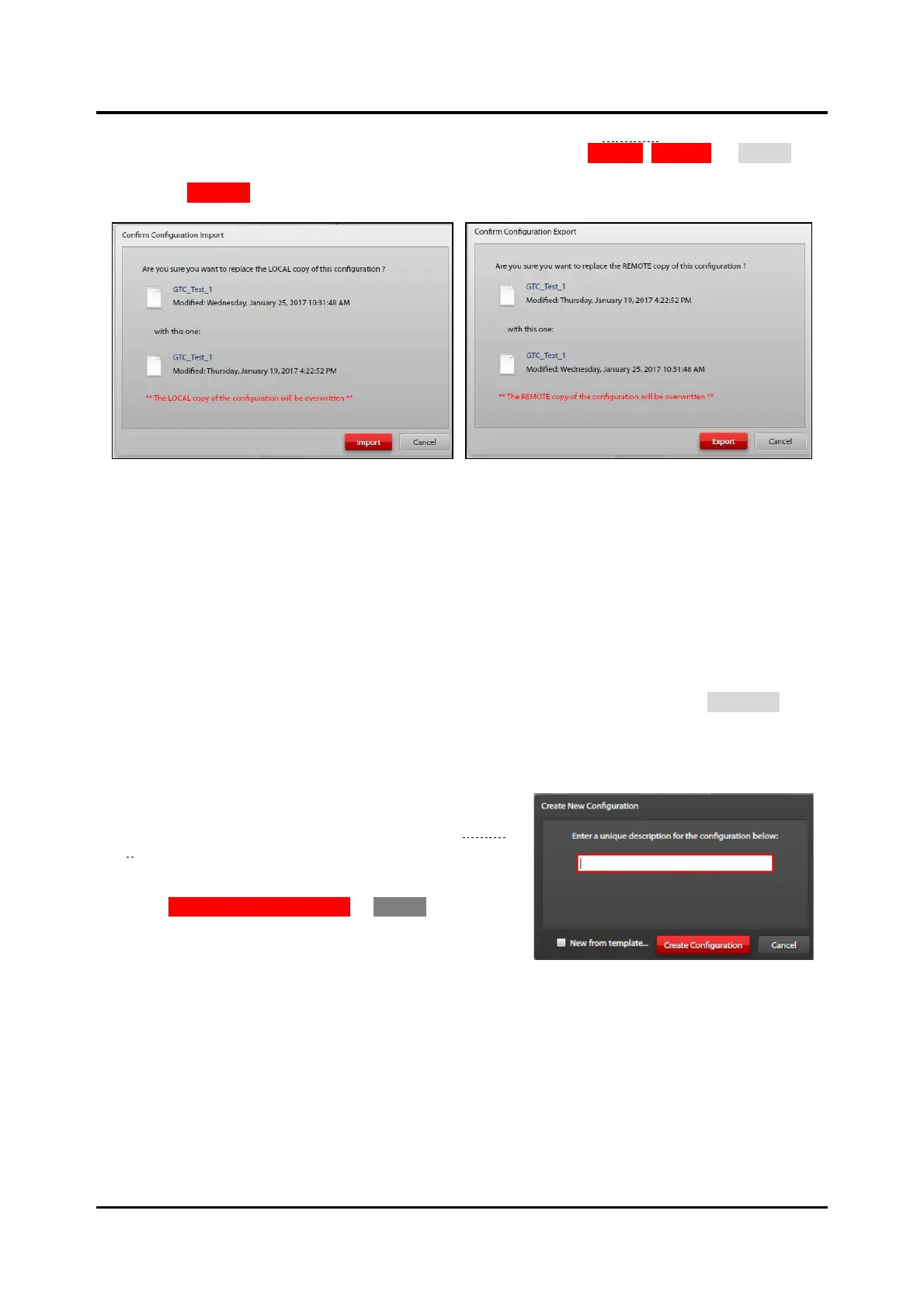
A CONFIRM CONFIGURATION IMPORT/EXPORT dialog box displays (see Figure 3) when a configuration
with the current name already exists in the destination directory. Click IMPORT, EXPORT, or CANCEL as
necessary to continue or cancel the operation. Remove configuration files by selecting the configuration
and clicking REMOVE. A CONFIRM CONFIGURATION DELETE window opens for confirmation.
Figure 3. Import/Export Confirmations
REMOTE CONFIGURATIONS (Parent Directory)
Select the remote directory using the ELEMEC BRIDGE or CUSTOM radio buttons:
Elemec Bridge—an Elemec3 configuration storage location on the local computer that is common with
the E3 Portal application
The Elemec bridge is useful when running the E3 Console and E3 Portal applications on the same
computer. Use the Elemec bridge to share configuration files between the two programs.
Custom—allows selection of any folder location that is accessible from the PC (Use the BROWSE…
button to select any local or remote storage location accessible from the host computer.)
Create New Configuration
1. Click the NEW CONFIGURATION button.
The CREATE NEW CONFIGURATION screen (see Figure
4) opens.
2. Enter a description for the configuration.
3. Click CREATE CONFIGURATION or CANCEL to return to
the E3 SYSTEM CONFIGURATION home screen.
NOTE: Do not use spaces in the description. Use an
underscore character to separate words, if needed.
Example: My_Configuration_File



 To Next Page