Pub. 42004-550C
Elemec3 Console Manual—Version 3 Page 7 of 109
P:\Standard IOMs - Current Release\42004 Instr. Manuals\42004-550C.docx
07/21
13) Configure System Audio Muting Parameters
• Set the global muting parameters:
• Edit the descriptions for global mutes 1–4.
• Set holdover delay time for each global mute.
• Set the mute threshold for playback events.
• Set the mute threshold for live speech events.
Install the E3 Console Application
Download and install Adobe AIR from www.adobe.com.
Run ElemecConsole3.air to install the Elemec3 Console application. There is no need to uninstall an
existing Elemec3 Console application; the installer will prompt for instructions.
Run the E3 Console Application
Start the Elemec3 Console application from the Start Menu. Go to Programs → GAI-Tronics
Corporation and click on ElemecConsole3. Optionally, double click the desktop shortcut, if created
during the installation process.
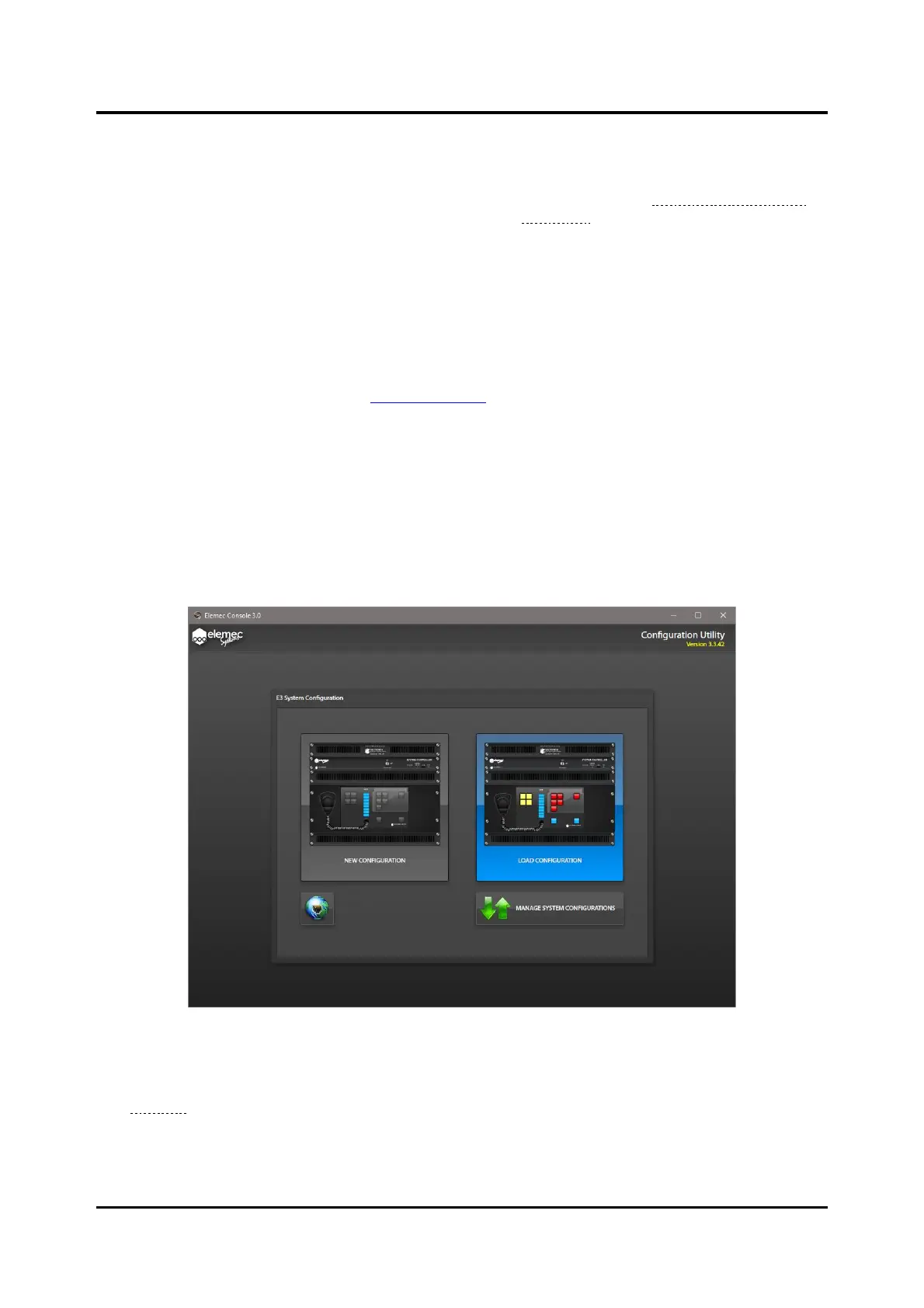
Figure 1. Create New or Load Existing Configuration
The program displays the E3 SYSTEM CONFIGURATION screen with options to create a new
configuration, load an existing configuration, network Elemec3 systems, or manage system configurations
(see Figure 1). After creating or loading a configuration file, configure the Elemec3 system on the
screens accessed using tabs, along the left side of the window. In many places, it is necessary to select
items from one list for inclusion in another. When this occurs, select multiple entries using click with
CTRL+click or click with SHIFT+click mouse/keyboard operations to select individual or contiguous list
elements respectively.



 To Next Page