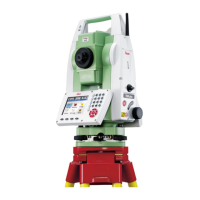
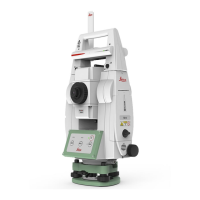
FlexLine plus, MapView Interactive Display Feature
135
10.4.2 Keys, Softkeys and Toolbar
Description Standard functionality is provided by softkeys, keys and a toolbar within MapView.
The softkeys are available regardless of the mode in which MapView was accessed and
always perform the same functions.
On the right side of the screen, a toolbar with icons is available. Some functions of the
toolbar can also be performed by using a softkey or key instead. Refer to the following
table for a description of the toolbar functions and their respective softkey/key equiv-
alents, if available.
Overview of keys,
softkeys and icons
The softkeys described in this table are standard on all MapView screens. For descrip-
tions of mode-specific softkeys, see appropriate chapters.
10.4.3 Point Symbols
Symbols
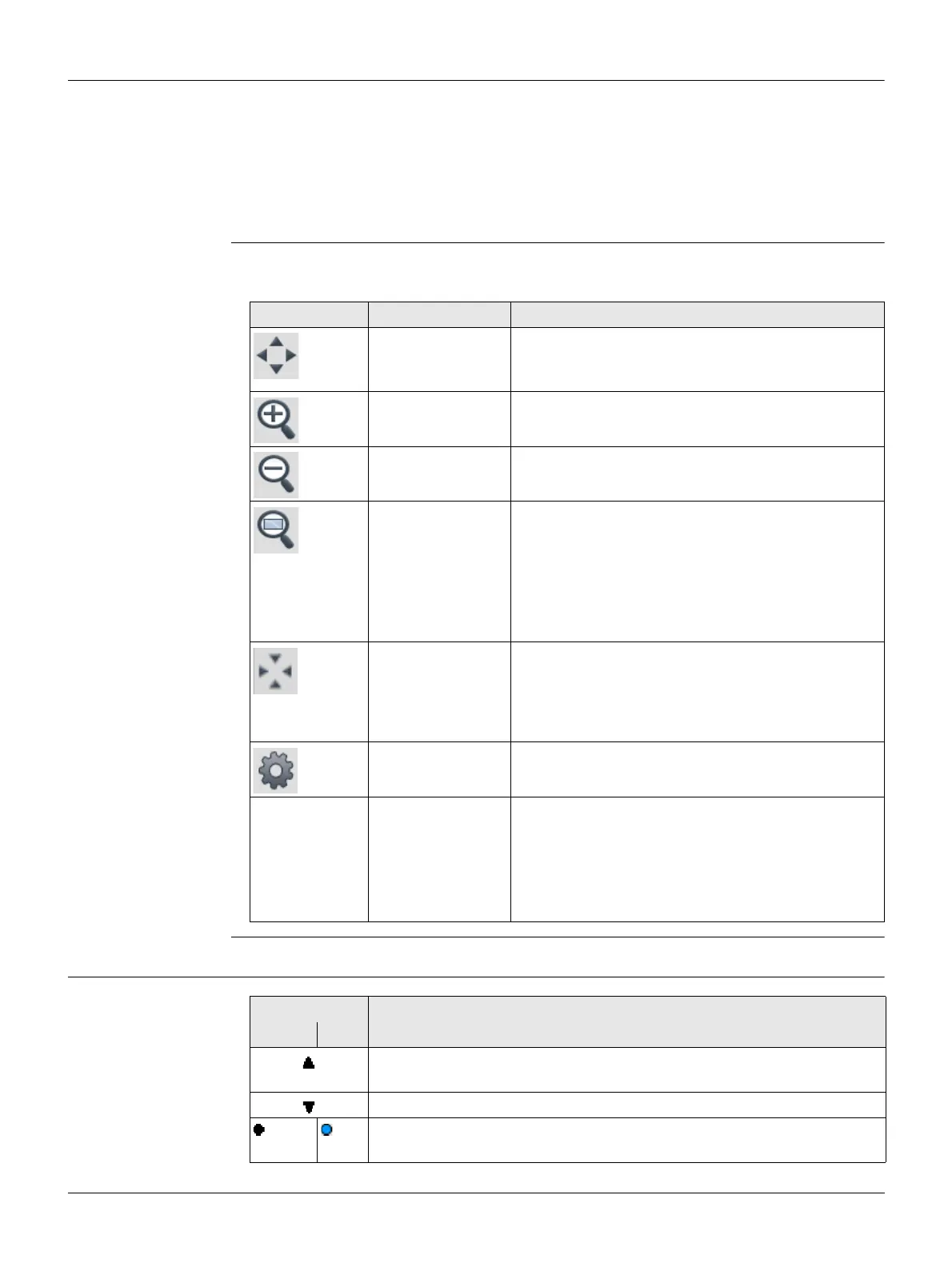
Icon Key or Softkey Description
Fit The fit icon fits all displayable data, according to
filters and the map configuration, into the screen
area, using the largest possible scale.
Zoom + To zoom into the map.
Zoom - To zoom out of the map.
- The windowing icon zooms to a specified area
window. An area window can be drawn by drag-
ging the stylus on the screen in a diagonal line to
make a rectangular area or by tapping twice on
the screen to define diagonally opposite corners
of a rectangular area. This action causes the
screen to zoom to the selected area.
Ctr.Tgt To centre the target. Refer to "5.1 Work
Settings".
Ctr.St. To centre the instrument. Refer to "5.1 Work
Settings".
- To configure MapView. Refer to " Screen & Audio
Settings".
-Tap on screen
with stylus, hold
and move
OR
Left/right/up/dow
n arrow key
To move the view of a map up and down as well
as left and right. This is particularly useful when
you have zoomed in on a view, and want to move
the view around to see other areas of interest.
Symbol Description
B&W C&T
Fixpoint. Show in Map: Fixpoints or Show in Map: Meas & Fixpts
must be selected in Screen & Audio Settings, Map page.
Calculated station
Measured point. Show in Map: Measurements or Show in Map: Meas
& Fixpts must be selected in Screen & Audio Settings, Map page.


 To Next Page