2-18
BEFORE USE
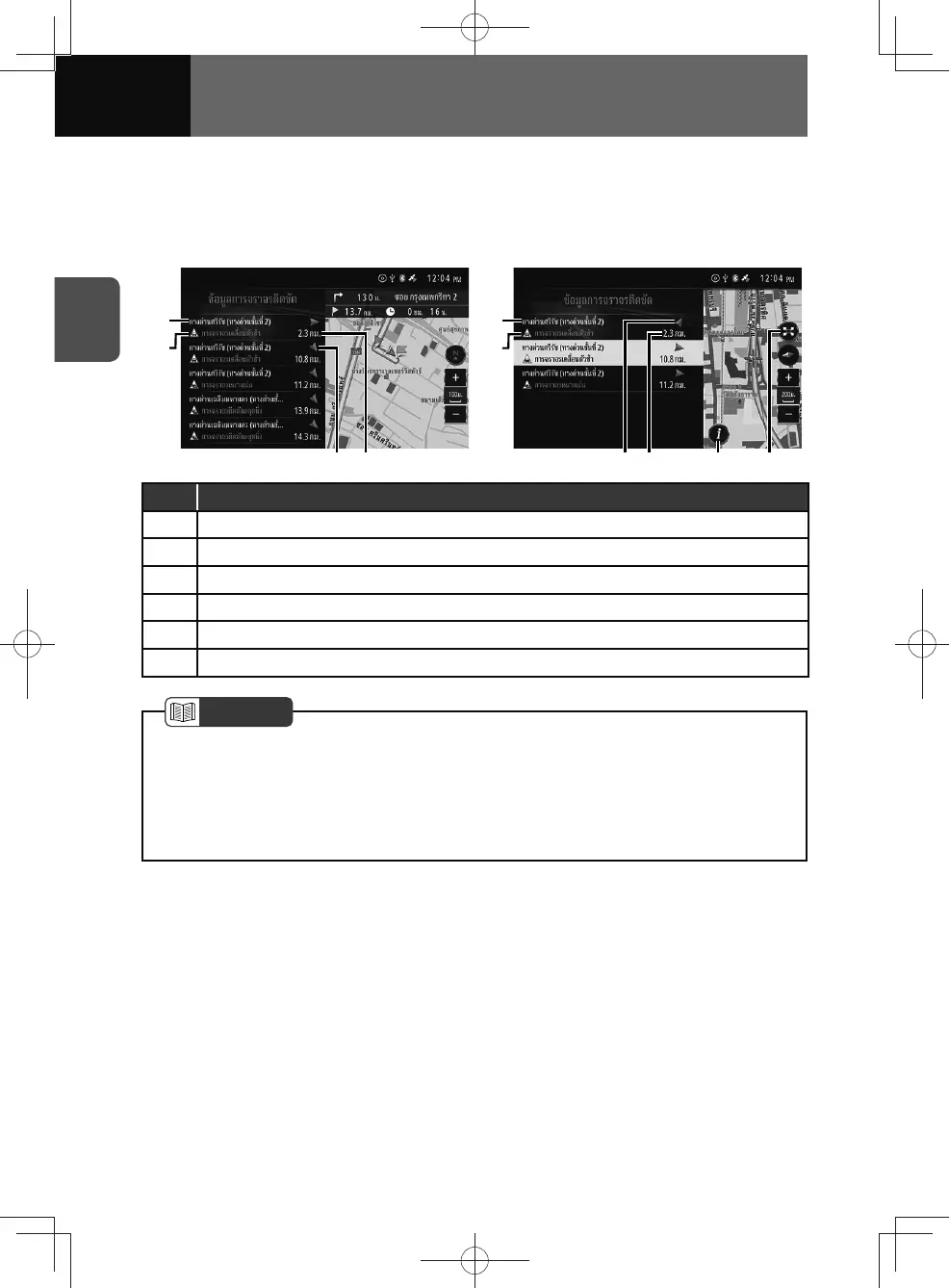
Traffic conditions widget (Models with NAVI)
If you touch an area of the widget other than a touch screen button, the traffic
conditions widget appears in the full screen.
<Widget screen> <Full screen>
(1)
(2)
(3)
(4)
(1)
(2)
(3)
(4)
(6)
(5)
No. Function
(1) Name of the road on which the traffic event is occurring.
(2)
Traffic event name.
(3) Direction of the road on which the traffic event is occurring.
(4) Distance from vehicle to traffic event.
(5) Touch to see the details of the selected traffic information.
(6) Touch to close the list and see the selected traffic information on the map screen.
NOTE
• When the full screen mode, if you touch the item on the list, the location of the
selected item is displayed on the map.
• When the route is set, the traffic event will be displayed along the set route.
• When the route is not set, the traffic event will be displayed on along the travelling
road.



 To Next Page