4-24
NAVIGATION (Models with NAVI)
Saving Locations
Saving Your Favourite Locations
Saving places you have found or have driven to help you quickly search for the route
when you want to go there next time.
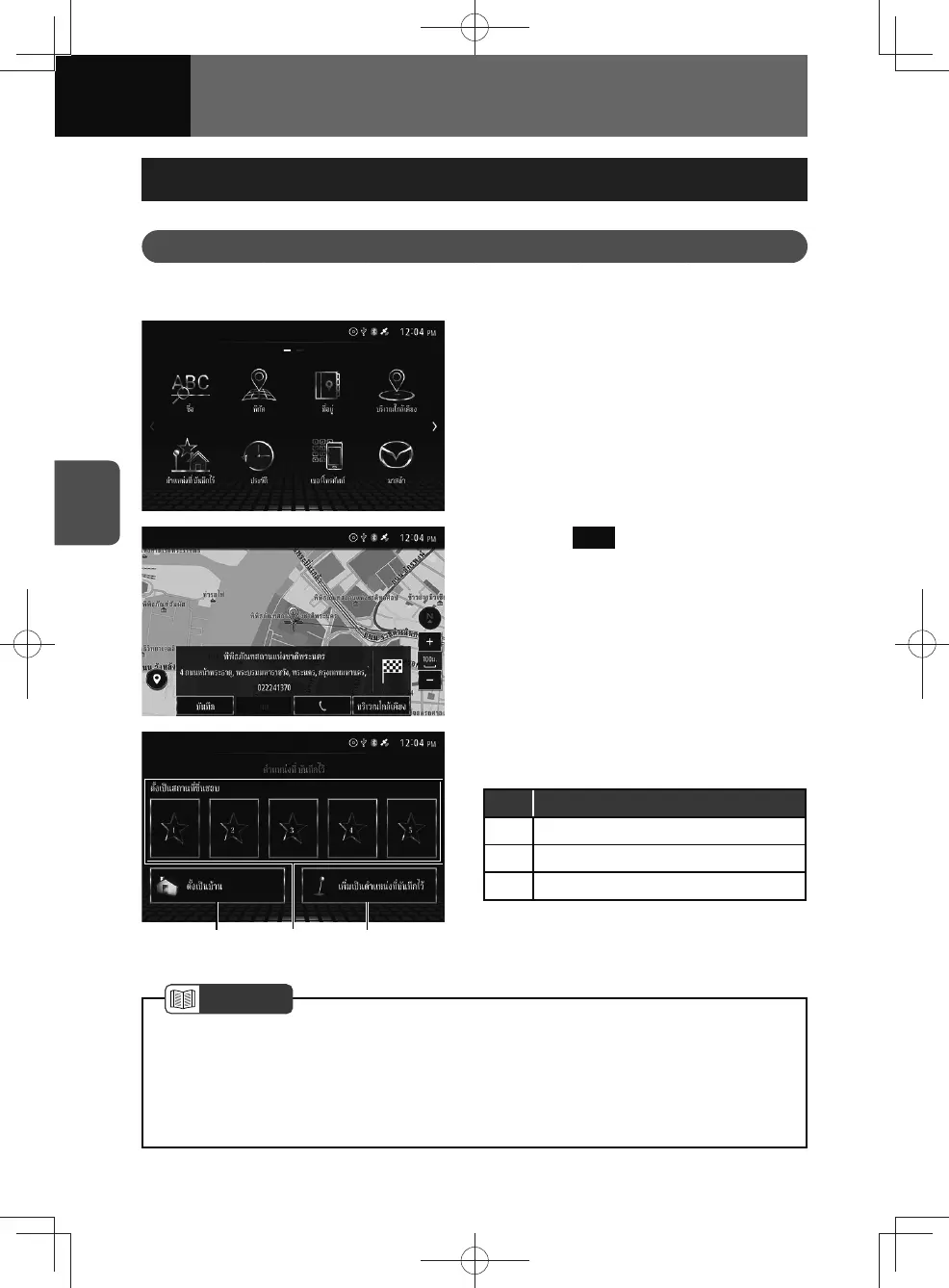
1. Search for a location. (See page
4-10)
• Display the destination location
map and information. (See page
4-23)
• In some searching methods, the
location confirmation screen may
not be displayed.
2. Touch Save .
• The saved point screen appears.
(2)(1) (3)
3. Touch and save the desired
categories.
No. Function
(1) Save as home.
(2) Save as favourites.
(3) Save as points.
NOTE
• Up to 100 locations can be saved in "Add to Saved points".
• When saved point have been saved successfully, a confirmation message will be
displayed.
• If you already have a location saved in your favourites or allocated to the home
button, a message will appear to check if you would like to overwrite it.



 To Next Page