4-28
NAVIGATION (Models with NAVI)
Checking the route profile
1. Route Overview
or Route Overview
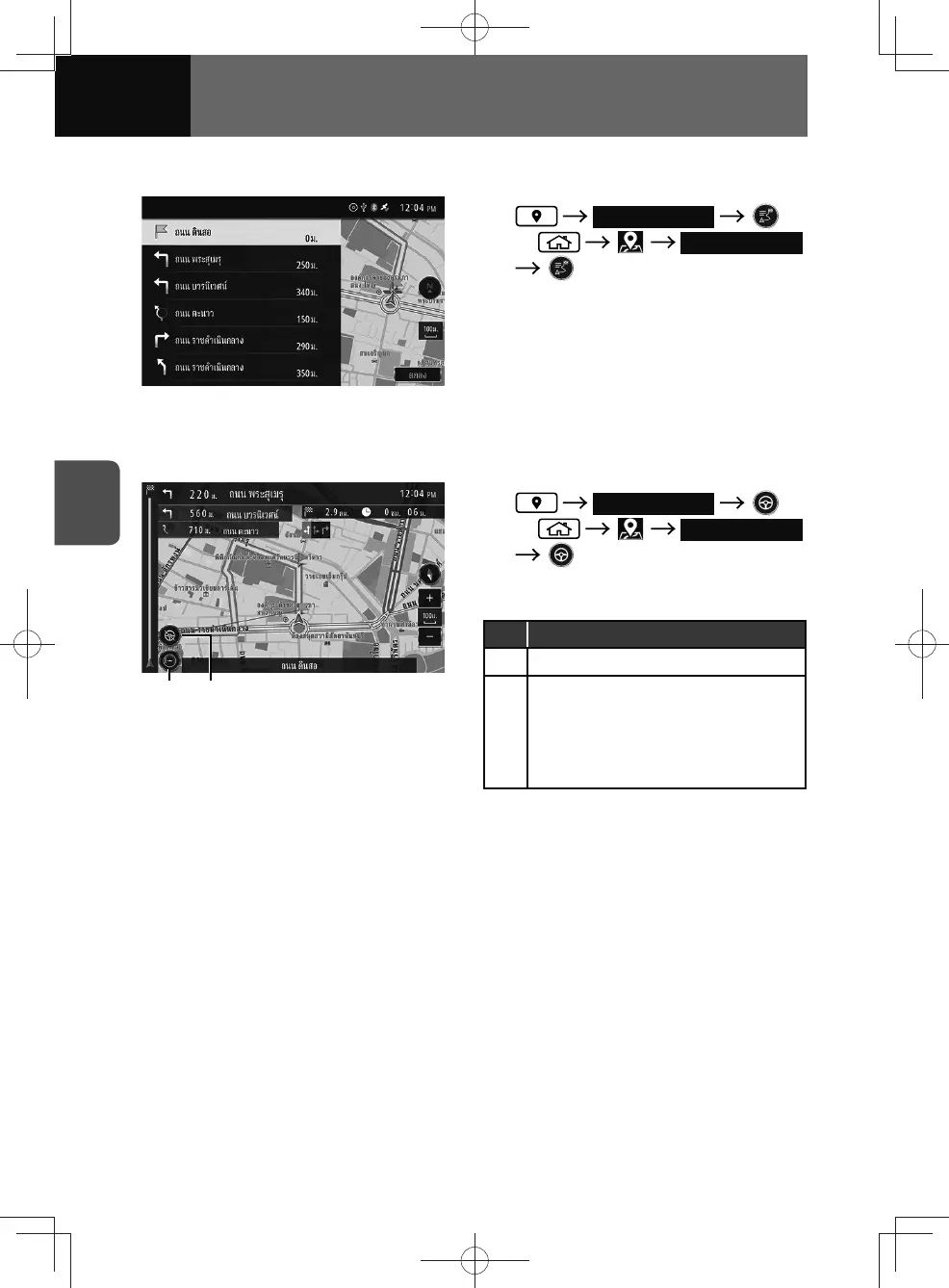
• Displays names of guide points,
distance to the destination and left/
right-turn information.
• Touch an item on the list, the map
screen around the selected location
is displayed.
Checking the route simulation
(2) (1)
1. Route Overview
or Route Overview
• Route simulation will start
automatically.
No. Function
(1) Stop the route simulation.
(2)
Change the speed of the route
simulation.
• Each time you touch the touch
screen button, the speed changes.
Three speeds are available.









 To Next Page