3-32
SETTINGS
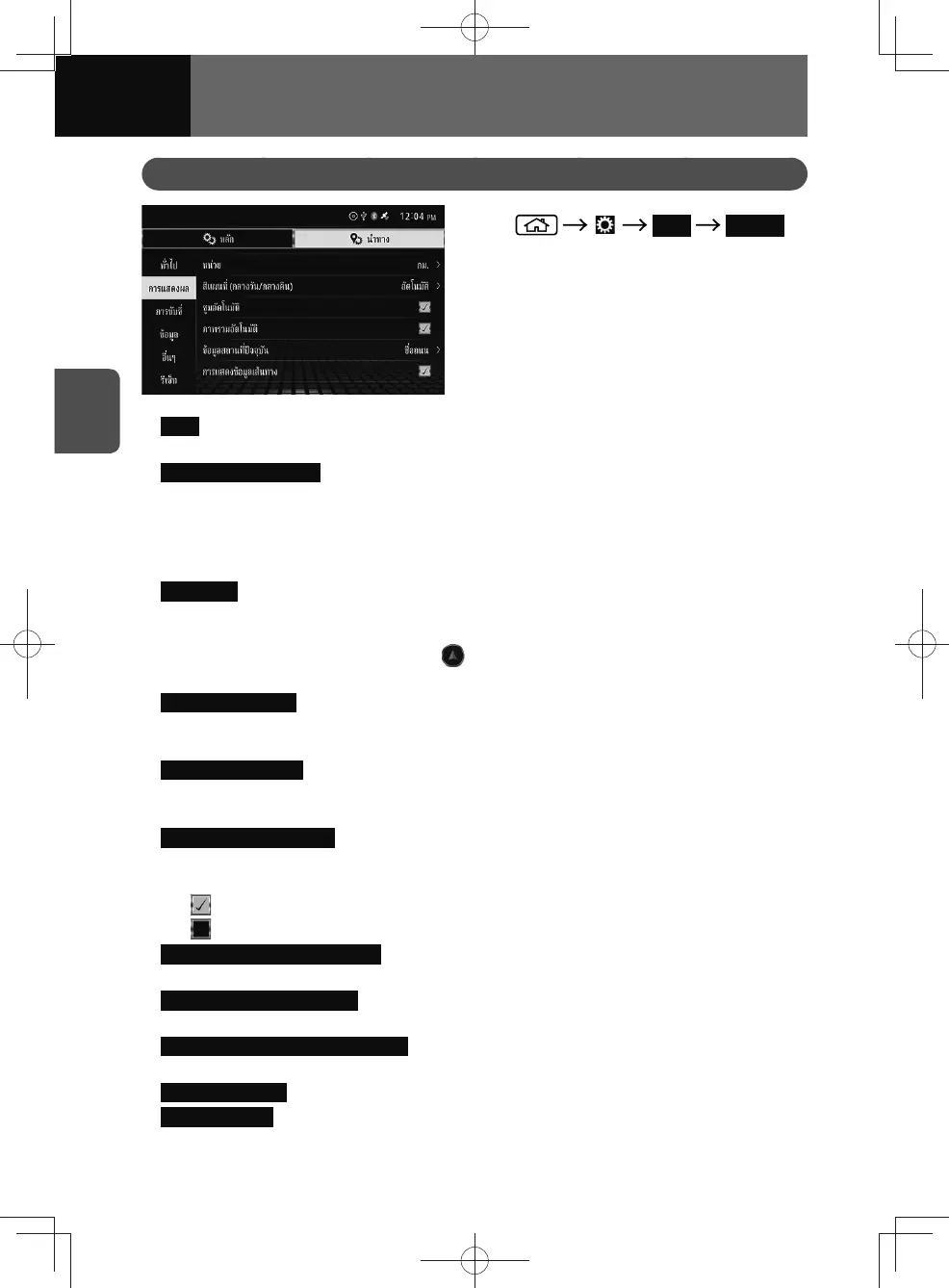
Display Settings
1. Navi Display
2. Touch the item you want to set.
• Units : You can select the unit of distance and speed displayed on your navigation
system.
•
Map Colour (Day/Night) : Adjusts screen brightness when sidelights are in use.
− "Auto": Changes the colours of the map between daytime and nighttime
according to whether the vehicle lights are on or off.
− "Daytime": Displays the map with daytime colours at all times.
− "Nighttime": Displays the map with nighttime colours at all times.
•
Auto Zoom : This setting enables switching to an enlarged map around the point
where your vehicle is approaching an intersection, entrance/exit of a expressway,
or junction. If the map scale is changed with the pinch in/out operation while using
the auto zoom function, by touching , the map scale returns to the size prior to
zooming in/out.
•
Automatic Overview : When on a expressway and the next guiding point is more than
3 km away, the scale of the 2D map is automatically reduced to display the entire
route. This setting can be turned on and off.
•
Current Location Info : You can select the information (e.g. current street name or
latitude and longitude along which your vehicle is travelling) displayed for the
current location.
•
Route Information Display : Information display during route guidance (next direction,
name of the upcoming street, distance to the next direction, travel time to the
waypoint/destination, distance to the waypoint/destination) can be set.
−
: Normally displayed during route guidance.
−
: Only displayed when approaching a guide point during route guidance.
•
Route Progress Indicator Display : You can select whether to display or hide Route
Progress Indicator.
•
Expressway Services Display : Displays service area information while driving on the
expressway. You can turn this function on and off.
•
Expressway Services Display Setting : You can select the information to be displayed in
the expressway services information.
•
Traffic Info Display : You can select whether to display or hide Traffic Info.
•
Traffic Line Blink : Switching this to ON causes traffic queues to blink on the display.



 To Next Page