Millipore System Documentation Set
20 Operating and Maintenance Manual Publication XITXSP121 P Rev.A
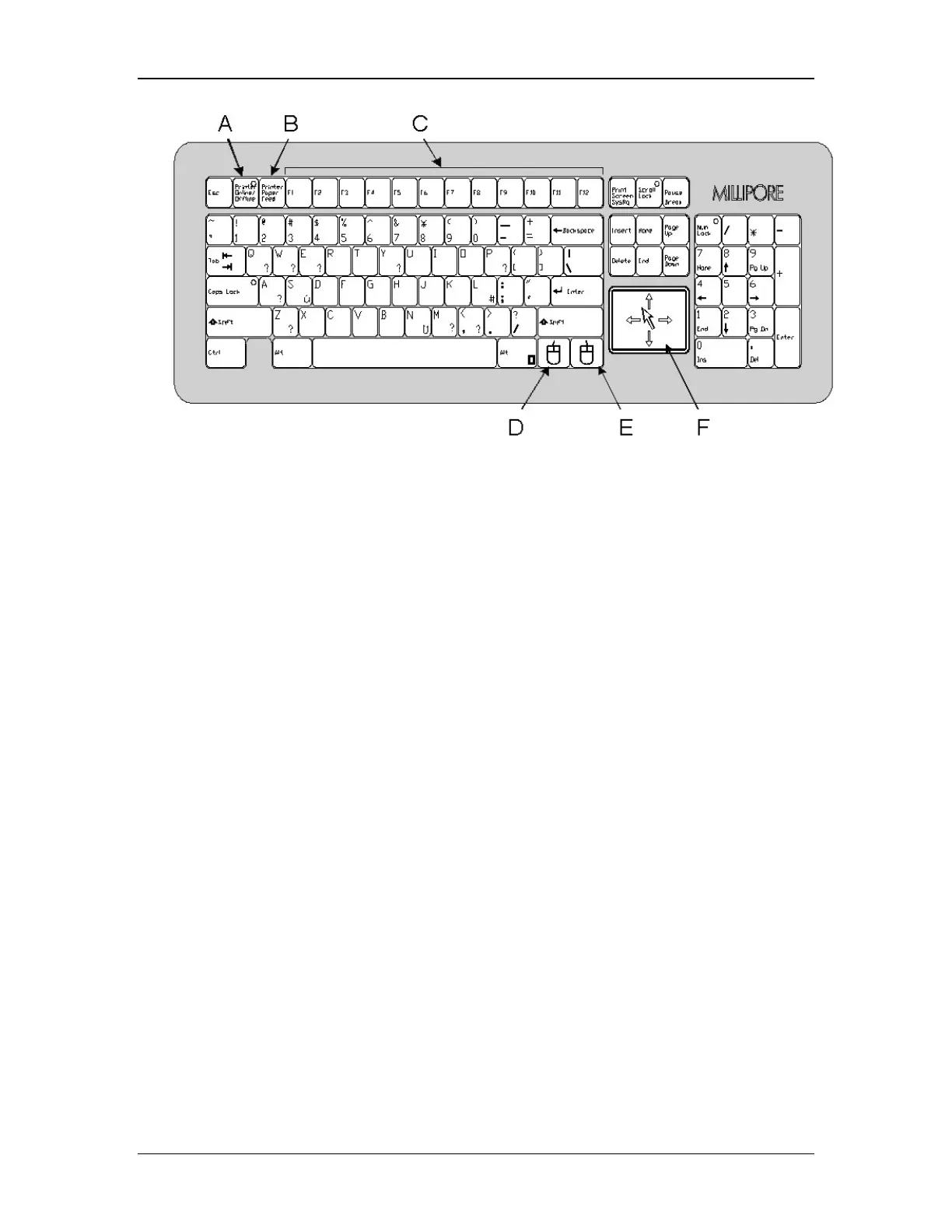
Diagram Key: A. Printer Online/Offline D. Left Mouse Button
B. Printer Paper Feed E. Right Mouse Button
C. Function Keys (F1-F12) F. Glide Plane
Figure 1: Keyboard
Glide Plane and Mouse Buttons
The built-in glide plane serves the same function as a standard mouse. To use, gently slide
your fingertip along the glide plane in the direction you wish to move the cursor. The left
and right buttons serve the same functions as a standard mouse (See Figure 1 for the
location of the glide plane and mouse buttons).
The glide plane can facilitate cursor movement across the screen.
• Slide your finger gently across the glide plane in the direction you want to move
the cursor along the screen
• Gently tapping the glide plane serves the same purpose as clicking the left mouse
button.
The mouse buttons serve the same functions as a standard mouse.
• Click the left mouse button to make a screen selection (or tap your finger once on
the glide plane).
• Double-click the left mouse button to enter commands (or tap your finger twice on
the glide plane).


 To Next Page