EasyManua.ls Logo

MUTOH spitfire 90 - Page 300

MUTOH spitfire 90
319 pages
Print Icon
To Next Page IconTo Next Page
To Previous Page IconTo Previous Page
Loading...
Spitfire – Maintenance Manual
300
AP-74096, Rev. 1.0, 09/06/05
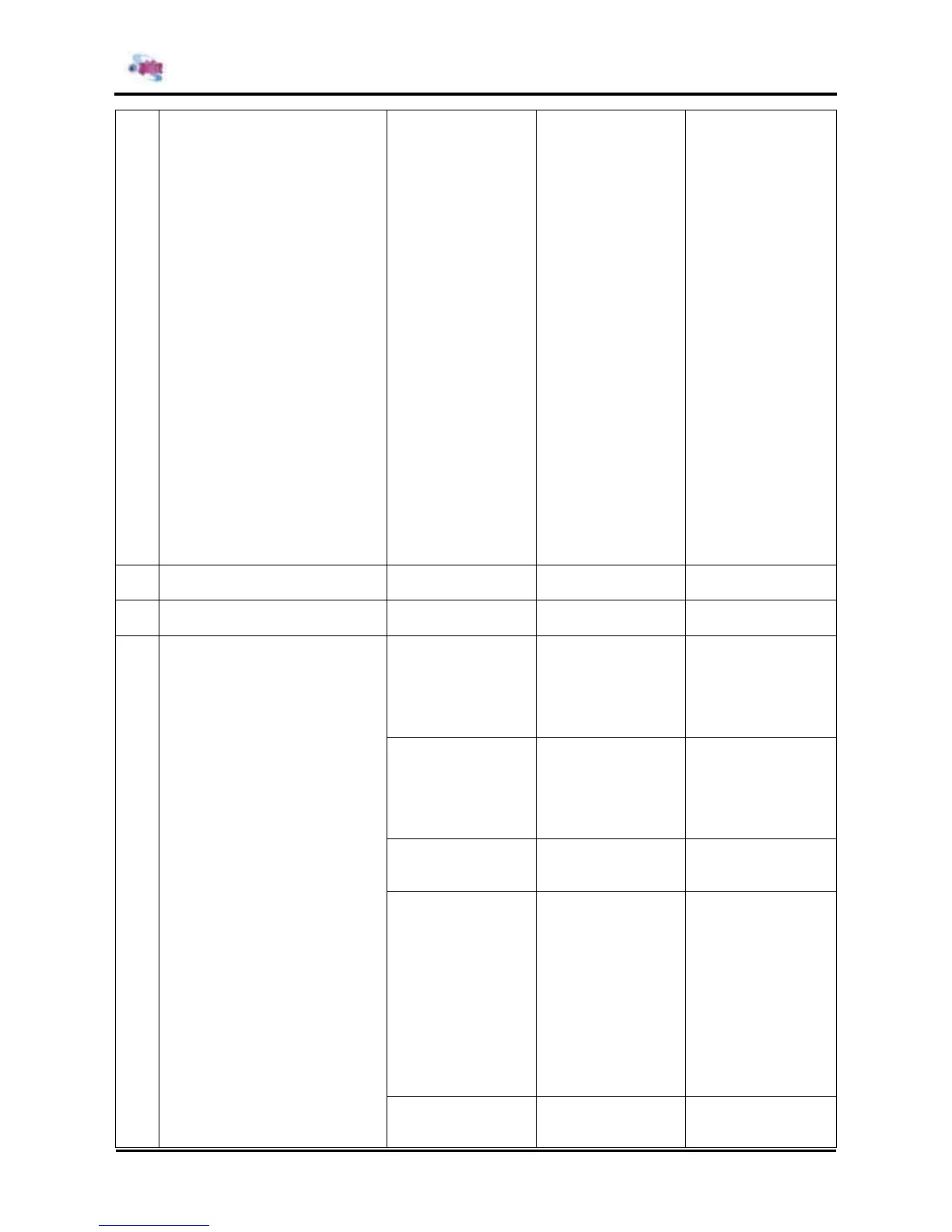
(2) Check if printing
began immediately
after ink
replenishment.
• The following
phenomena may
occur for the first
printing that is
processed
immediately after
ink replenishment.
• Faint lines are
drawn.
• White streaks
appear on the
printing.
• If these conditions
are observed,
perform cleaning a
couple of times
before printing, then
check the result.
• If cleaning does
not improve the
result, leave the
products for at least
several hours, redo
the cleaning
operation, then
check the results
again.
User’s Guide
9 Irregularities occur in the image
picture.
(3) Check the band
feed adjustments.
• Adjust the band
feed.
Band feed
correction menu
10 The lines in the CR direction
split.
(4) Check the head
adjustments.
• Adjust the head.
Head precision
adjustment
(5) Check if the
suction fans are
operating correctly
via “Test: Fan” of
the self-diagnostic
function.
• Check the
connections of the
following
connections.
• Mainboard : J111-
J116
Replacing the
suction fan
assembly.
(6) If the paper in
concern is roll
paper, check if the
scroller is rotating
smoothly.
• Make sure the
scroller receivers
are installed in the
correct position.
• Replace the rollers
of the scroller.
Replacing the
scroller R assembly.
Replacing the
scroller L assembly.
(7) Make sure hat
the PF belt tension
is adjusted correctly.
• Adjust the tension
of the PF reduction
belt.
PF deceleration
belt tension
adjustment.
(8) Check if the
pump is running
during the cleaning
operation.
• Check that the
connections of
Mainboard
connectors J160-
J161 are good.
• Replace the pump
motor.
• Replace the
Mainboard
assembly.
Replacing the
Mainboard
assembly,
HDD_Extension
board assembly,
HEAD_DRV board
assembly and
cooling fan
assembly
Replacing the
pump motor
assembly.
11 Black or white streaks occur in
printings.
(9) Check if he
nozzle face is wiped
correctly.
• Using the wiper,
wipe the nozzle face
well.
User’s Guide

Table of Contents

Related product manuals