316
Polyend Tracker+ Manual
System
13
NOTES
13.3 Emergency Firmware Update
Firmware updates are available from the Polyend portal for your registered
device. A reset button is provided, recessed behind the rear panel for
emergency situations . A reset can be performed if there are issues with the
update method or to clear Tracker+ issues but should not be used as a
regular process for updates.
▌ TRACKER+ & FIRMWARE RESET
1. Download the latest rmware. Access rmware updates for your device
from your registered account at Polyend.
2. Copy the downloaded .ptf rmware le into the /Firmware folder. This
can be found in the root directory of the SD Card. Also ensure any
previous update les remain in the rmware folder.
3. Insert the SD card into Tracker+.
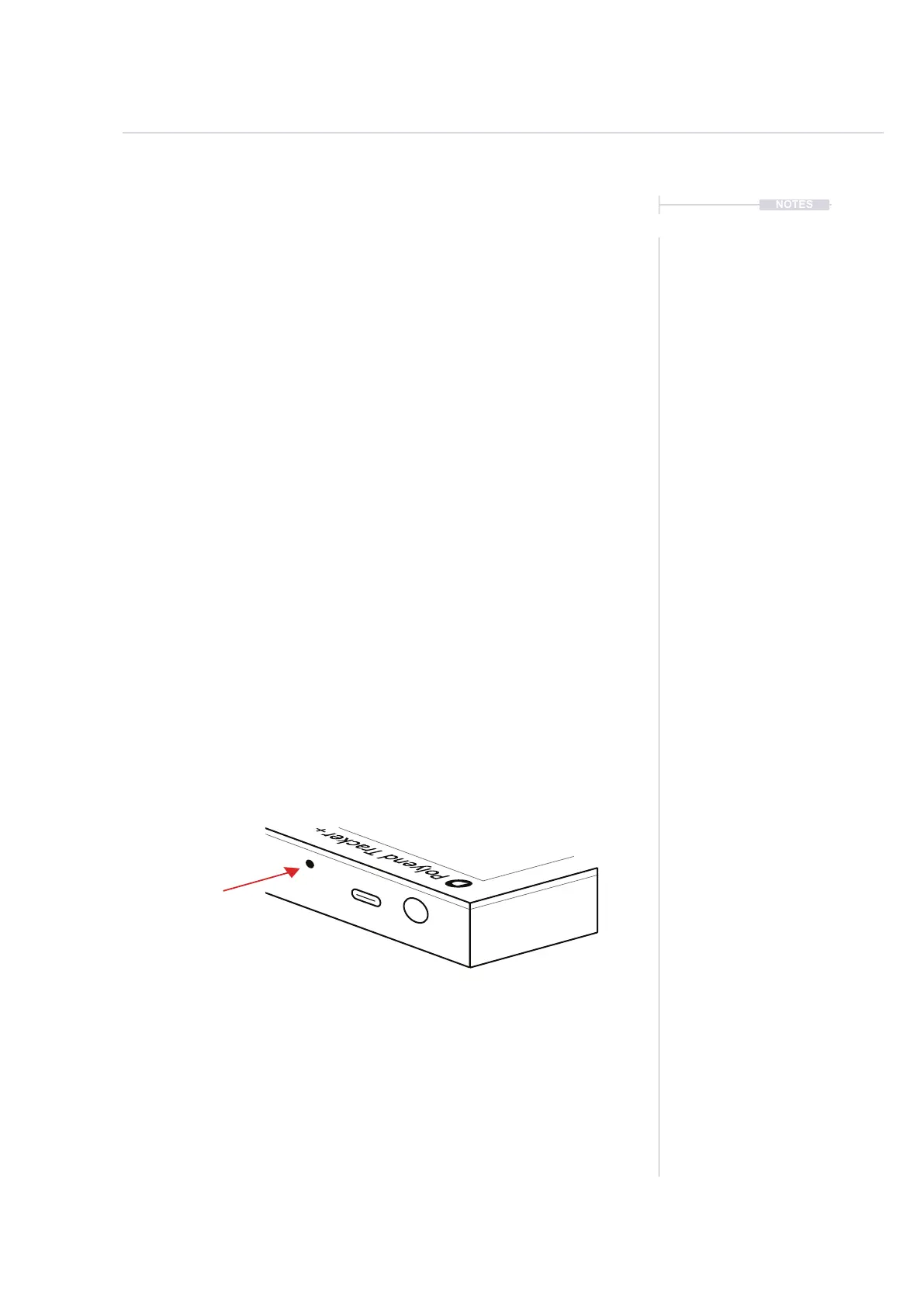
4. Use a pin or thin object to press the internal reset button. This is located
on the rear of the device behind the case next to the USB connection.
5. Tracker+ will reset and search the rmware folder on the SD Card. A
random rmware will be selected and installed in order to recover
Tracker+ to a working state. The install process is typically less than 1
minute.
Recessed reset button. Use a
pin or thin object to trigger reset
Rear Panel
Power
USB
The reset option is useful if any lock ups or freezing occurs on Tracker+. It is not necessary in these
situations to download a new OS. It is advised to keep a series ofcial, known good, rmware releases in the
/rmware folder. For example 1.5.0, 1.6.0, 1.4.0. That way steps 4-5 can be performed in case of issues and
a random update will be performed from a known state. A manual update in the ‘cong’ menu to select the
latest version can then follow.



 To Next Page