235
Polyend Tracker+ Manual
NOTES
Audio
8
8.10 Sample Editor Effects
The Sample Editor pages have more advanced destructive editing options.
A comprehensive range of effects can also be applied to affect the audio
either to correct or adjust or to create new sounds. Some effects are
applied directly, while others have parameters and settings
The preview option found in the selected effect sub-page will render the
effect and audition the sample with the effect applied. In the main ‘Sample
Editor’ Page, Pressing the Pads will preview the audio.
The effect is applied to the audio sample or the audio selected between the
start and end points.
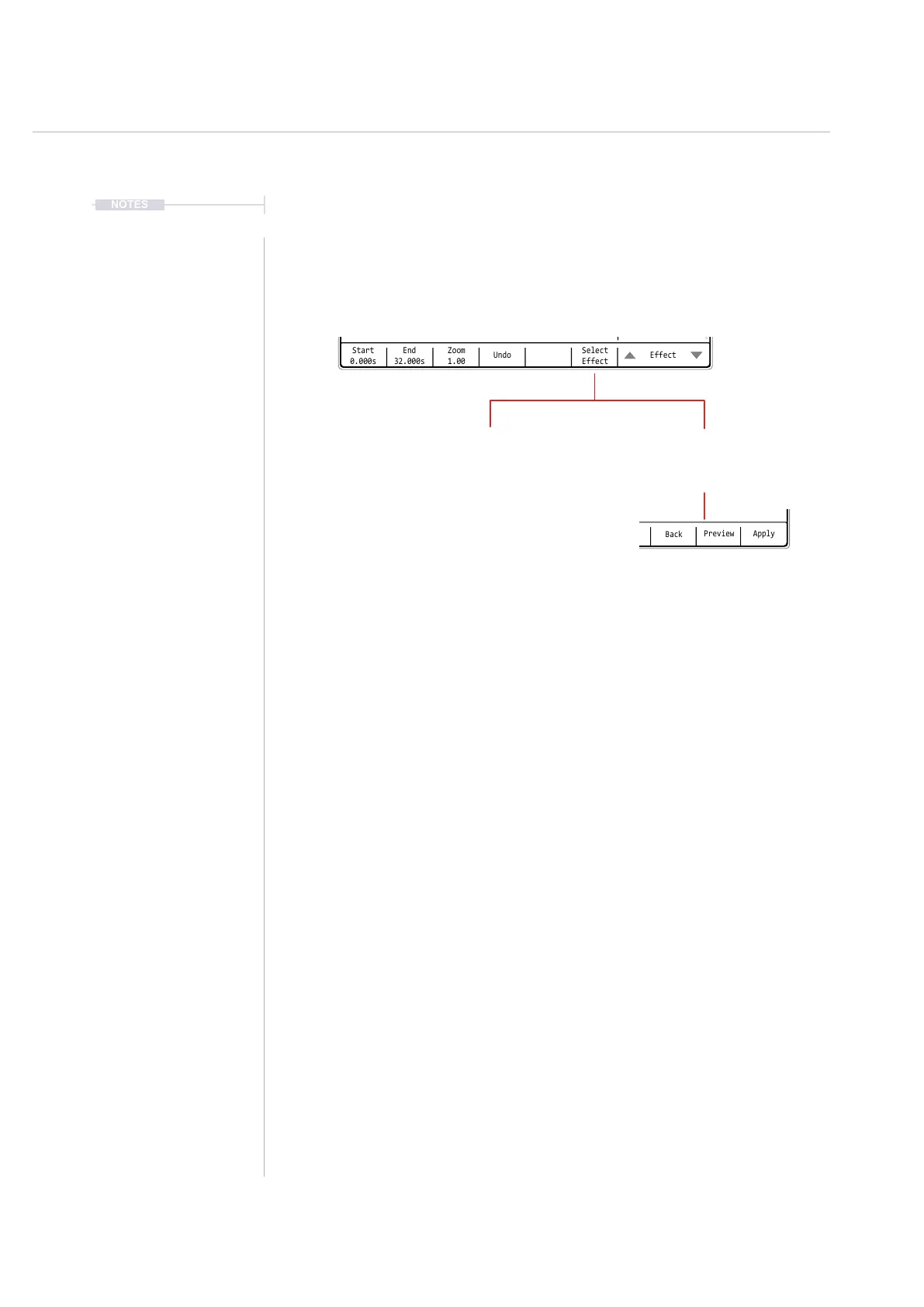
▌ APPLYING AN AUDIO EFFECT
1. Press [Sample Editor] to select the audio edit options page.
2. Press [Start] or [End] and Turn (Jog) to adjust the sample selection area
or leave the start and end at the edges to cover the complete sample.
3. Press [Effect], 7
th
or 8
th
Screen Button to navigate to the effect to apply.
4. With the desired effect highlighted, ie bounding box selection, press
[Select Effect] or [Apply], 6
th
Screen Button.
5. The effect will either be immediately applied by pressing ‘Apply’ or will
open the effect page if pressing ‘Select Effect’.
6. If the effect page parameters are available, adjust as desired using the
Screen Buttons and Jog control.
7. Press [Preview] 7
th
Screen Button to hear the newly affected audio.
8. Press [Apply], 8
th
Screen Button, to conrm and rendering the effect.
Select
Effect
Start
0.000s
Zoom
1.00
Undo
End
32.000s
Effect
Sample Editor
Normalizer
Overdrive
Limiter
Crop
Delay
Compressor
Reverse
Flanger
Bitcrusher
WT Smoother
Amplier
Equalizer
Chorus
Timestretch Beat
8.beats
Select Effect
Opens the parameter options
for the effect before
presenting the option to apply
Apply
Immediately applies the
selected effect. No parameter
settings are provided.



 To Next Page