76
Polyend Tracker+ Manual
NOTES
Sequencing Steps
5
5.3 Recording Mode
Steps are created by recording into the Pattern grid. There are two methods
of recording steps, rstly by manually programming steps at desired
intervals per track, some automated features will help in the workow. Also
real time live recording is possible using the 4 x 12 grid pads.
The selected step is navigated using the arrow keys and jog wheel. An
active step will have at least one of the four; note, instrument, FX1, FX2
elements shown. The currently selected step will have a green bounding
box displayed.
The selected step to edit in recording mode will be shown with a red
bounding selection box. Note that navigation functions will become edit
functions when in recording mode.
▌ TOGGLING RECORDING MODE ON/OFF
1. The default mode is for Tracker+ to play patterns and the currently
selected step indicated by the green bounding box.
2. Press [Rec] to toggle between playback and recording mode.
Recording mode is required to create, edit and congure steps in a
pattern. The bounding box is indicated red in recording mode.
3. (Jog) wheel navigation function will become an edit function in recording
mode. Any selected parameter - solid colour, can be changed in
recording mode with the jog wheel.
4. Hold the dedicated parameter button: Note, Instrument, FX1 or FX2 to
temporary select for choosing an option or quick tap to lock selection.
C5 40
----
P 25
C5 40
----
P 25
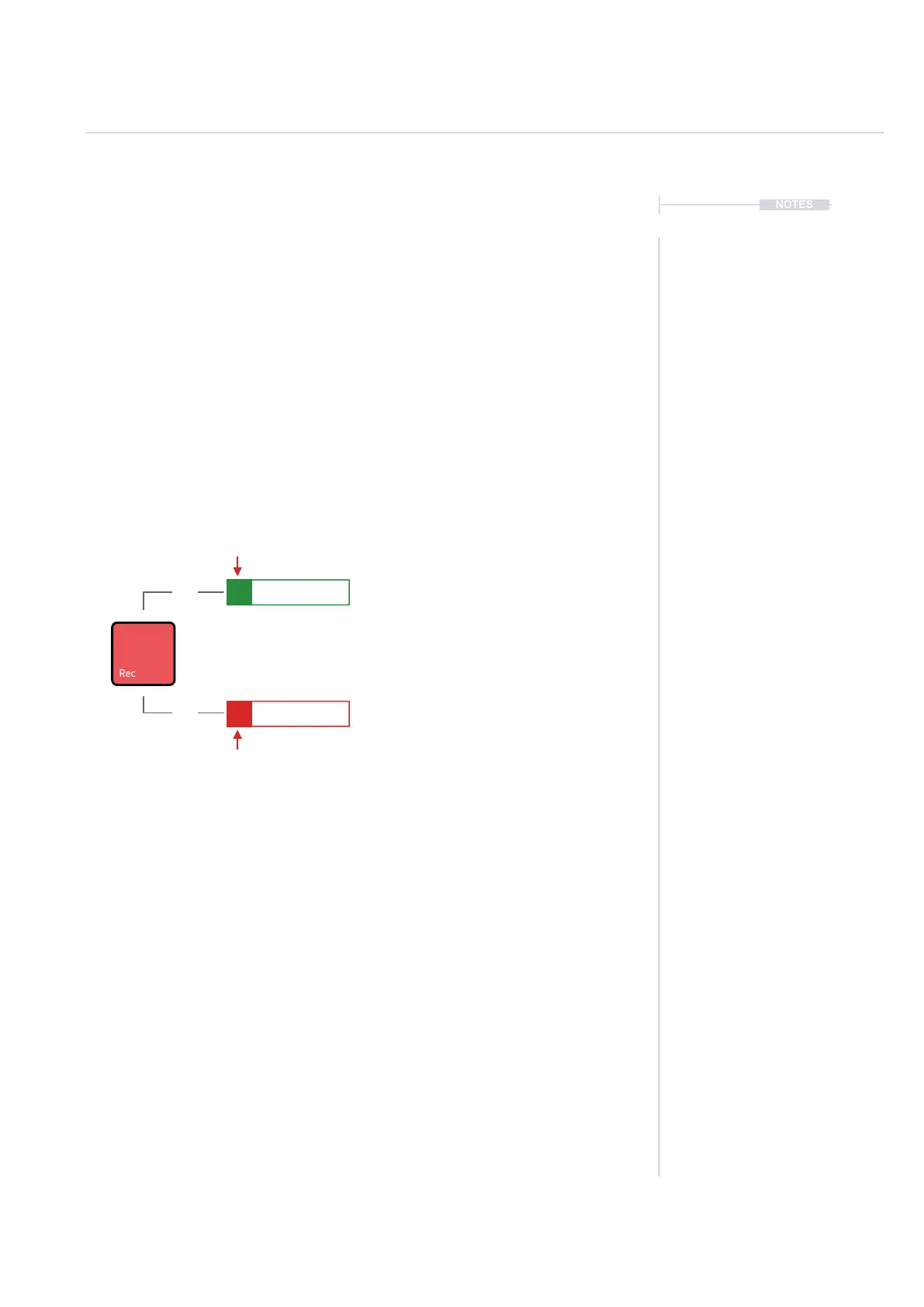
Press [Rec] to select recording mode, which allows editing of steps.
Pressing again reverts to normal play mode.
Green selection box: Normal playback mode.
Solid green box shows which parameter is selected using the dedicated
parameter selection buttons. Cant be edited in normal mode.
Red selection box: Recording mode, step editor.
Solid red box shows which parameter is selected using dedicated parameter
selection buttons and is therefore editable.
Quick Tap Dedicated Parameter Button to select specic parameter
On
Off



 To Next Page