DATA OVERWRITE SECURITY UNIT (B735)
B291/B295/B296/B297 SM
1-74
Important
• The numbers (B7355060/0.03, for example) in the diagnostic report must be the
same. (The ROM number and firmware version number change after the
firmware has been upgraded.)
• If the ROM numbers or version numbers do not match, this means that the DOS
unit type was incorrect (not "Type D". If this occurs:
1. Obtain the Type D DOS unit card or confirm that the DOS unit is Type D.
2. Replace the NVRAM on the controller board.
3. Insert the Type D DOS unit SD card in Slot 2.
4. Do the DOS unit installation procedure again.
4. Push [User Tools] and select System Settings> Administrator Tools> Auto
Erase Memory Settings> On.
5. Exit User Tools mode.
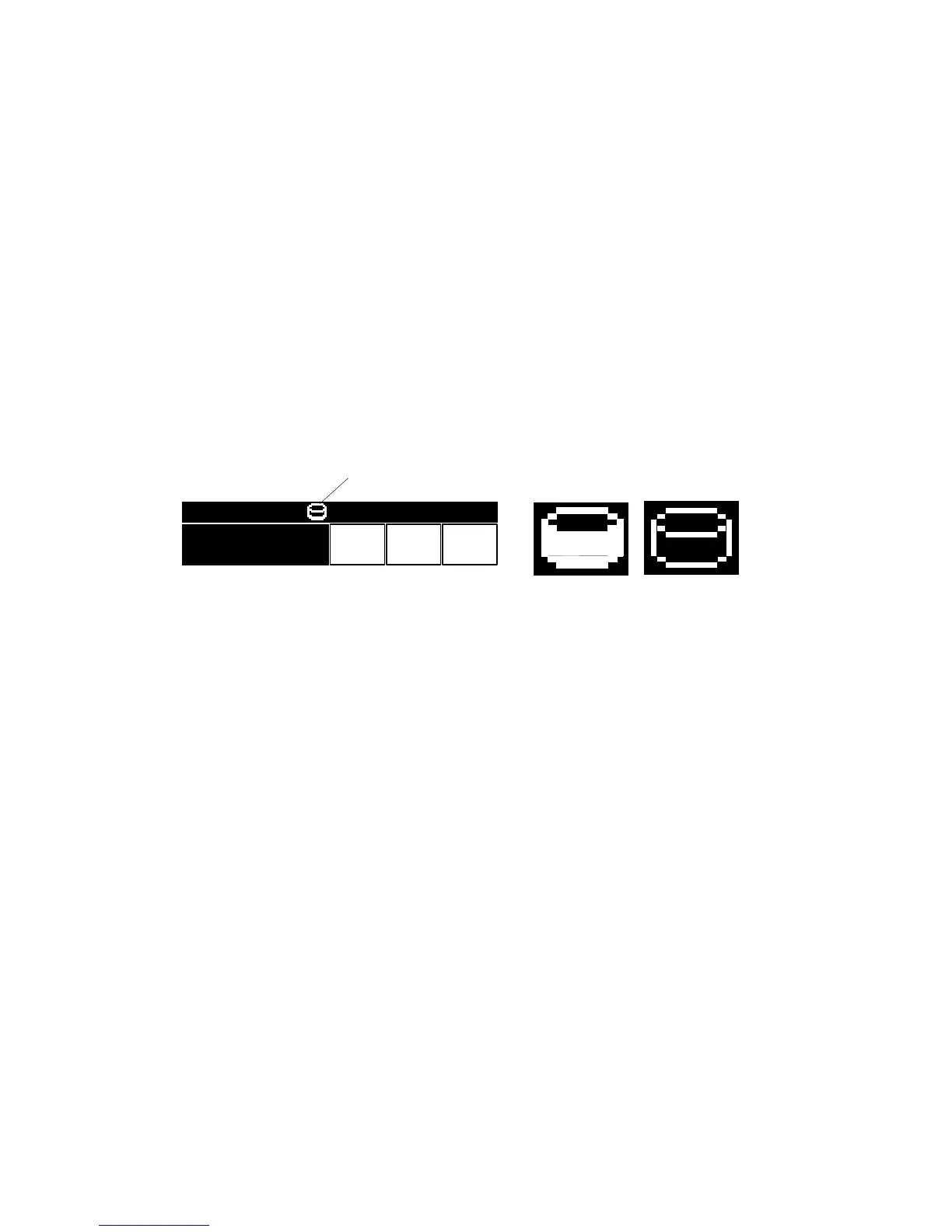
6. Check the display and make sure that the overwrite erase icon [A] is displayed.
7. Make a Sample Copy.
8. Check the overwrite erase icon.
• The icon [B] changes to [C] when job data is stored in the hard disk.
• The icon goes back to its usual shape [B] after this function has completed
a data overwrite operation to the hard disk.
9. Remove the Document Server and Scanner key-tops, and replace them with
the blank key-tops that are supplied with the kit.
B735I905.WMF
CopiesTotalOrigi
.
010
09/09/2003 14:13
B735I904.WMF
[B]
[C] [D]


 To Next Page
 Loading...