Page 41
STAT
IM
2000/2000S Service Guide
96-108639 Rev 3.0
2. Tools, Maintenance Schedules, Procedures and Testing
STATIM 2000/2000S/2000 G4 Service Guide
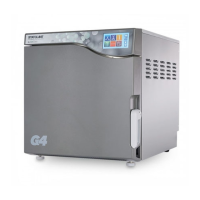
Upgrading the firmware on STAT
IM
G4 units
To upgrade the firmware, use a USB drive and proceed as follows:
1. Download new firmware (available from SciCan upon request).
2. Insert a clean USB stick (containing no files) into your computer
3. Save the attached zip files (SL00RXXX.zip, SD00RXX.zip) to your desktop and extract the files
contained in the zip files directly to the USB stick.
4. Power OFF the STATIM G4 unit.
5. Remove the USB stick from your computer and insert into your STATIM G4 USB port located
on the front left of the unit.
6. Power ON the STATIM G4 unit.
7. Wait for approximately 10 minutes while the firmware is upgraded. (NOTE: During this process
the screen will be blank. To complete the firmware upgrade, the G4 will restart automatically.
DO NOT REMOVE THE USB STICK UNTIL THE END OF STEP 13.
8. Once you see the standard screen, browse to the User Setup menu.
9. Browse to the Themes button. Press the Themes button.
10. Select Upgrade Theme.
11. Select Upgrade.
12. Wait for approximately 24 minutes. (Note: During the first part of this step, text will scroll in
a box on the screen. During the second part of this step, the unit will show a screen indicating
that a firmware upgrade is in progress and advise you NOT to power OFF the unit. The unit will
restart automatically after the theme upgrade is completed.
13. Once the LCD displays the standard screen, the process is complete.
14. Remove the USB stick.


 To Next Page