Operating Instructions Model 100E Instruction Manual
122 045150102 Rev XB1
The uniform nature of the output messages makes it easy for a host computer to parse
them into an easy structure. Keep in mind that the front panel display does not give any
information on the time a message was issued, hence it is useful to log such messages
for trouble-shooting and reference purposes. Terminal emulation programs such as
HyperTerminal can capture these messages to text files for later review.
6.11.3. Remote Access by Modem
The M100E can be connected to a modem for remote access. This requires a cable
between the analyzer’s COM port and the modem, typically a DB-9F to DB-25M cable
(available from T-API with part number WR0000024).
Once the cable has been connected, check to make sure the DTE-DCE is in the correct
position. Also make sure the M100E COM port is set for a baud rate that is compatible
with the modem, which needs to operate with an 8-bit word length with one stop bit.
The first step is to turn on the MODEM ENABLE communication mode (Mode 64, Section
6.9.6). Once this is completed, the appropriate setup command line for your modem can
be entered into the analyzer. The default setting for this feature is
AT Y0 &D0 &H0 &I0 S0=2 &B0 &N6 &M0 E0 Q1 &W0
This string can be altered to match your modem’s initialization and can be up to 100
characters long.
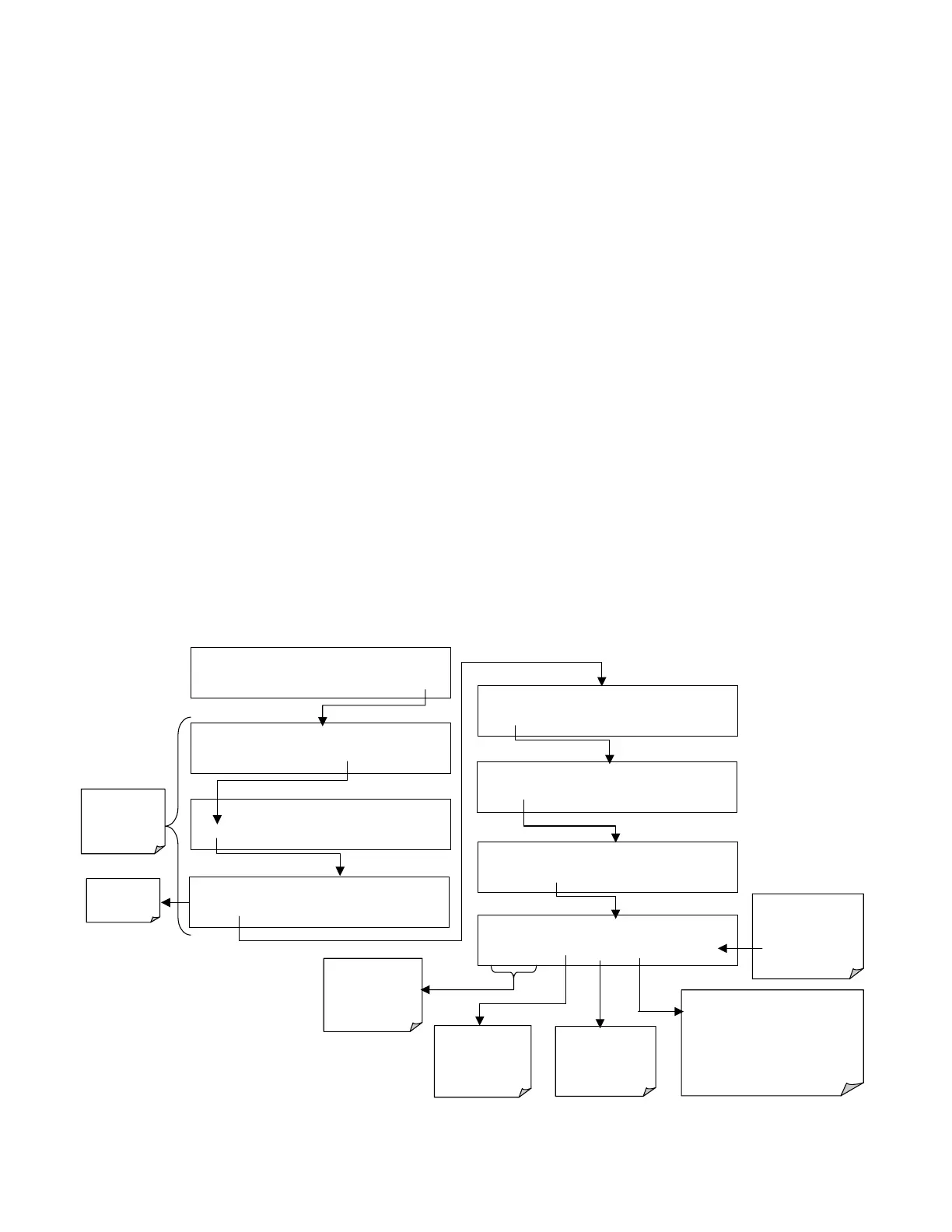
To change this setting press:
SETUP X.X
COMMUNICATIONS MENU
ID
COM1
COM2
EXIT
Select which
COM Port is
tested
SETUP X.X
PRIMARY SETUP MENU
CFG DAS RNGE PASS CLK
MORE
EXIT
SETUP X.X SECONDARY SETUP MENU
COMM
VARS DIAG EXIT
SAMPLE* RANGE = 500.000 PPB SO2 =X.XXX
< TST TST > CAL
SETUP
EXIT returns
to the
previous
menu
SETUP X.X
COM1 MODEM INIT:AT Y
∅
&D
∅
&H
<SET SET>
EDIT
EXIT
SETUP X.X COM1 MODEM INIT:
[A]
T Y∅ &D∅ &H
<CH CH> INS DEL [A]
ENTR EXIT
SETUP X.X COM1 MODE:0
SET>
EDIT EXIT
SETUP X.X COM1 BAUD RATE:19200
<SET
SET>
EDIT
EXIT
ENTR
accepts the
new string and returns
to the previous menu.
EXIT
ignores the new
string and returns to
the previous menu.
The
<CH
and
CH>
keys move the
[ ]
cursor left and right
along the text
string
The
INS
key
inserts a character
before the cursor
location.
Press the
[?]
key
repeatedly to cycle through the
available character set:
0-9
A-Z
space ’ ~ !
# $ % ^ & * ( ) - _ =
+[ ] { } < >\ | ; : , . / ?
The
DEL
key
deletes a character
at the cursor
location.



 To Next Page