6: PATHPILOT INTERFACE OVERVIEW
l Create work offsets.
For information, see "Set Work Offsets" (page169).
l Understand how you're jogging the machine.
For information, see "View the Active Axis to Jog"
(page145); "View the Current Machine Position"
(page146); "View the Distance to Go" (page147).
l Quickly determine which G-code modes are active.
For information, see "View the Active G-Code Modes"
(page147).
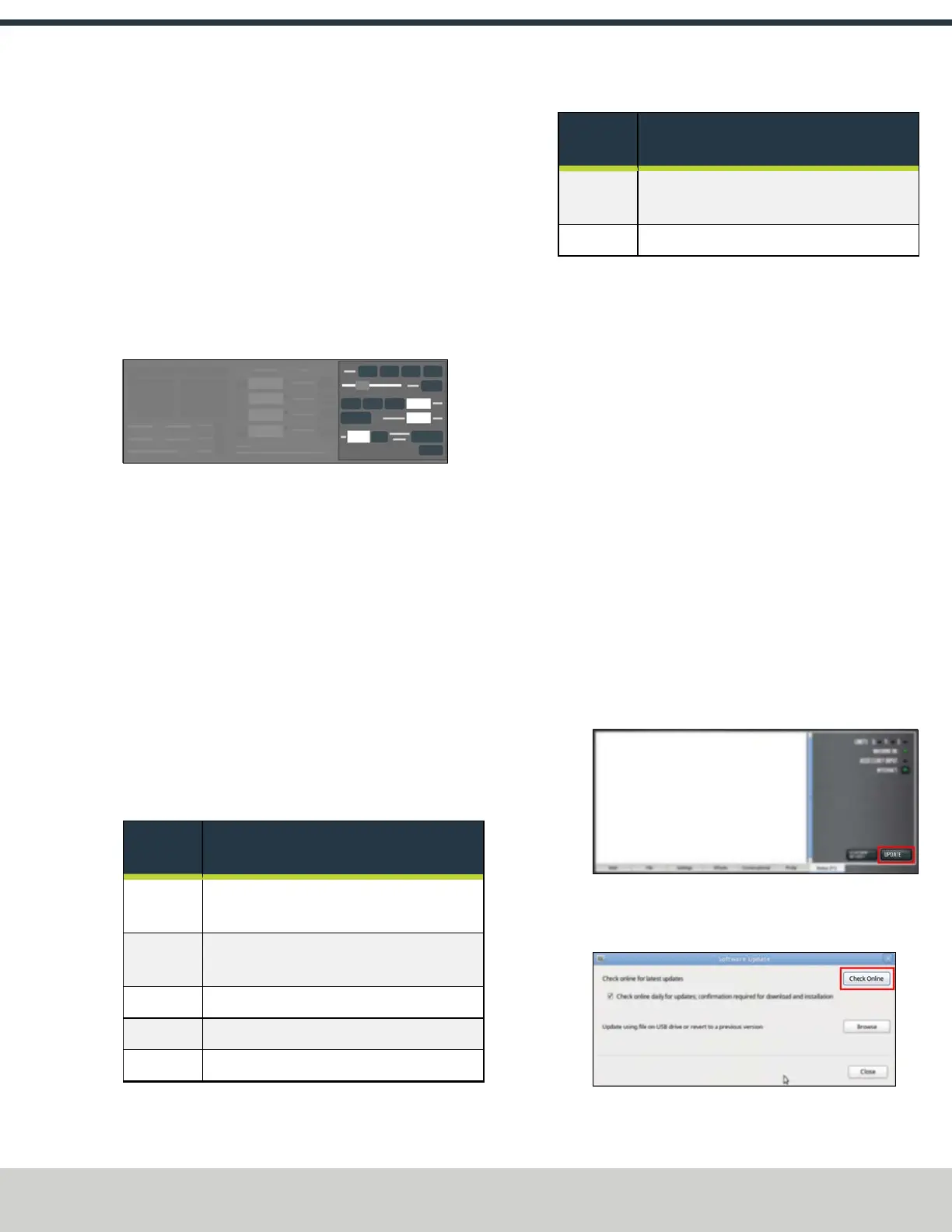
6.3.3 Manual Control Area
Figure 6-13: Manual Control area.
From the Manual Control area, you can do the following
activities either before starting or after running a G-code
program:
l Move the machine axes.
For information, see "Jog the Machine" (page162).
l Change the spindle speed or feed rate.
For information, see "Change the Spindle Speed"
(page150); "Change the Feed Rate" (page149).
l View or edit information about the current tool.
For information, see "Change the Tool Number"
(page150); "Use a G30 Position" (page150) "View the
Tool Length" (page151).
6.4 KEYBOARD SHORTCUTS
The following table lists the keyboard shortcuts in PathPilot.
Keyboard
Shortcut
Use to...
Alt+E Edit the currently loaded G-code program
(from any tab in the PathPilot interface)
Alt+Enter Use the Manual Data Input (MDI) Line
DROfield
Alt+F Use the coolant function
Alt+R Start a program
Esc Stop a program
Keyboard
Shortcut
Use to...
Shift+Alt+E From the Main tab, quickly edit a G-code
program with conversational programming
Space Bar Feed hold the machine
6.5 MANAGE PATHPILOT VERSIONS
You don't need to install updates sequentially. You can update
from any previous version to the current version of PathPilot.
Depending on what you want to do, refer to the following
sections:
l "Download and Install an Update File from the
Controller" (below)
l "Install an Update File from a USB Drive" (on the next
page)
l "Install a Previous Version of an Update File" (on the
next page)
6.5.1 Download and Install an Update File from the
Controller
1. Confirm that the PathPilot controller is powered on and
out of Reset mode.
2. Downloading and installing an update file requires an
Internet connection. From the Status tab, confirm that
the Internet button LEDlight is on. (To configure the
network, select the LED light.) Then, select Update.
Figure 6-14: Update button on the Status tab.
3. From the Software Update dialog box, select Check
Online.
Figure 6-15: Software Update dialog box.
©Tormach® 2024
Specifications subject to change without notice.
Page 113 UM10811: 1500MX Operator's Manual (Version 0424A)
For the most recent version, see tormach.com/support


 To Next Page