7: PATHPILOT TOOLS AND FEATURES
Enable Automatic Updates
Note: Automatic updates require an internet
connection. If you haven't yet enabled it, go to
"Enable an Internet Connection" (page135).
If desired, you can enable automatic updates for PathPilot.
To enable automatic updates:
1. From the PathPilot interface, on the Status tab, select
Update.
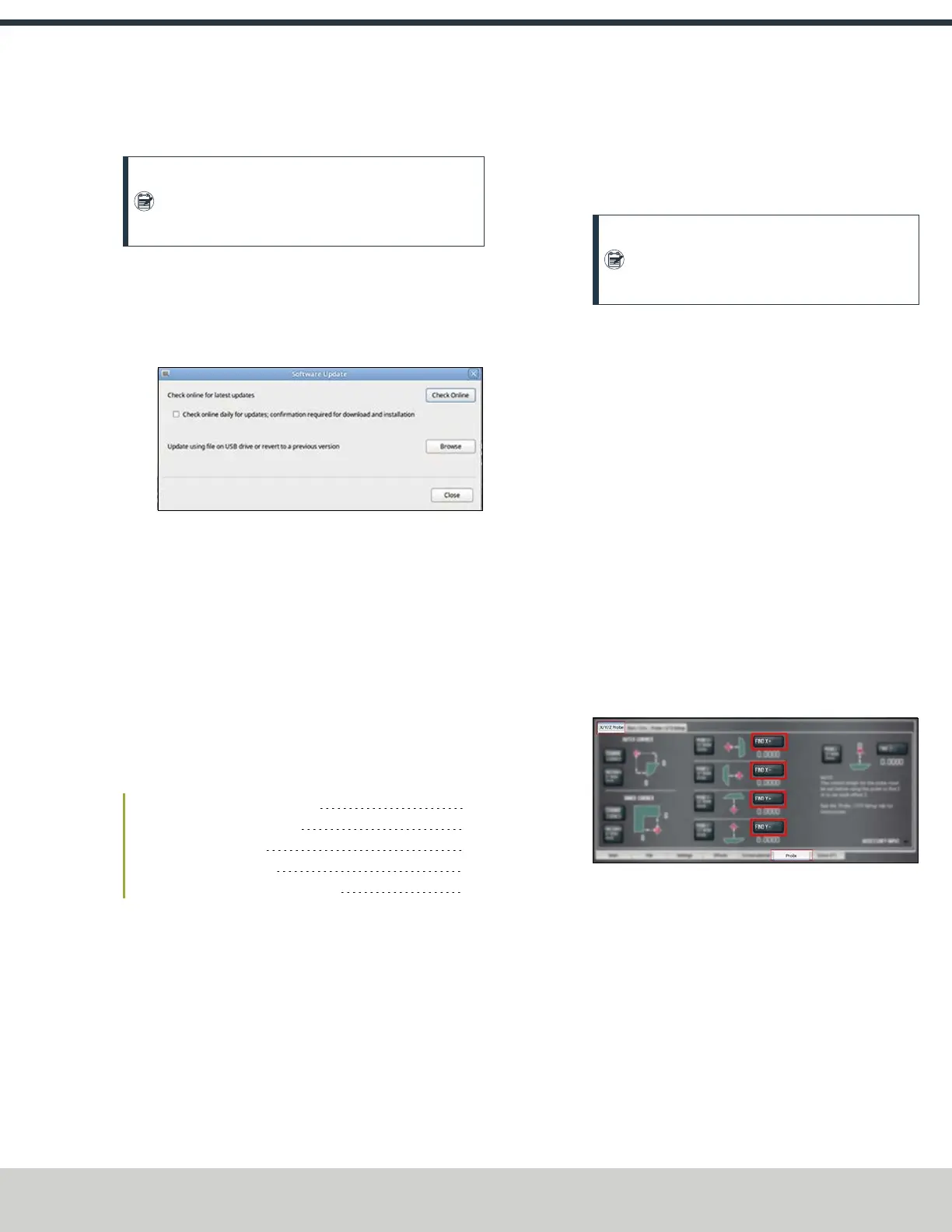
The Software Update dialog box displays.
Figure 7-37: Software Update dialog box.
2. From the Software Update dialog box, select the Check
online daily for updates; confirmation required for
download and installation checkbox.
3. Select Close.
When future updates are available, the Status tab
displays a notification.
7.3 SET UP G-CODE PROGRAMS
Before running a G-code program, you must first make sure
that the machine is properly set up for the specific G-code
program.
7.3.1 Use a Probe with PathPilot 137
7.3.2 Set Tool Length Offsets 139
7.3.3 Set Work Offsets 143
7.3.4 View Work Offsets 144
7.3.5 View Available G-Code Modes 144
7.3.1 Use a Probe with PathPilot
Use the Probe tab in the PathPilot interface to automate
functions with a probe.
Set Up the Probe
Before using the functions on the Probe tab, you must first do
the following:
1. Verify that tool number 99 (the probe tool) is in the
spindle.
2. Disable the spindle to prevent any accidental spindle
starts with the probe in the spindle.
3. Verify that the feed rate is appropriate for probing
moves.
Note: All probing moves occur at a feed rate
specified by the DROfields on the Probe Setup
tab.
4. Press the probe tip and make sure that, from the
PathPilot interface, on the Probe tab, the Accessory Input
light comes on.
This indicates that the probe polarity is correctly
specified.
If the Accessory Input light does not come on, you must
change the probe polarity setting. For information, see
"Specify Probing and Tool Measuring Options"
(page134).
Use a Probe to Find a Feature's Location
To find the location of a workpiece or vise in the current work
offset coordinates:
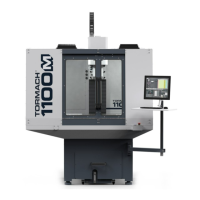
1. From the PathPilot interface, on the Probe tab, select the
X/Y/Z Probe tab.
2. Position the probe near the workpiece or vise.
3. One at a time, select Find X+, Find X-, Find Y+, Find Y-,
or Find Z-.
Figure 7-38: Probe tab.
The axis is probed, and the location of the probed
surface is displayed.
Use a Probe to Set Work Offset Zeroes
You can set the work offsets of a workpiece or vise jaw using a
probe.
Set the X and Y Work Offset Zero on the Corner of a
Feature
1. From the PathPilot interface, on the Probe tab, select the
X/Y/Z Probe tab.
©Tormach® 2024
Specifications subject to change without notice.
Page 137 UM10811: 1500MX Operator's Manual (Version 0424A)
For the most recent version, see tormach.com/support


 To Next Page