Admin Command Use to...
ADMIN KEYBOARD
Customize the PathPilot controller's
keyboard layout.
ADMIN MEMORY
Determine how much total RAM is on
your controller.
ADMIN MOUSE
Change the mouse preferences, like
pointer speed and right- or left-hand
button mapping
ADMIN NETWORK
Configure a Wi-Fi network.
ADMIN
OPENDOORMAXRPM
Change the maximum spindle speed
with the spindle cabinet door open,
when using the optional Enclosure
Door Switch Kit.
ADMIN SETTINGS
BACKUP
Create a backup of tool offset and
fixture information to store
externally.
ADMIN SETTINGS
RESTORE
Restore tool offset and fixture
information backup from an external
location.
ADMINTOOLTIP
DELAYMS
Set the milliseconds prior to
displaying the tooltip (and then again
for the expanded tooltip). The default
is 1200 milliseconds.
ADMIN TOOLTIP
MAXDISPLAYSEC
Limit the amount of time the
expanded tooltip displays. The
default is 15 seconds.
ADMIN
TOUCHSCREEN
Configure the optional Touch Screen
Kit.
7.5.13 Copy Recently Entered Commands
1. From the MDILine DROfield, press either the
UpArrowkey or the DownArrow key.
The previously entered command displays.
2. You must press the Enter key to execute the command.
To abandon the command, press Esc.
For information, see "Manually Enter Commands" (on the
previous page).
7.5.14 Limit G30 Moves
You can limit G30 moves so that only the Z-axis moves. For
information, see "About G30" (below).
To limit G30 moves:
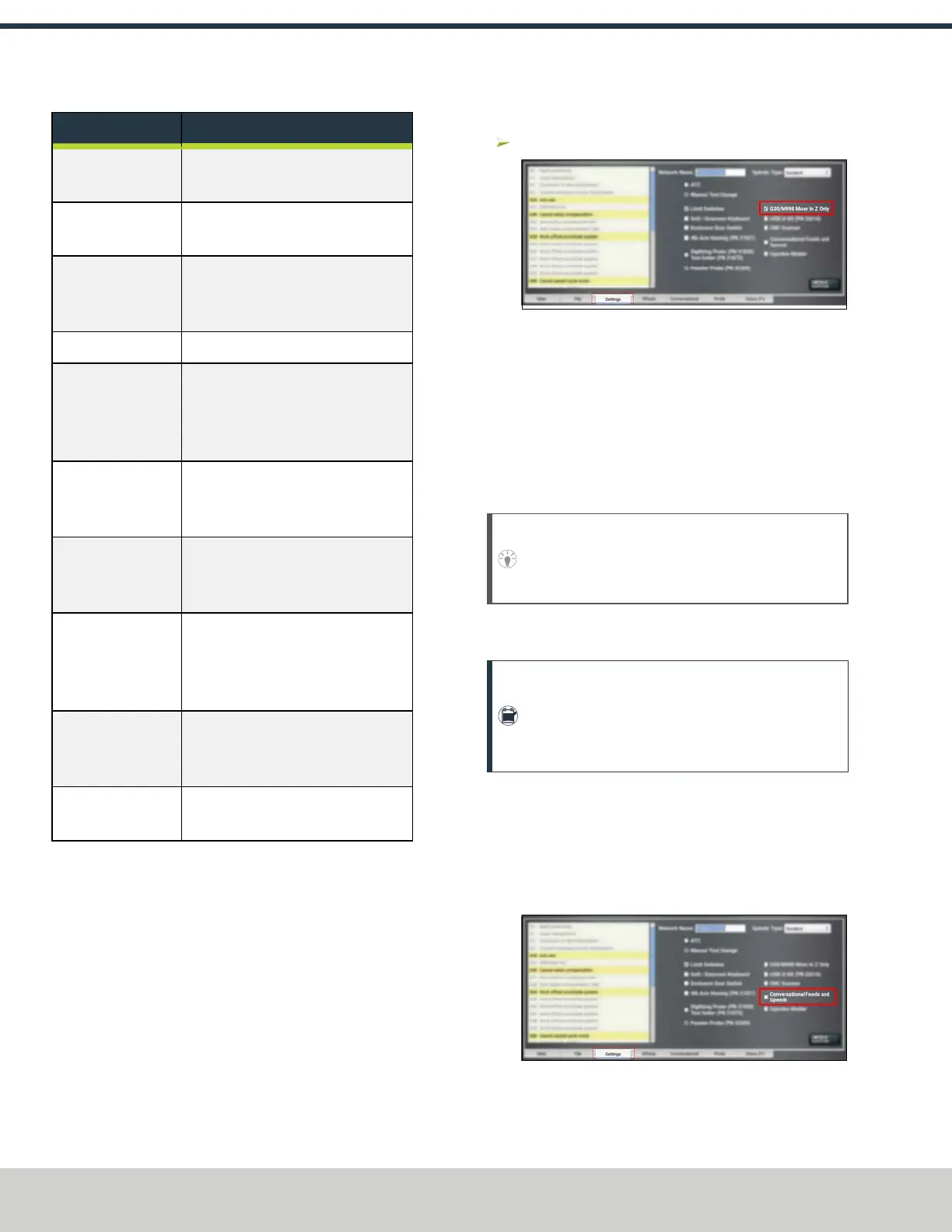
From the Settings tab, select G30/M998 Move in ZOnly.
Figure 7-88: Settings tab.
About G30
A G30 command in a G-code program moves the machine to a
preset position. For more information on setting a G30
position, see "Use a G30 Position" (page150).
Use a G30 move to start a coordinated movement of the axes.
You can limit the movement to only the Z-axis. For
information, see "Limit G30 Moves" (above).
Tip! It's useful to program a G30 move right before a
tool change so that the machine can jog to a safe tool
change position.
7.5.15 Use Feeds and Speeds Suggestions
Note: Calculating feeds and speeds requires that
PathPilot has relevant details about the tooling. If you
haven't yet done so, go to "Create Tool Descriptions"
(page154).
You can use PathPilot to automatically calculate feeds and
speeds: from the Conversational tab, in the Conversational
DROs group, select a material, a sub-type, and a tool.
1. If you haven't yet done so, enable the conversational
feeds and speeds setting. From the Settings tab, select
Conversational Feeds and Speeds.
Figure 7-89: Settings tab.
©Tormach® 2024
Specifications subject to change without notice.
Page 152 UM10811: 1500MX Operator's Manual (Version 0424A)
For the most recent version, see tormach.com/support
7: PATHPILOT TOOLS AND FEATURES


 To Next Page