4 Using 2D Guidance in theField
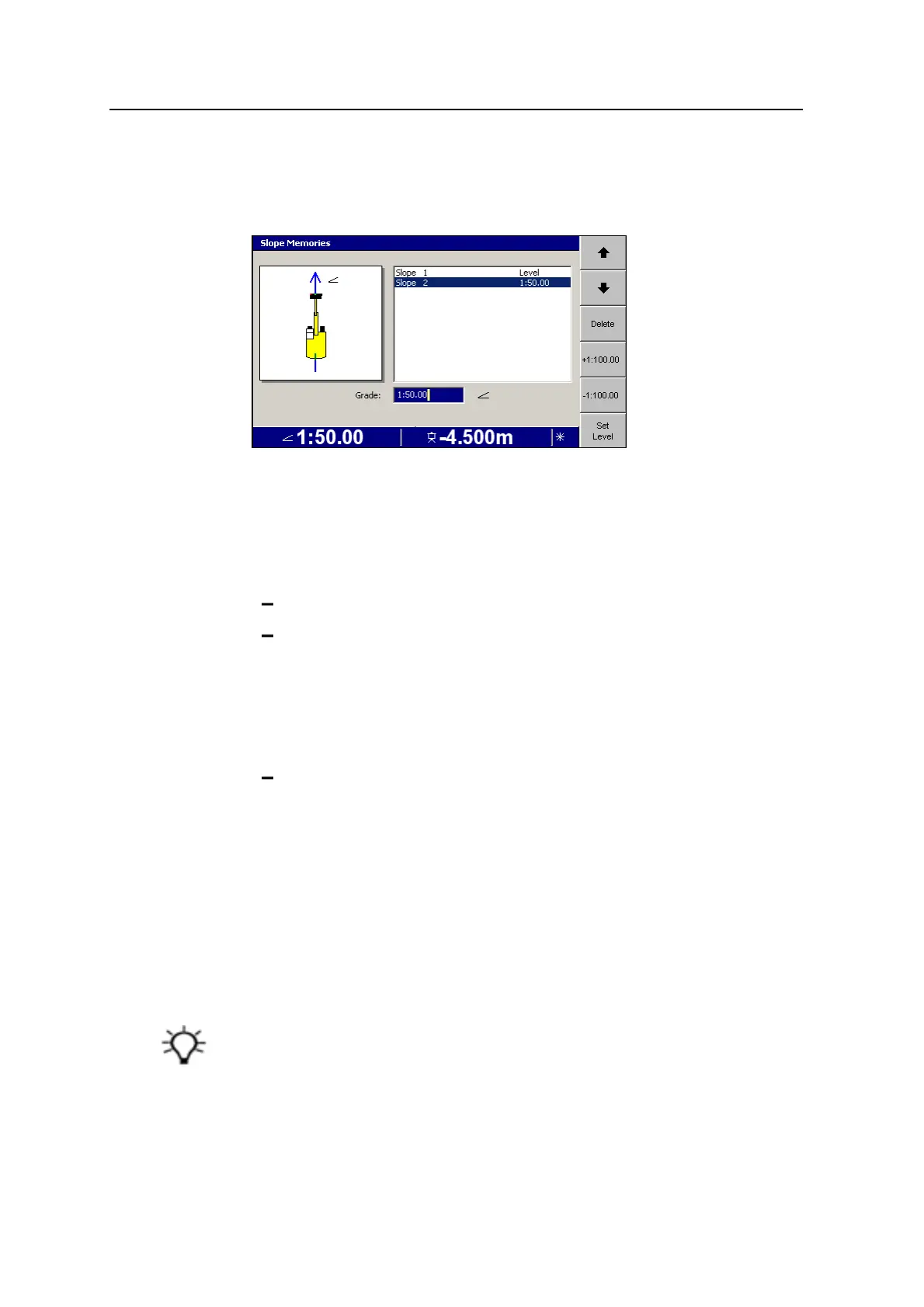
Creating a new slope model
1. From any guidance screen, press and hold Slope.
Note – You can also access Slope Memories by pressing Slope Memories from
the Guidance Method dialog.
2.
Press J until the highlight bar moves past the last item in the current list. A
new slope model is created, with a slope of zero.
3. Use any of the following tools to set the slope:
Edit the Slope field directly
Press +1:100.00 or –1:100.00 to add or subtract the value from the current
slope
Note – The actual softkey labels displayed depend on the
increment/decrement values that have been set and the units selected. For
more information on setting the increment/decrement values, see 3.9
Setting depth and slope increment values.
Press Set Level to set the slope to zero
4.
To confirm the changes, press \; to exit without saving the changes, press
=.
Editing a depth or slope model
1. Select a depth or slope model from the Depth Memories or Slope Memories
dialog.
2. Edit the model, and save changes, using the tools described in Creating a new
depth model, page 83 or Creating a new slope model, page 84.
Tip – You can also save changes by pressing I or J. This enables you to edit a
number of designs in succession without leaving the dialog.
84 GCS900 Grade Control System for Excavators Operator's Manual



 To Next Page