EasyManua.ls Logo

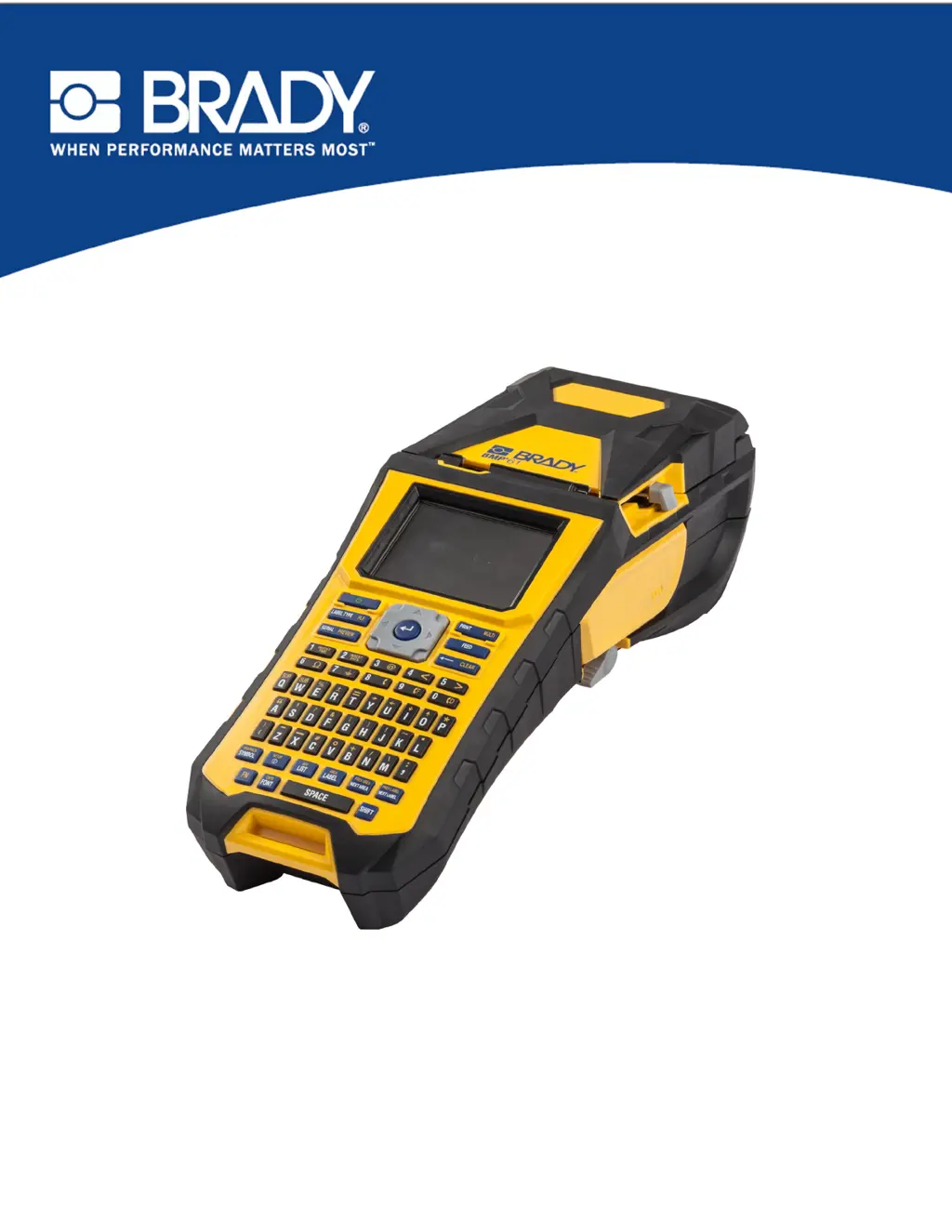
Brady BMP 61 - User Manual

Brady BMP 61
178 pages
Print Icon
To Next Page IconTo Next Page
Loading...
BMP
®
61 Label Printer
USER’S MANUAL

Table of Contents

Other manuals for Brady BMP 61

Questions and Answers

  • J
    jriveraAug 29, 2025
    Why is the print faint on labels from my Brady Label Maker?
    • K
      Keith LongAug 29, 2025
      If the Brady Label Maker is printing with faint print on labels, the ribbon may not be advancing properly. With the ribbon installed, tension it by rotating the rewind spool (top spool) in a downward direction until all slack is removed. You might also try another ribbon cartridge.
  • S
    Sabrina MyersAug 28, 2025
    What to do if my Brady Label Maker says 'Cover not closed'?
    • L
      Lori WestAug 29, 2025
      If your Brady Label Maker displays 'Error - "Cover not closed"', push down firmly on the cover until you hear it latch. It should line up evenly with the printer case.
  • E
    elliottrachelAug 28, 2025
    What to do if the cutter does not cut on my Brady BMP 61 Label Maker?
    • P
      Paul JonesAug 28, 2025
      If your Brady Label Maker cutter does not cut, it is possibly due to adhesive buildup. Clean the cutter blades using a moistened swab from the cleaning kit.
  • J
    Jeff KennedySep 9, 2025
    Why are there void areas on my Brady BMP 61 prints?
    • R
      Robert FloresSep 9, 2025
      If void areas or lines appear on printed text from your Brady Label Maker, it's likely due to ribbon wrinkling. With the ribbon installed, tension it by rotating the rewind spool (top spool) in a downward direction until all slack is removed.
  • K
    Keith WareSep 12, 2025
    How to fix 'Ribbon not optimized for label type' error on Brady Label Maker?
    • G
      Gary GarciaSep 12, 2025
      If your Brady Label Maker displays an error that the "Ribbon not optimized for label type", the ribbon material type and label material type that are installed in the printer may not be compatible. Replace the ribbon or label supply.
  • M
    Marcus FernandezSep 16, 2025
    How to fix 'Top of form' error on Brady BMP 61 Label Maker?
    • S
      Sara FitzpatrickSep 16, 2025
      If your Brady Label Maker displays a "Top of form" error, a label supply or ribbon has caused a jam. Clear any jams by opening the printer cover.
  • N
    Nicholas ThompsonSep 23, 2025
    What does error "No ribbon installed" mean on Brady Label Maker?
    • L
      lorettakochSep 23, 2025
      If your Brady Label Maker shows the error 'Error - "No ribbon installed"', it could be due to several reasons. Either no ribbon is installed, or it's installed incorrectly. Also, the circuit board (memory device) on the ribbon cartridge might be damaged, or there could be damaged contacts on the printer. Press [CLEAR/ESC] to continue editing. Ensure the ribbon is correctly installed before printing. If the issue persists, replace the ribbon cartridge or send the printer to Brady for repair.
  • B
    Brandon WallaceAug 26, 2025
    How do I troubleshoot poor print quality due to incorrect installation on my Brady BMP 61 Label Maker?
    • D
      Desiree BaileyAug 26, 2025
      If you're experiencing poor print quality on your Brady Label Maker, the ribbon or label supply may be installed incorrectly. Review the instructions for “Loading Supplies.”
  • S
    Stephen HarrisAug 26, 2025
    Why am I getting poor print quality on my Brady BMP 61?
    • K
      Kathryn YoungAug 26, 2025
      If you are experiencing poor print quality with your Brady Label Maker, the ribbon and label supply might be incompatible. Try changing the ribbon or label combination.
  • C
    cohenpamelaAug 25, 2025
    Why is my Brady BMP 61 Label Maker printing with poor quality?
    • R
      Robert PorterAug 26, 2025
      If you're experiencing poor quality printing with your Brady Label Maker, make sure the correct ribbon for the label roll is loaded in the printer.

Summary

Getting Started with the BMP61 Label Printer

Introduction to the BMP61 Printer

Overview of the BMP®61 label printer, its features, and initial setup instructions.

Printer Power and Connectivity

Details on power sources, battery handling, AC adapters, and connecting the printer to a PC or external devices.

Loading Media and Ribbon

Instructions for loading and unloading label media and ribbon cartridges.

Attaching Accessories and Strap

Guide on how to attach the carrying strap and other accessories for printer use.

Creating and Formatting Labels

Creating and Editing Text Labels

Steps for entering, editing, clearing, and managing text content on labels.

Font Formatting Options

Customizing font size, attributes, expansion, condensation, and superscripts/subscripts.

Adding Symbols and Graphics

How to insert predefined symbols and personal graphics into label designs.

Label Structure and Barcodes

Defining label areas, justification, rotation, frames, and adding barcode elements.

Serialization and List Features

Using serialization for sequential numbering and the List function for variable data.

File Management and Printing

Managing Label Files

Saving, opening, deleting, and organizing label files and folders.

Printing and Previewing Labels

Procedures for printing labels, using print preview, and managing print jobs.

Label Types

Overview of Label Types

Introduction to the various label types supported by the BMP®61 printer.

Specific Label Type Applications

Detailed guides for using General, WireMarker, Flags, Terminal Block, Vial, and other label types.

Maintenance and Troubleshooting

Printer Maintenance Procedures

Instructions for cleaning the display screen and internal printer components.

Troubleshooting Common Issues

Diagnosing and resolving problems related to hardware, power, print quality, and media.

Keyboard Configurations and Symbols

Keyboard Configurations and Languages

Supported keyboard layouts and language options for different regions.

Available Symbols

Categorized list and usage of symbols for various label applications.

Brady BMP 61 Specifications

General IconGeneral
Print TechnologyThermal Transfer
Resolution300 dpi
DisplayColor LCD
CutterAutomatic
Keyboard TypeQWERTY
BatteryRechargeable Li-ION battery
Max Print Width1.5 inches
Label Width Range0.25 to 1.5 inches
Print Speed (mm/s)33.8
ConnectivityUSB, Wi-Fi
Power SourceBattery or AC adapter
Supported MaterialsPolyester, vinyl, nylon, and more
Memory256 MB
Material CompatibilityContinuous Tapes, Die-Cut Labels

Related product manuals