4
Insert the paper drawer into the machine.
● When you insert the paper drawer with <Notify to Check Paper Settings> set to <On>, a conrmation screen
is displayed. Notify to Check Paper Settings(P. 715)
»
Continue to Specifying Paper Size and Type in the Paper Drawer(P. 68)
When changing the paper size or type
● The factory default settings for paper size and type are <A4> and <Plain>, respectively. If you load a
different size or type of paper into the machine, make sure to change the settings. If you do not change
the settings, the machine cannot print properly.
Printing on the Back Side of Printed Paper (Manual 2-Sided Printing)
You can print on the back side of printed paper. Flatten any curls on the printed paper and insert it into the
multi-purpose tray ( Loading Paper in the Multi-Purpose Tray(P. 58) ), with the side to print face up
(previously printed side face down).
● Load one sheet of paper each time you print.
● You can use only the paper printed with this machine.
● You cannot print on the side that has previously been printed on.
Loading Custom Size Paper
To load custom size paper or other paper whose size is not found in the paper size markings on the paper drawer, use
the following procedure.
1
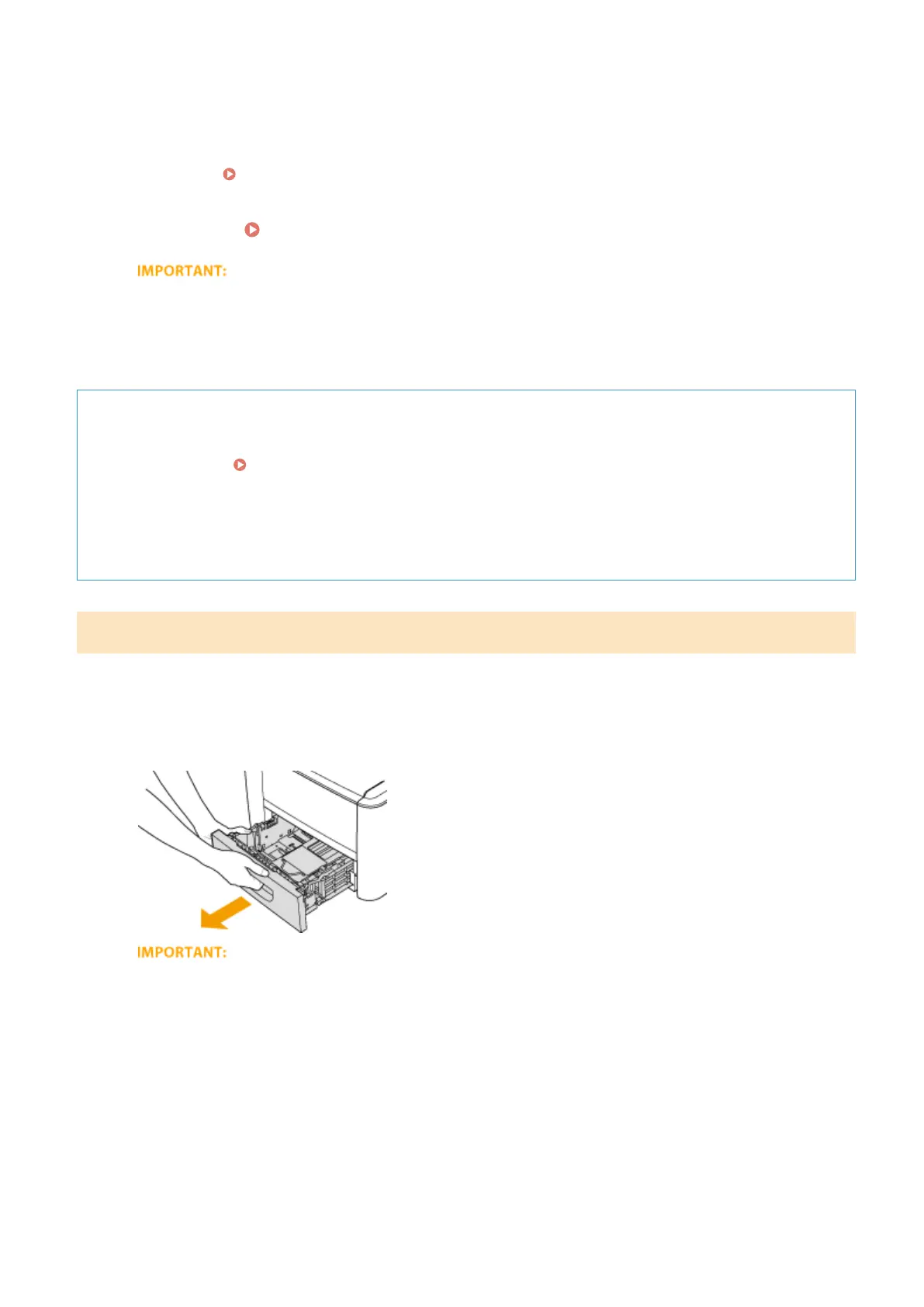
Pull out the paper drawer.
● Make sure to hold the paper drawer with both hands, and pull it out gently. Otherwise, you may damage
the paper drawer by dropping it, if it slides out too easily.
2
Slide the paper guides apart.
● Press the lock release lever to slide the paper guides outward.
Basic Operations
55







 To Next Page