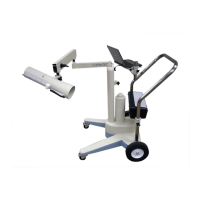
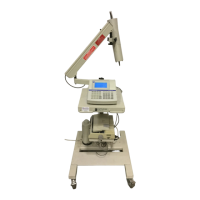
CAPINTEC, INC. CAPTUS
®
600
DIAGNOSTICS
The CAPTUS
®
600 has the ability to check system functions using a Diagnostics Utility.
To access the Diagnostics
Utility, press the HOME key and then the UTIL key. The main
Utilities Menu (
Figure 6-17) will appear.
UTILITIES
1. MULTI CHANNEL ANALYZER
2. STAFF BIO ASSAY RESULTS
3. SETUP
4. DIAGNOSTICS
0. RETURN TO PROBE SCREEN
14:32
Figure 6-17
Access the Diagnostics Utility by pressing
4. The Diagnostics Screen (Figure 6-18) will
appear.
14:32
DIAGNOSTICS
Figure 6-18
If the printer is off-line, or there is no printer connected to the CAPTUS
®
600, a check printer
message will appear on the screen and prompt you to press any key to continue. If your
printer is available, make sure it is connected, turned on and selected.
If the printer is on-line, a three page diagnostics report will be printed out while the screen in
Figure 6-18 is on the display. After the printing has stopped, the CAPTUS
®
600 will begin
6-12 ACCEPTANCE & QUALITY ASSURANCE TESTS November 07


 To Next Page