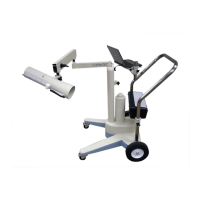
CAPINTEC, INC. CAPTUS
®
600
Editing a Protocol
A protocol may be changed (edited) when it is not in use. If there is an active patient with the
selected protocol, a message will appear and you will only be allowed to view the protocol,
not edit it.
When the Protocol List Screen (
Figure 7-10) appears, use the ARROW keys to position the
prompt in front of the protocol to be edited (or viewed) and press F2 [EDIT].
All the screens described in the
Adding a Protocol section on page 7-6 will appear with the
current values displayed.
Deleting a Protocol
When the Protocol List Screen (
Figure 7-10) appears, use the ARROW keys to position the
prompt in front of the protocol to be deleted and press F3 [DEL].
Note: The CAPTUS
®
600 will not allow you to delete a protocol that is assigned to an active
patient. You must complete the patient study and/or delete the patient data before
deleting a protocol.
The name of the protocol will be displayed and you will be asked if you want to delete it.
Press Y to delete the protocol. The screen returns to the Protocol List Screen (
Figure 7-10)
with that protocol deleted from the list.
Press N if the wrong protocol was selected. The screen returns to the Protocol List Screen
(
Figure 7-10) unchanged.
Printing Protocol Information
A printout of all the protocols can be obtained by pressing PRINT [P] on the Protocol List
Screen (
Figure 7-10).
An alternative way to print all protocol information is to select choice 3 from the Thyroid
Uptake Setup menu (
Figure 7-9). This can be used even if there are no protocols; in that
case the Counting Methods will be printed.
November 07 THYROID UPTAKE SETUP 7-11


 To Next Page