Horizon Imager User’s Manual 12-9
Troubleshooting
The message “Warning:
Image Decimated” is
printed in the corner of an
image.
The Image Warnings option has been
enabled, and the image has been
decimated. Decimation occurs if pixels
are removed from an image so that it
can fit in its cell area on the sheet.
If image decimation is acceptable
and you do not want the message to
print, disable the Decimation warning
(refer to Appendix D) and reprint the
image.
If image decimation is not
acceptable, specify a smaller size for
the image at the image source device or
pick a format that allows for a larger
image area on the sheet.
Table 12-4. Media Cassette and Ribbon Troubleshooting
Problem Possible Causes Solutions
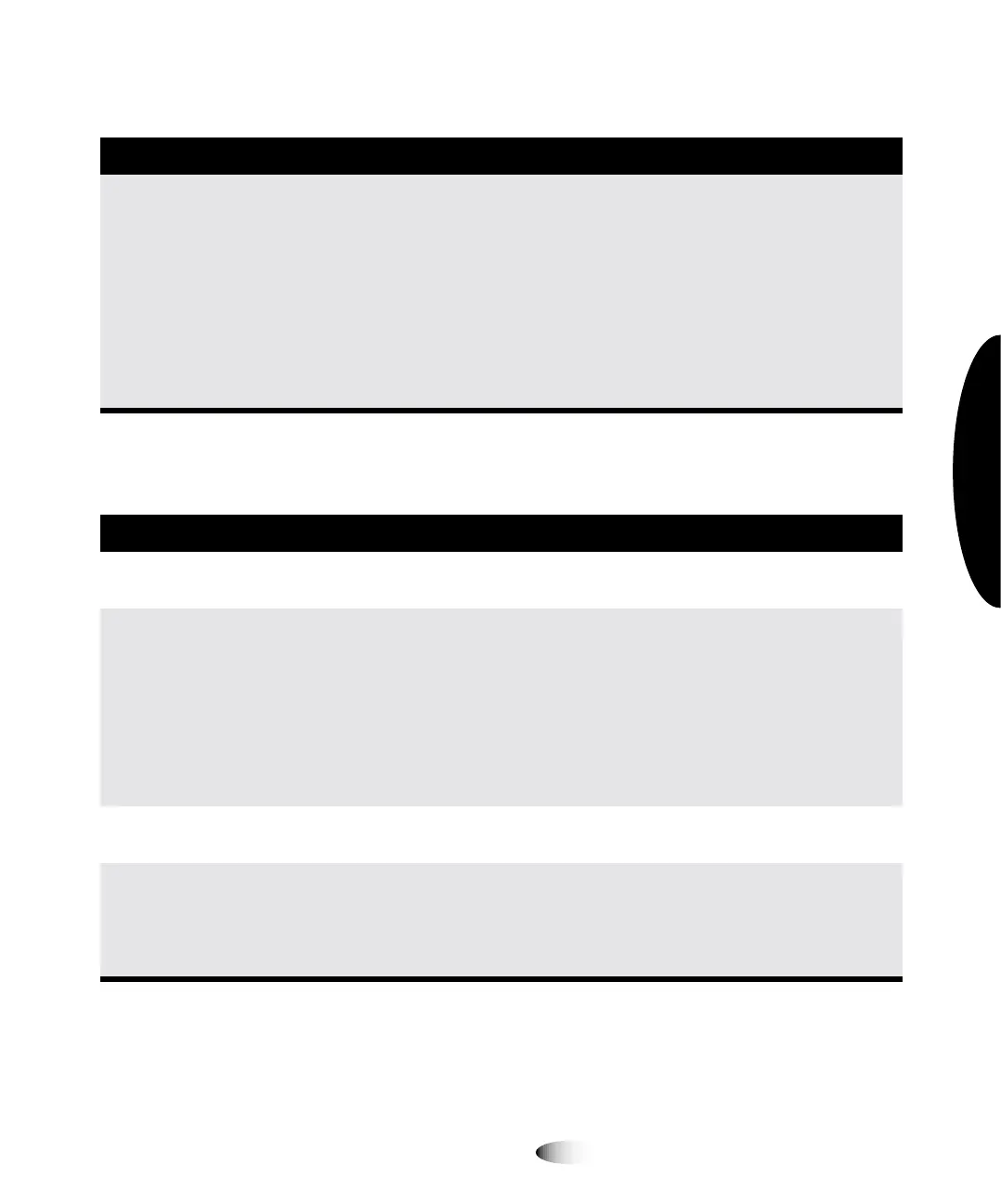
Printed sheets are falling
from the imager.
Receive tray is full. Remove the sheets from the receive
tray.
The imager cannot read
the cassette barcode.
If the cassette is valid, the barcode label
may not be correctly positioned or the
barcode reader window may be dirty.
Try reinserting the cassette. If this does
not work, check the barcode label
position and/or clean the barcode
reader window (refer to “Cleaning the
Barcode Reader Window” on
page 10-15). If none of this works,
manually enter the barcode number
(refer to “Manually Entering a Cassette
Barcode” on page 12-26).
The imager indicates that
the barcode is invalid.
There is a problem with the cassette’s
barcode.
Contact your Codonics representative.
The imager indicates that
the media is
contaminated or that the
sheet count has been
exceeded.
Additional sheets were inserted into the
supply cassette beyond what was
originally packaged.
For quality control reasons, you cannot
add sheets to a supply cassette.
Table 12-3. Image Quality Troubleshooting (cont.)
Problem Possible Causes Solutions


 To Next Page