If the serial port COMP: of the C3G Plus and the serial port of the PC (e.g. COM1) have not
been connected, the software download messages are displayed on the display of the PTU4
programming terminal.
·
Specify the Drive/directory in which the files to be downloaded reside (e.g.: A:\); select the required PC
communication port and confirm with ENTER
After issuing ENTER the wait for connection with the controller message is displayed.
·
Insert floppy disk 1/3 of the system software in the drive (for example A). The system links up automati
-
cally and begins downloading.
If the software downloading procedure fails (for example when a wrong floppy disk is in
-
serted), the programming terminal display shows the Bootmon environment. Activate the
character menu on the PTU4 and type RESET/INIT, confirm with ENTER. The downloading
procedure starts again automatically from the beginning.
·
Disks 2/3 and 3/3 will then be requested in sequence. Insert the disks and confirm with ENTER.
·
At the end of downloading, entry of the time and date will be requested. Enter the time/date and confirm
with ENTER.
At the end of downloading the PTU4 displays the system menu. If the PC is connected on the COMP: serial
port of the C3G
Plus (e.g. COM1 of the PC with COMP:) the system video is also automatically displayed on
the PC.
C3G Plus VIDEO ON PC
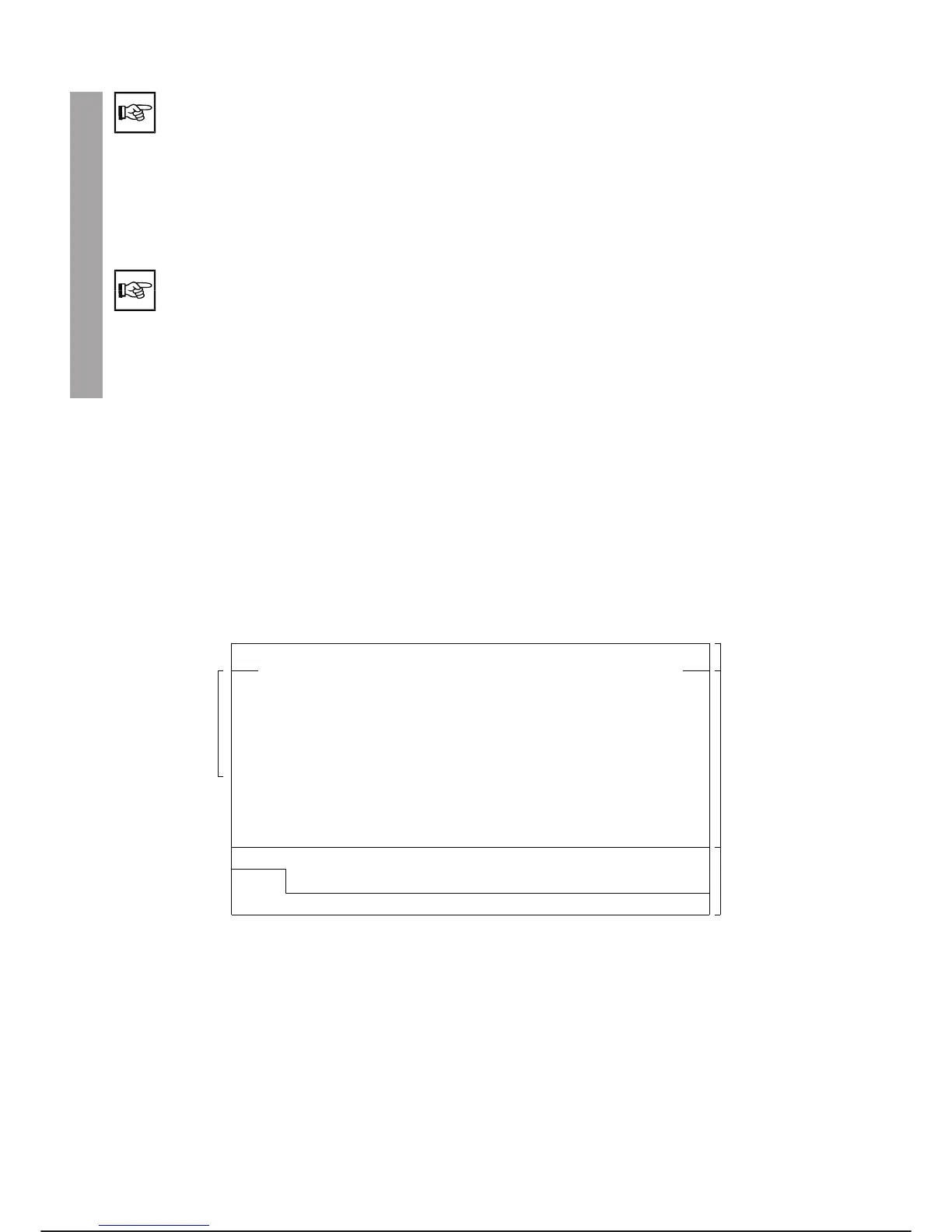
The C3G Plus video displayed on the Personal Computer through the PCINT programme is shown in the
form given in the figure below and it is split into three windows: status window, scroll window, command win-
dow.
OPERATOR INTERFACE C3G Plus
3-18 07/1200
C3G Plus INTERFACE ON PC
Arm
Configure
F1
Cntrler
Display
F2
Io-conf
Execute
F3
Load
Filer
F4
Save
Memory
F5
Prog
F6
Set
F7
Util
F8
State: PROGR HOLD % 100 Arm: 1 ****
LOCAL
REMOTE
AUTO-T
ALARM
*****
RUNNING
JOGGING
FORWARD
BACKWARD
DIS
CAL
TURN
SIMU
LOCK
RES
COOP
STBY
Command window
Scrolling window
Status window
Possible fields
of the Status
window
Drive: OFF Ax:***456--
123456--
TTT456--
Pa: 0
1
PLC P
--- -


 To Next Page