xStack® DES-3528/DES-3552 Series Layer 2 Stackable Fast Ethernet Managed Switch Web UI Reference Guide
The fields that can be configured are described below:
Parameter Description
VID
Displays the RSPAN VLAN by VLAN ID.
VLAN Name
Displays the RSPAN VLAN by VLAN name.
Source Ports
If the ports are not specified by option, the source of RSPAN will come from the source
specified by the mirror command or the flow-based source specified by an ACL. If no
parameter is specified for Source, it deletes the configured source parameters.
Select RX, TX or Both to specify in which direction the packets will be monitored. Tick
Add or Delete to add or delete source ports.
Redirect Port List
Specify the output port list for the RSPAN VLAN packets. If the redirect port is a Link
Aggregation port, the Link Aggregation behavior will apply to the RSPAN packets. Tick
Add or Delete to add or delete redirect ports.
Click the Apply button to accept the changes made.
Click the <<Back button to discard the changes made and return to the previous page.
sFlow
sFlow (RFC3176) is a technology for monitoring traffic in data networks containing switches and routers. The sFlow
monitoring system consists of an sFlow Agent (embedded in a switch or router or in a standalone probe) and a central
sFlow Collector. The architecture and sampling techniques used in the sFlow monitoring system were designed for
providing continuous site-wide (and enterprise-wide) traffic monitoring of high speed switched and routed networks.
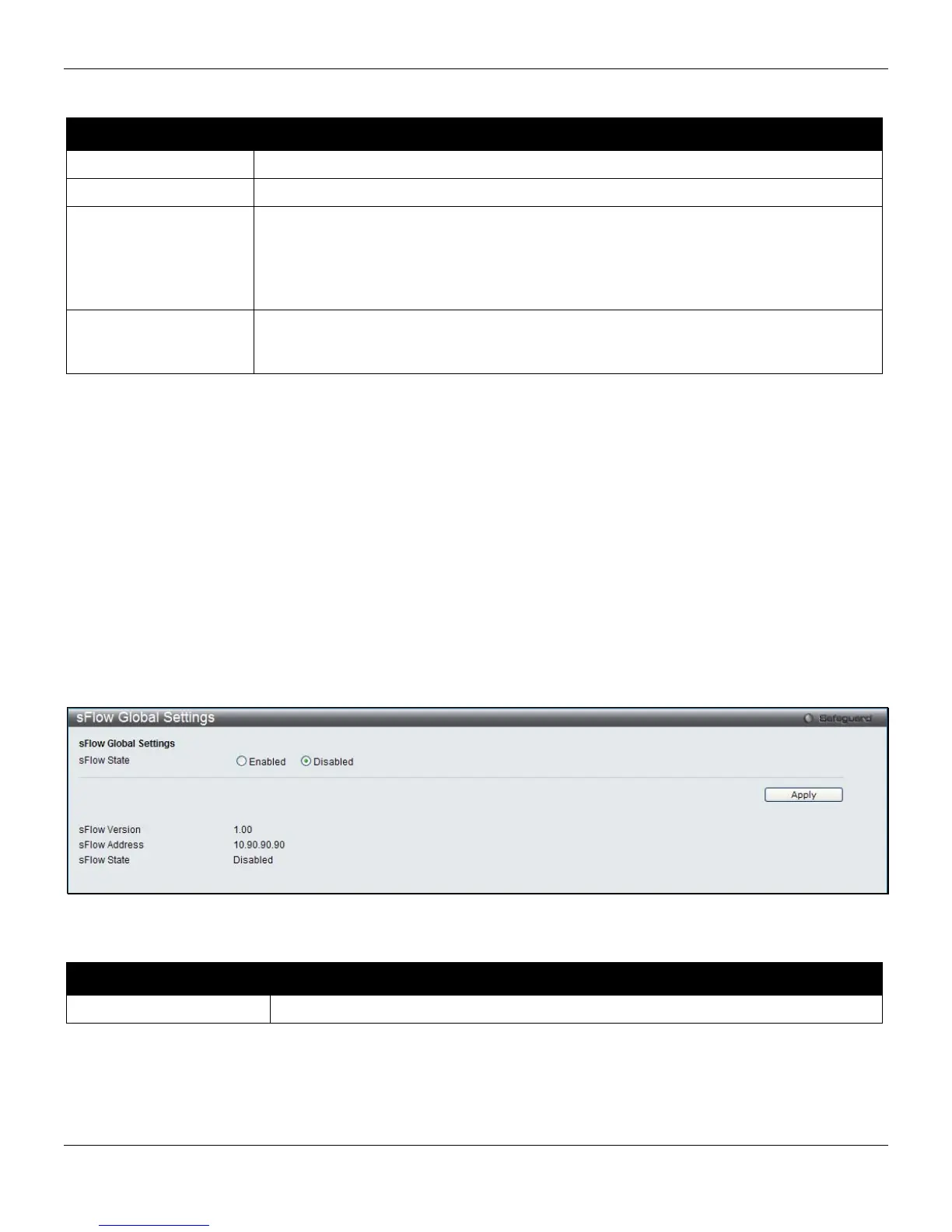
sFlow Global Settings
This window is used to enable or disable the sFlow feature.
To view this window, click Monitoring > sFlow > sFlow Global Settings, as shown below:
Figure 11-19 sFlow Global Settings window
The fields that can be configured are described below:
Parameter Description
sFlow State
Click the radio buttons to enable or disable the sFlow feature.
Click the Apply button to accept the changes made.
325



 To Next Page