xStack® DES-3528/DES-3552 Series Layer 2 Stackable Fast Ethernet Managed Switch Web UI Reference Guide
Parameter Description
TFTP Server IP
Click the IPv4 or IPv6 radio button to enter the TFTP Server IP address.
File
Enter the location and name of the file.
Configuration ID
Select a configuration ID.
Filter
Use the drop-down menu to include, begin or exclude a filter like SNMP, VLAN or STP.
Select the appropriate Filter action and enter the service name in the space provided.
Click Upload to initiate the upload.
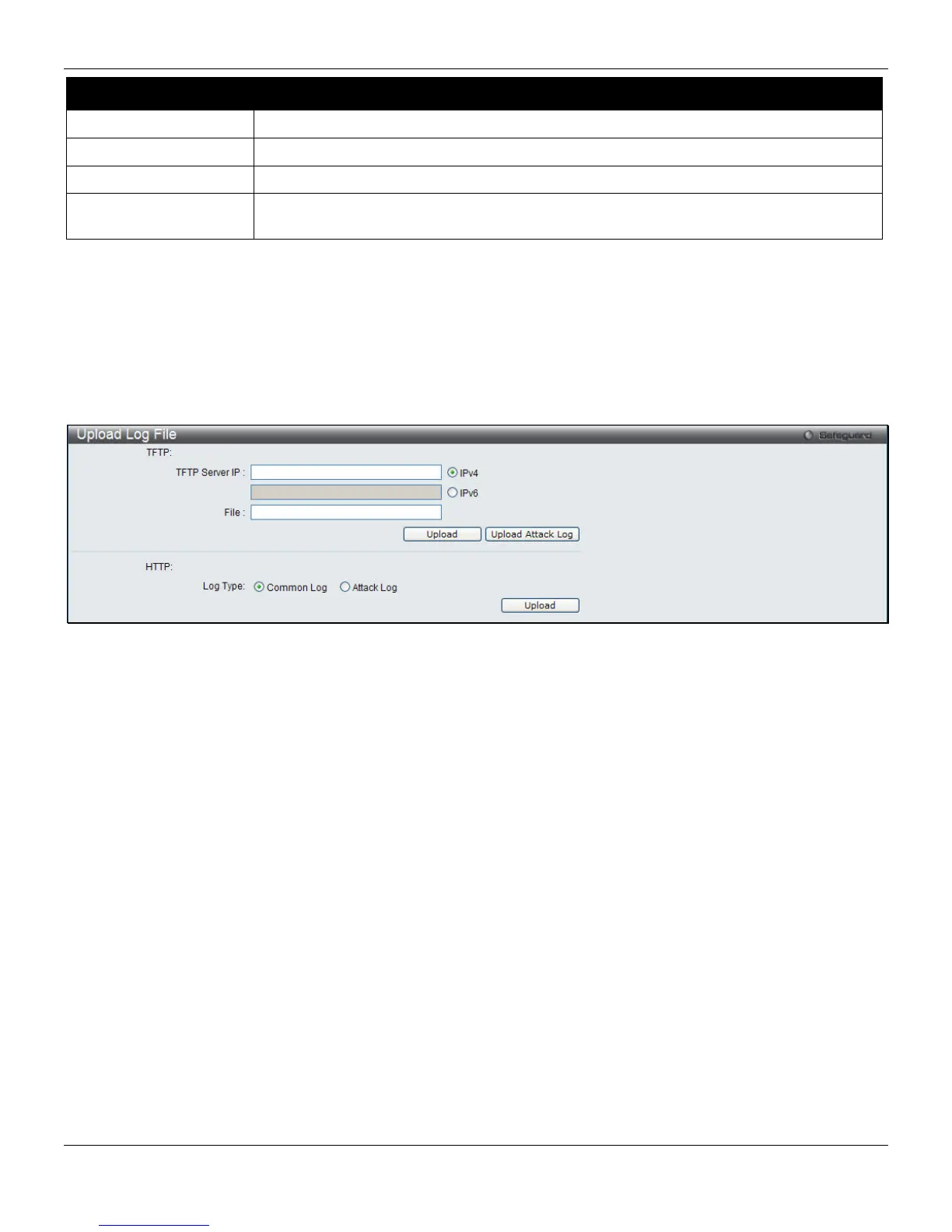
Upload Log File
This page allows the user to upload the log file from the Switch to a TFTP Server.
Open the Tools drop-down menu at the top of the Web manager and click Upload Log File to see the following
window:
Figure 12-9 Upload Log File window
To upload a history or attack log from the Switch to a TFTP server, enter a Server IP address, and file/path name and
then click Upload or Upload Attack Log.
To upload either a common log or an attack log by HTTP, click the desired Log Type in the bottom half of the window
and then click Upload.
337



 To Next Page