xStack® DES-3528/DES-3552 Series Layer 2 Stackable Fast Ethernet Managed Switch Web UI Reference Guide
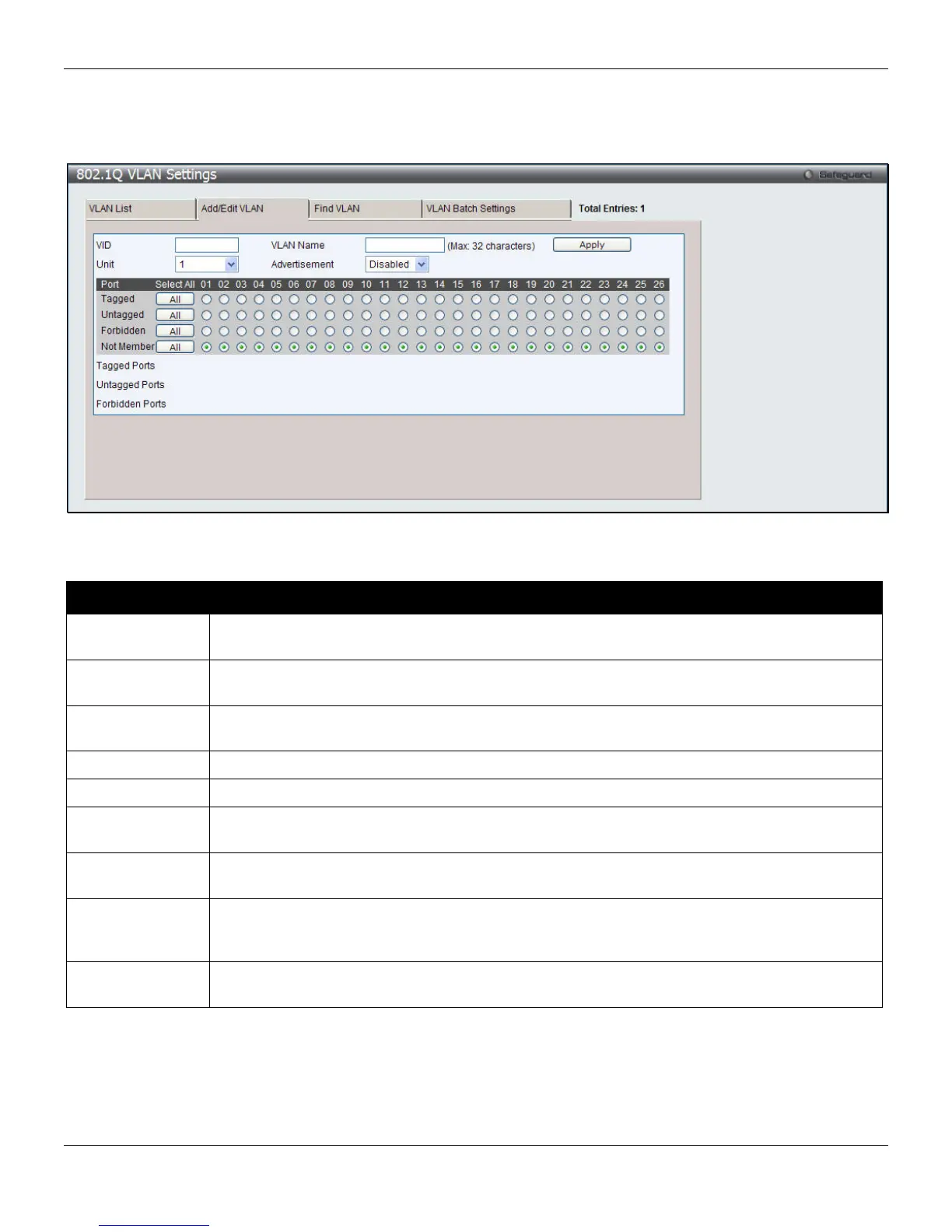
To create a new 802.1Q VLAN or modify an existing 802.1Q VLAN, click the Add/Edit VLAN tab.
A new tab will appear, as shown below, to configure the port settings and to assign a unique name and number to the
new VLAN.
Figure 4-5 802.1Q VLAN Settings – Add/Edit VLAN Tab window
The fields that can be configured are described below:
Parameter Description
VID
Allow the entry of a VLAN ID or displays the VLAN ID of an existing VLAN in the Add/Edit
VLAN tab. VLANs can be identified by either the VID or the VLAN name.
VLAN Name
Allow the entry of a name for the new VLAN or for editing the VLAN name in the Add/Edit
VLAN tab.
Advertisement
Enable this function to allow the Switch sending out GVRP packets to outside sources,
notifying that they may join the existing VLAN.
Unit
Select the unit to configure.
Port
Display all ports of the Switch for the configuration option.
Tagged
Specify the port as 802.1Q tagging. Clicking the radio button will designate the port as tagged.
Click the All button to select all ports.
Untagged
Specify the port as 802.1Q untagged. Clicking the radio button will designate the port as
untagged. Click the All button to select all ports.
Forbidden
Click the radio button to specify the port as not being a member of the VLAN and that the port
is forbidden from becoming a member of the VLAN dynamically. Click the All button to select
all ports.
Not Member
Click the radio button to allow an individual port to be specified as a non-VLAN member. Click
the All button to select all ports.
Click the Apply button to accept the changes made.
62



 To Next Page