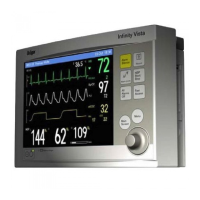
C-12 Infinity Vista VF6
C DEFAULT SETTINGS AND BIOMEDICAL SUPPORT
STEPS: Enabling the Demo Mode
1. Press the Menu fixed key.
2. Click on
Monitor Setup.
3. Click on
Biomed.
4. Enter the Biomed password and click the knob.
5. Click on
Locked Options.
6. Click on
Enable Option.
7. Select
Demo and click the knob.
Upon entering the demo mode, all previous patient data is erased. A yellow banner
Simulated Data appears on the screen, along with parameter values and waveforms. If
the monitor is connected to the network, the central station shows the bedside monitor
as having Simulated Data and the Admit function at the central station is disabled.
To disable the Demo Mode, turn the monitor off and on again or enter the Standby
mode and discharge the patient upon resuming monitoring.
WARNING: If the monitor is connected to the network, alarms
generated by the monitor during simulation are transmitted to
the central station.
NOTE:
z The transfer of simulated data across the network is not possible.
z If the monitor is connected to the network, disabling the demo mode at the
bedside monitor clears the monitor’s data at the central station.




 To Next Page