DATA T RANSFER
VF6 Infinity Vista 4-9
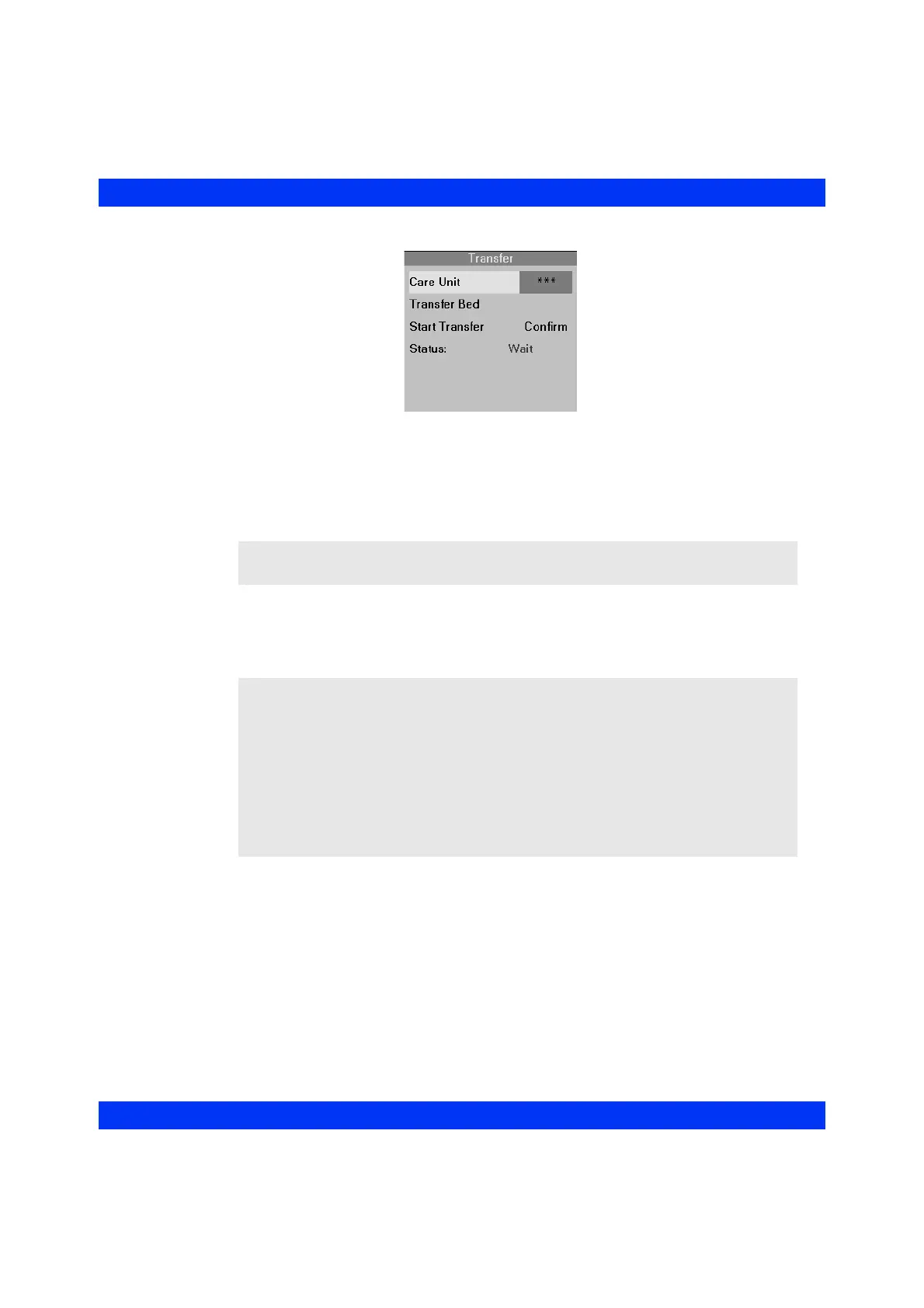
4. Click on Care Unit. Selection *** is the default and automatically selects all
care units. If you want to narrow your search for the transfer bedside monitor
and select the specific care unit in which the source monitor is located, dial in
the appropriate care unit from the available choices in the menu and click the
knob.
5. Click on
Transfer Bed.
6. Select the bed label of the source monitor and click the knob.
7. Click on
Start Transfer.
8. Click on
Confirm to start the transfer.
During transfer, the Transfer menu displays the status message Transferring data.
Once the transfer is complete, the patient is automatically discharged from the source
monitor and admitted to the destination monitor.
If the transfer is interrupted or unsuccessful, the destination monitor displays a
transfer error message. In this case, the source monitor retains its data and you can
attempt the transfer again.
NOTE: The menu shows only those care units which have at least one bedside
monitor in Standby mode.
NOTE:
z The Transfer Bed menu displays all networked bedside monitors in the selected
care unit that are currently in Standby mode.
z You must click on a bed label, even if there is only one available bedside
monitor listed in the transfer menu; if you do not select a bedside monitor, the
transfer cannot take place.
z If a previous patient had not been discharged at the destination monitor before
data transfer, the discharge takes place automatically during transfer and all
previous patient data is deleted.




 To Next Page