100 Eos Family v2.9.0 Operations Manual
Creating a new scroll or wheel
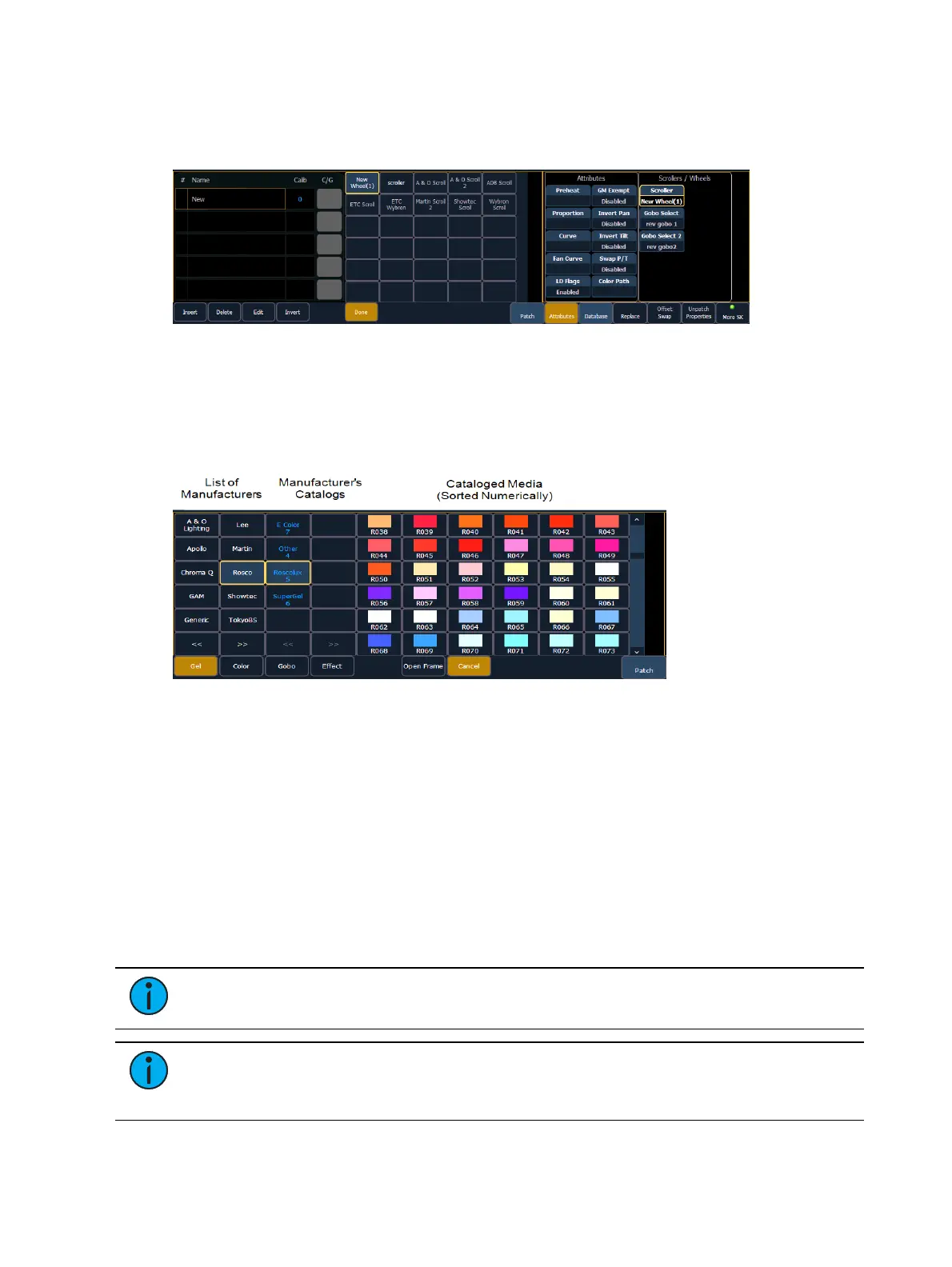
When you create a new scroll or wheel, {New Wheel n} appears in the wheel list as the selected
button. The frame list will be empty with only “New” displayed in frame 1.
You can label the new wheel by pressing [Label] and typing the desired label on the virtual
keyboard and pressing {Enter}.
To select a color or pattern for the specific frame in the scroll/wheel, select the “NEW” text and
press {Edit} or click the gray box in the C/G column of the frame. The available gel, color, gobo
and effect media selections will be displayed.
The media selection includes the following softkeys:
{Gel}, {Color}, {Gobo}, and {Effect} - each will display available media selections as they
are cataloged by the associated scroll or wheel manufacturers.
{Open Frame} - places the frame in Open White. Generallly, the first media frame is open.
{Cancel} - cancels the media selection and returns to the frame editor.
When a manufacturer is selected from the list, the catalog selection changes to display only the
selected manufacturer’s offerings. When a specific catalog is selected, the selected media will
display.
When you make a media selection, the display returns to the new wheel frame list where
additional frames can be added to the scroll or wheel by selecting the next frame area to add
more frames.
Note: An {Invert} softkey will display when creating or copying a wheel or scroller.
{Invert} is used to reverse the order of frames.
Note: It is possible to import custom gobo images. See Importing Custom Gobo
Images (on page81) for more information. To use a custom gobo image, select {Gobo}
and then {Custom}.



 To Next Page