Patch 101
Editing a copy of a scroll or wheel
If a copy has been made of an existing scroll or wheel, the copied scroll or wheel will display as
{New Wheel n} before the standard manufacturer offerings. The frame list will include an exact
duplicate of the copied selection.
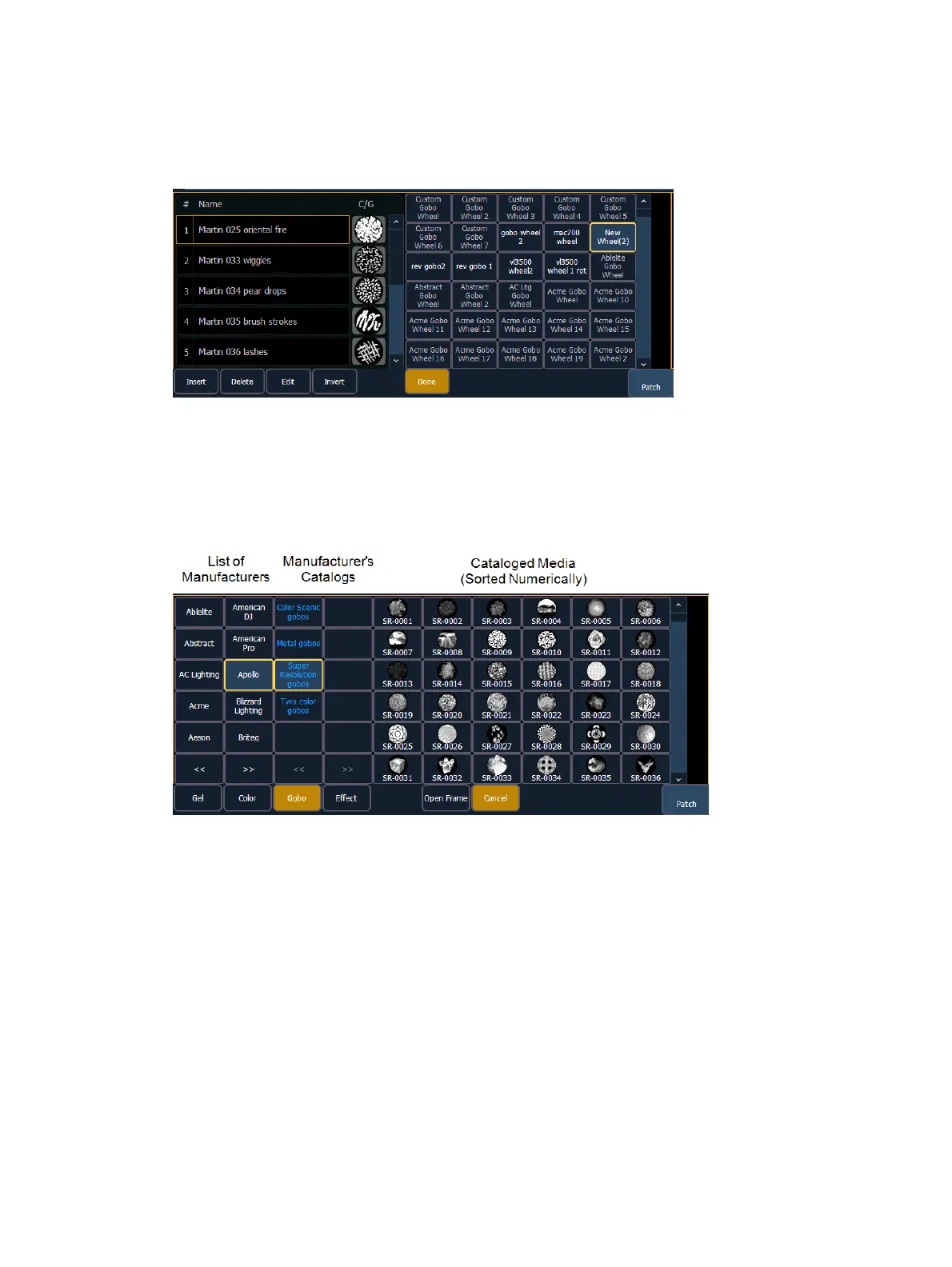
To make a change to a frame, first select the frame then press {Edit} or click the gray box in the
C/G column to display the media selection. Or you can insert a new frame above a selected
frame using the {Insert} softkey.
For example, to insert a new frame in between existing frames 2 and 3, select frame 3 and press
the {Insert} key. The media selection will display.
The media selection includes the following softkeys:
{Gel}, {Color}, {Gobo}, and {Effect} - each will display available media selections as they
are cataloged by the associated scroll or wheel manufacturers.
{Open Frame} - places the frame in Open White. Generallly, the first media frame is open.
{Cancel} - cancels the media selection and returns to the frame editor.
When a manufacturer is selected from the list, the catalog selection changes to display only the
selected manufacturer’s offerings. When a specific catalog is selected, the selected media will
display.
When you make a media selection, the display returns to the new wheel frame list where
additional frames can be edited in the scroll or wheel.



 To Next Page