Using Groups 179
When a group is previewed using the Group List, the display defaults to showing the ordered
view. Channels can be reordered as needed from this list. Use the [Format] key to change to a
numeric listing of channels.
Example:
[1] [0] [Thru] [2] [Record] [Group] [1] [Enter]
This will record channels 10 through 2 to Group 1, and then if you select the group you
can cycle through the channels using [Next] starting with 10, then 9, then 8, and so on.
The following softkeys are available:
{Insert Before} - use to insert a new channel after the specified channel within a group.
{Insert After} - use to insert a new channel before the specified channel within a group.
{Reverse} - use to place a group's channels in reverse order.
{Random} - use to place a group's channels in a random order.
{Reorder} - use {Reorder} to rearrange the channels to numeric order in a group.
{Offset} - See
Offset (below)
for more information.
Subgroups
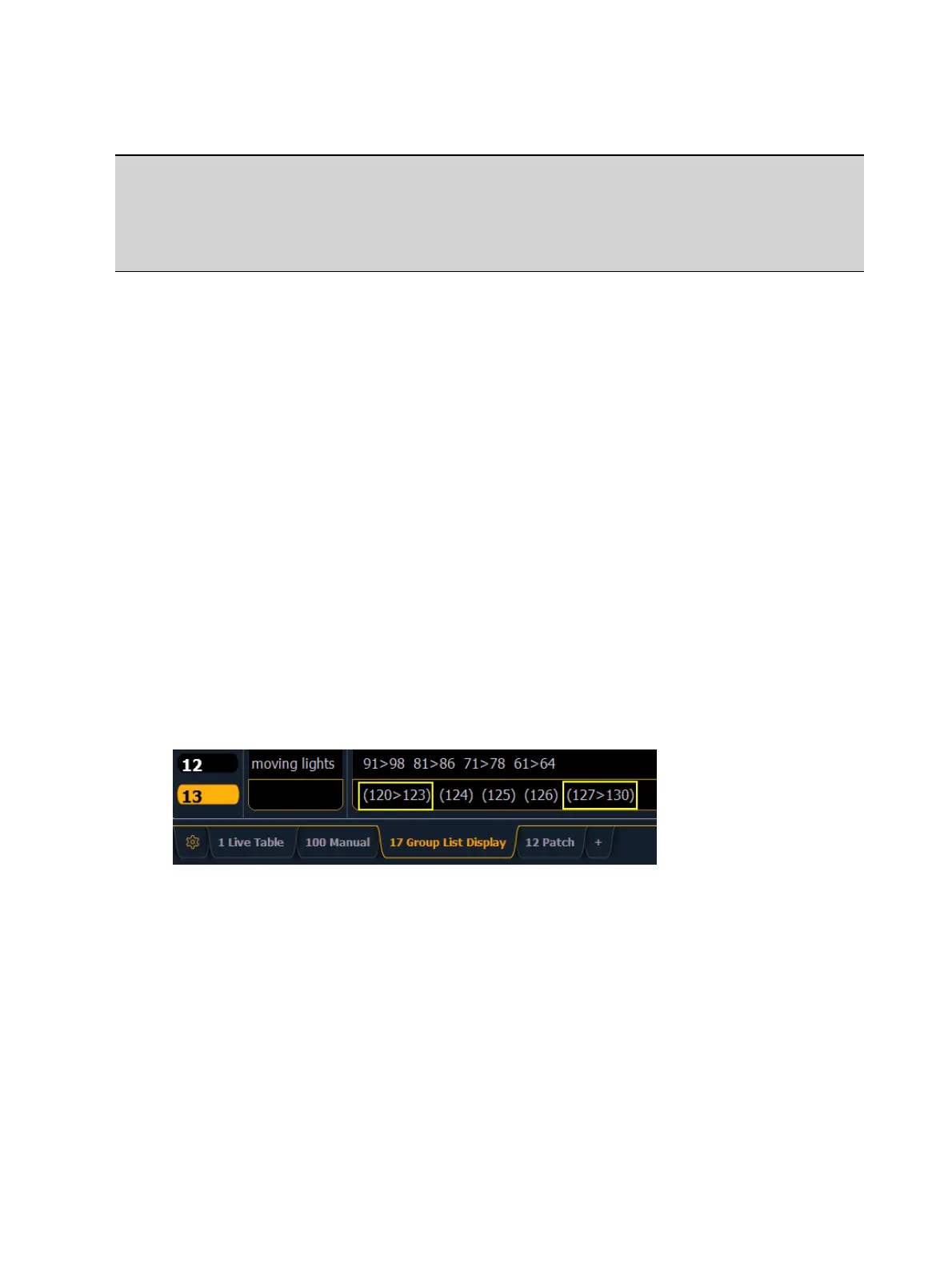
You can create subsets of channels within a group by using [Shift] & [/]. [Shift] & [/] to create
parentheses. The subgroups will display within those parentheses.
These subsets of channels or subgroups are treated as a single channel in the following ways:
When applying absolute or relative effects from live, the subgroups are treated as a single
channel by the effect.
When setting a range of step's channels on a step based effect, the subgroup will not be
spread out amongst multiple steps.
When the group is selected and next/last is pressed, each subgroup is traversed.
When a group has subgroups, {Reverse}, {Reorder}, and {Random} in the group editor will
affect the subgroups instead of the channels in each subgroup. {Reorder} will order the
groups based on the first channel in each subgroup.
Subgroups can be created either in the group list or Live.
To create a subgroup in Live:
[Shift] & [/] [1] [Thru] [4] [Shift] & [/] [Record] [Group] [2] [Enter]
To create a subgroup in the group list index:
[Group] [2] [Enter] [Shift] & [/] [1] [Thru] [4] [Shift] & [/] [Enter]
Offset
You can use the {Offset} softkey to aid in channel selection prior to storing groups, submasters,
presets, palettes, effects, and using park. When {Offset} is pressed, a channel distribution
display will open.



 To Next Page