200 Eos Family v2.9.0 Operations Manual
{Color Palette} [1] [Thru] [9] [Enter] - selects color palettes 1 through 9.
[1] {Scroller} {Make Null} [Enter] - sets channel 1 scroller value null in the selected color
palette(s).
[1] {Scroller} [4] [Enter] - sets channel 1 scroller value to frame 4 in the selected color
palette(s).
Here are some examples of the additional palette editing features available in spreadsheet
view:
{palette type} [1] [Thru] [5] {Move To} <palette type> [9] [Enter] - this will move palettes 1
through 5 to palettes 9 through14 respectively. You do not have to supply the end value
for Element to perform the move.
{Beam Palette} [1] [Thru] [5] [Enter] {Iris} [5] [0] {Replace With} [2] [5] [Enter] - for palettes
1 through 5, this command will replace any iris parameter values of 50 with values of 25.
Editing Palettes in List View
When you press the Intensity palette button twice, a list view for the Intensity palette type is
opened on a new tab (or brings the list view into focus if already open). You can open the list
views for the other palette types from the home screen. See
Workspace Layout Menu (on
page31)
for more information.
You can also open the list views by using their tab numbers. Press and hold [Tab] and type the
number to open.
Intensity Palette - [Tab] [2] [2]
Focus Palette - [Tab] [2] [3]
Color Palette - [Tab] [2] [4]
Beam Palette - [Tab] [2] [5]
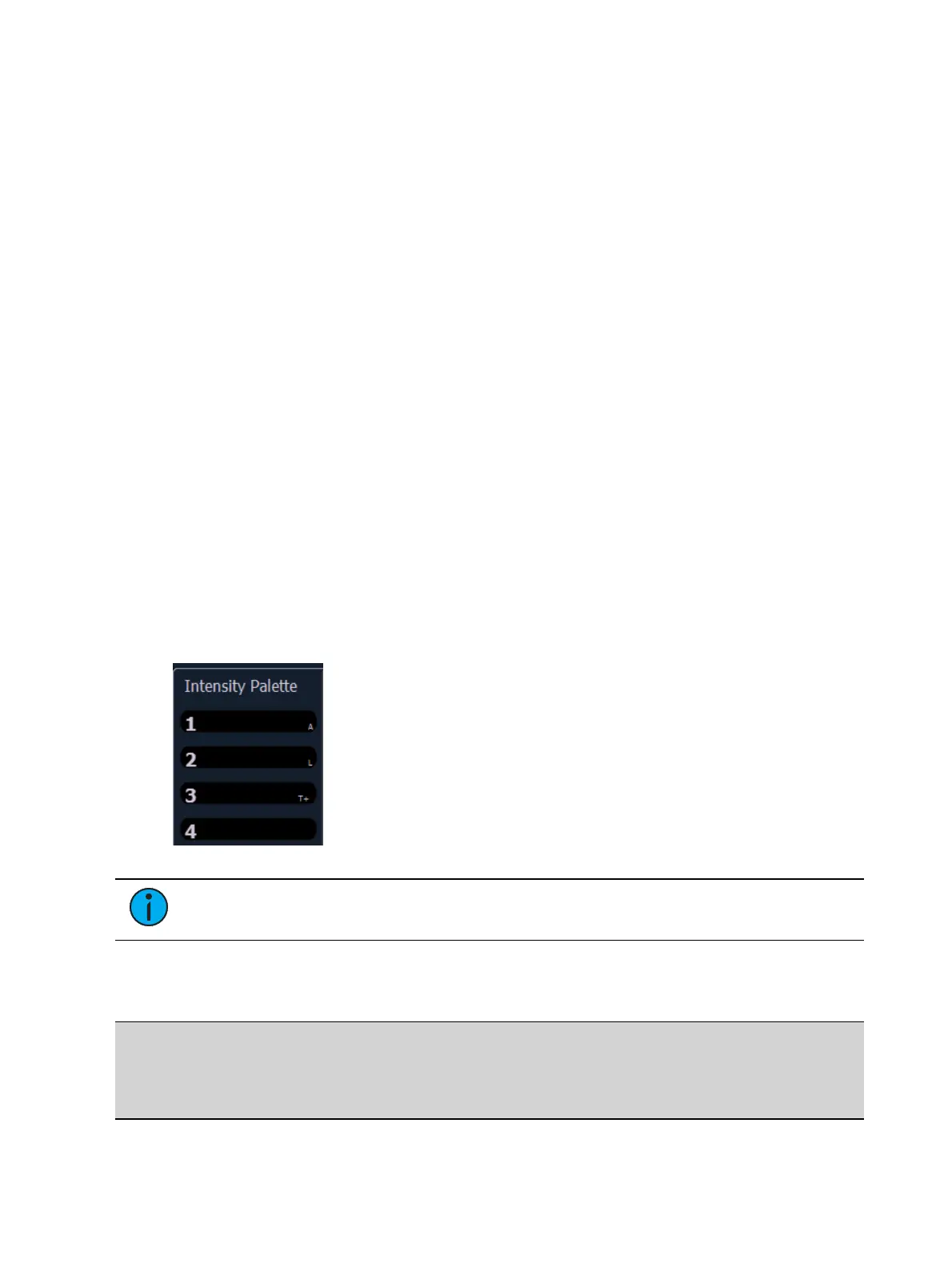
Indicators for absolute (A), locked (L), and by type (T+) display to the right of the palette
number.
Note: In the by type channels column, any channel number with an asterisk indicates
that the channel does not have any by type data stored to it.
From the list view, you can select a palette for editing, which changes focus to blind channel
view, with the specified palette ready for editing. In addition, you can add palettes to your list
and edit the labels for each palette in the list.
Example:
In the list view, you can select palettes and relabel or move them.
[1] [5] [Label] <name> [Enter]



 To Next Page