242 Eos Family v2.9.0 Operations Manual
Note: {Priority} and {Background} are cue list attributes. See Cue List Properties (on page244)
for more information.
Note: {Time Code} is an external link. See Using External Links (on page232) for more
information.
Opening the Cue List Index
You can access the cue list index by pressing [Cue] [Cue],[Tab] [1][6], or you can navigate
within the browser to Record Target Lists > Cue List Index and press [Select].
Cue list properties determine how the cue list will interact. Assigned properties will display at
the top of the cue list as well as any currently active show control triggers.
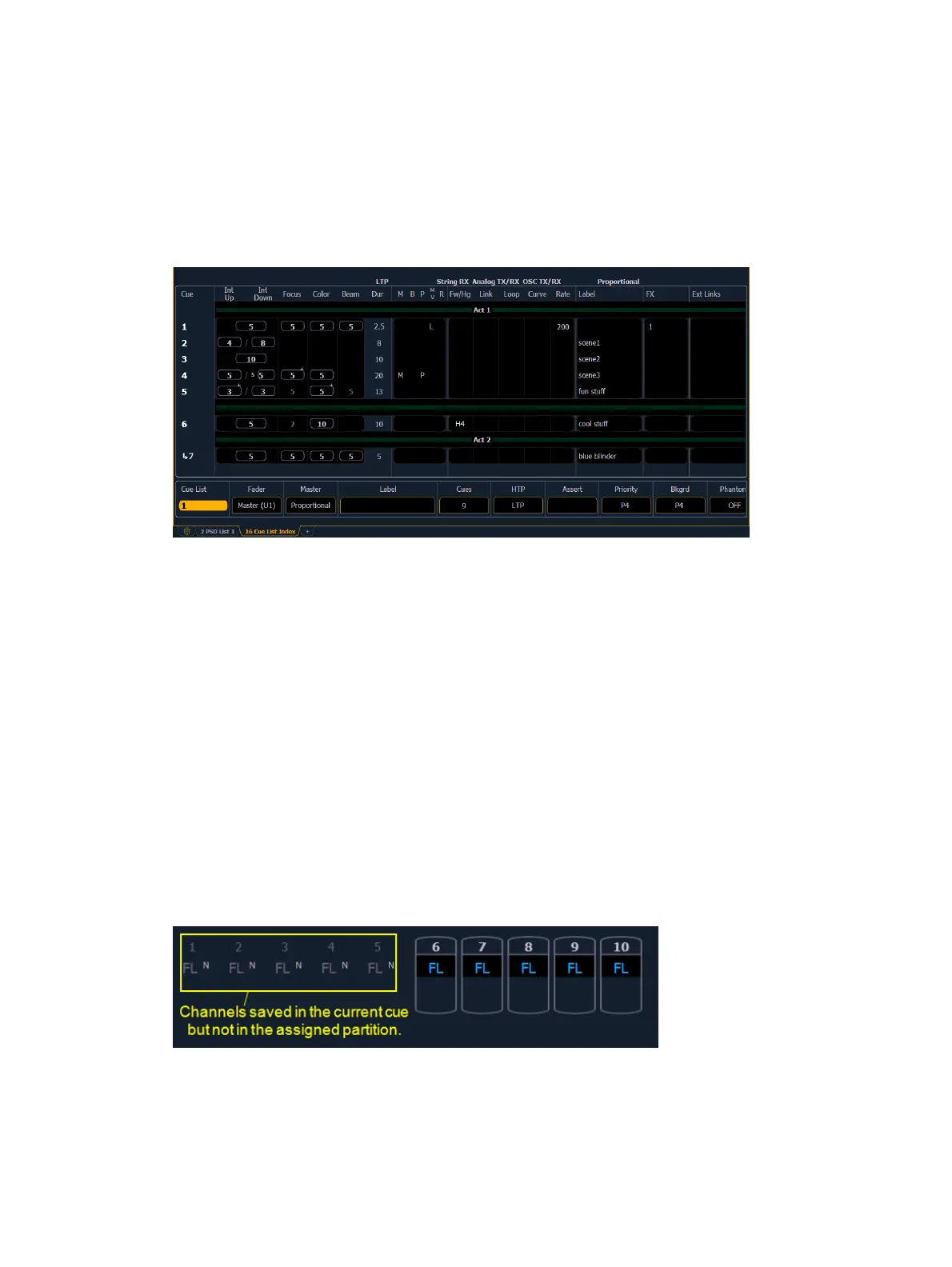
The top half of the cue list index displays all stored cues, including cue list properties, for the cue
list. The bottom half of the cue list index displays the cue list properties.
Using the mouse, you can move the barrier between the stored cue display (top) and the stored
list display (bottom). Hover the mouse arrow over the list boundary until it changes to the move
boundary icon. Then click and drag the boundary up or down to the desired height.
Partitions on Cue Lists
A partition (
About Partitioned Control (on page390)
) may be assigned to a cue list. If a partition
has already been applied to a cue list, any channels not in the cue list's partition will not be
included in cues when they are stored or replayed.
Any data for a cue list that already existed before a partition is applied, will be maintained,
including data for channels not included in the partition. If data existed before the partition was
assigned, in blind, channels that are not in the partition will display without a channel graphic,
any levels will be in gray, and a small superscript N will display with it.
Assigned partitions will display at the top of the cue list index and in the PSD.
To assign a partition to a cue list:



 To Next Page