Working with a Cue List 243
[Cue] [n] [/] {Partition} [n] [Enter]
To remove a partition from a cue list:
[Cue] [n] [/] {Partition} [Enter]
Auto-block Cleanup
{Autoblock Clean} is used to remove all auto-blocks from a single cue or cue range. {Autoblock
Clean} is a softkey that will be posted when the cue list and/ or cue number are on the
command line in the Cue List Index, Live, and Blind. A range of cues can be specified with this
command. For more information about auto-blocks, see
Auto-Block (on page231)
[Cue] [1] [/] {Autoblock Clean} [Enter] - clears all auto-blocks from cue list 1. Only blocks
displayed with the white underscore are removed. If the [Block] key was previously used,
this command will not unblock it.
[Cue][1] [/] [1][0] [Thru] [1][0][0] {Autoblock Clean} [Enter] - clears the auto-blocks just
from cues 10 through 100 of cuelist 1.
Edit
The {Edit} softkey opens a blind channel view of the selected cue and changes focus from the
cue list index. You can change the blind display to spreadsheet or table view by pressing the
[Format] key. You can edit any of the cue attributes for the cue selected in the index, but the
cue contents must be edited in the blind display. See
Recording and Editing Cues from Blind (on
page238)
.
Cue List Index Configuration
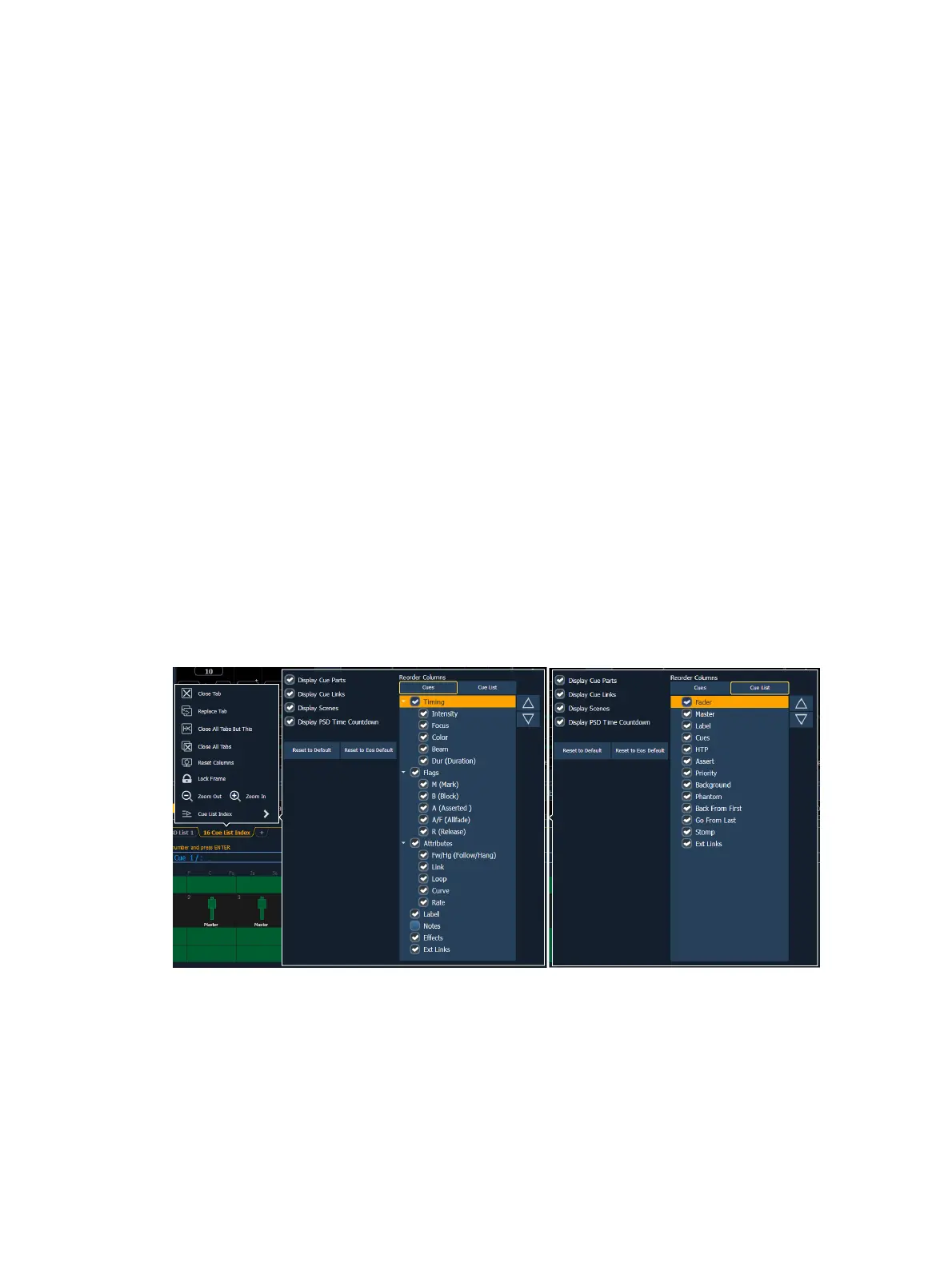
The Cue List Index has a configuration menu, which is accessed by first selecting the Cue List
Index tab and then double clicking on the tab to open the menu. With the Cue List Index
selected, you can also select the gear icon, which is located by the tabs, to open the
configuration menu.
The following options are available in this configuration menu:
Display Cue Parts - displays the individual parts of a part cue. When not enabled, the
number of parts for that cue will display as a superscript number beside the cue's number.
Display Cue Links - displays the
Link/ Loop
information.
Display Scenes - displays cue scene information.



 To Next Page