Using Magic Sheets 365
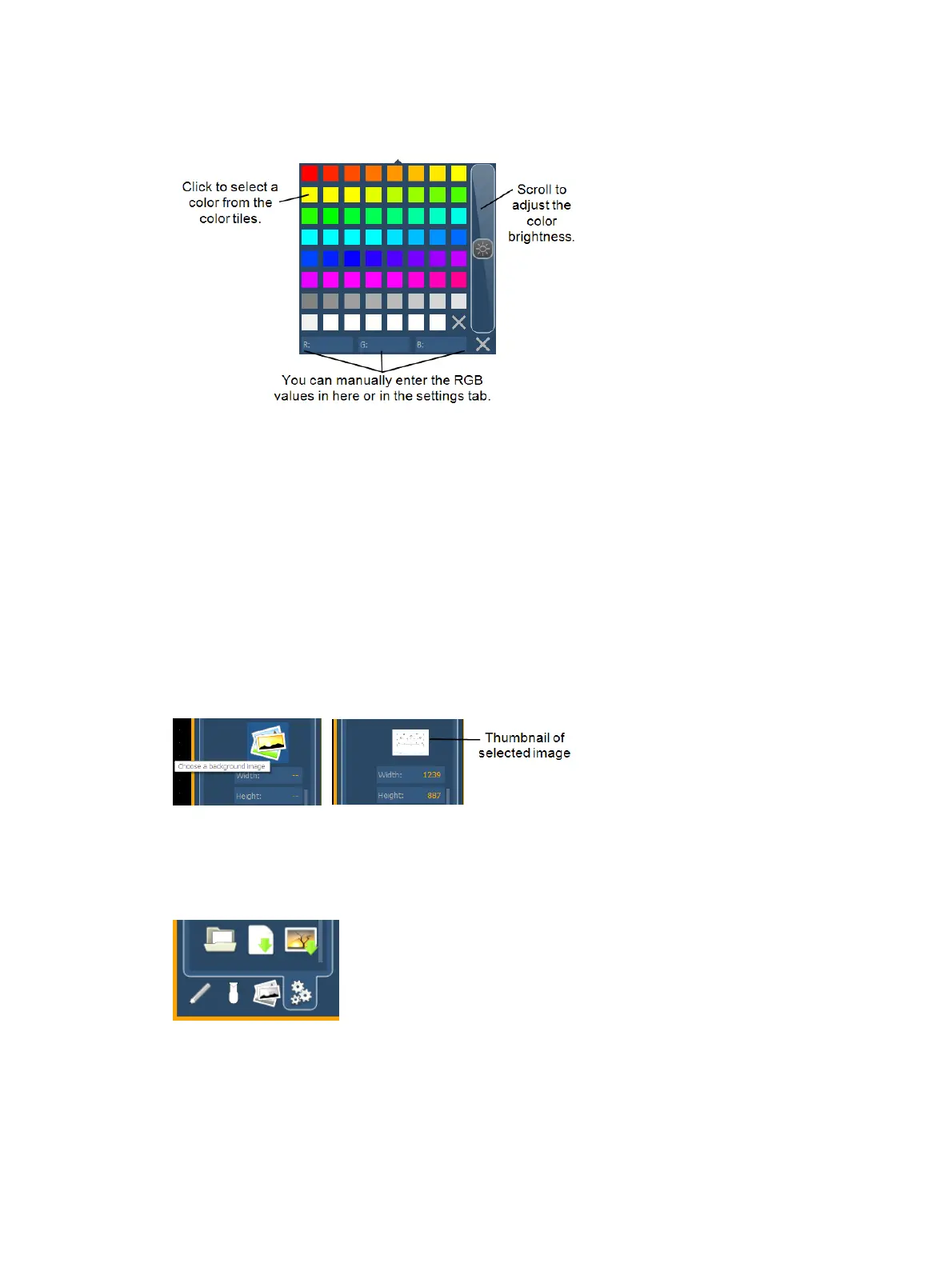
When solid is selected, you will have the chance to select a color for the magic sheet
background. You can either click on the color square in the tab, which opens a color selection
window, or you can manually enter the RGB values.
Gradient
When gradient is selected, you will have the chance to select a two color gradient for the magic
sheet background. You can either click on the color squares in the tab, which open a color
selection window, or you can manually enter the RGB values.
Image
With image selected, you can adjust the size, opacity, and invert the colors of the selected
background image.
You can select or import an image directly from this tab by pressing the choose a background
image icon, if no previous image had been chosen, or by pressing the thumbnail icon of the
selected image to change it.
Exporting and Importing Magic Sheets
Magic Sheets can be exported and imported in .xml format. The export and import icons are
located at the bottom of the background settings tab.



 To Next Page