System Basics 39
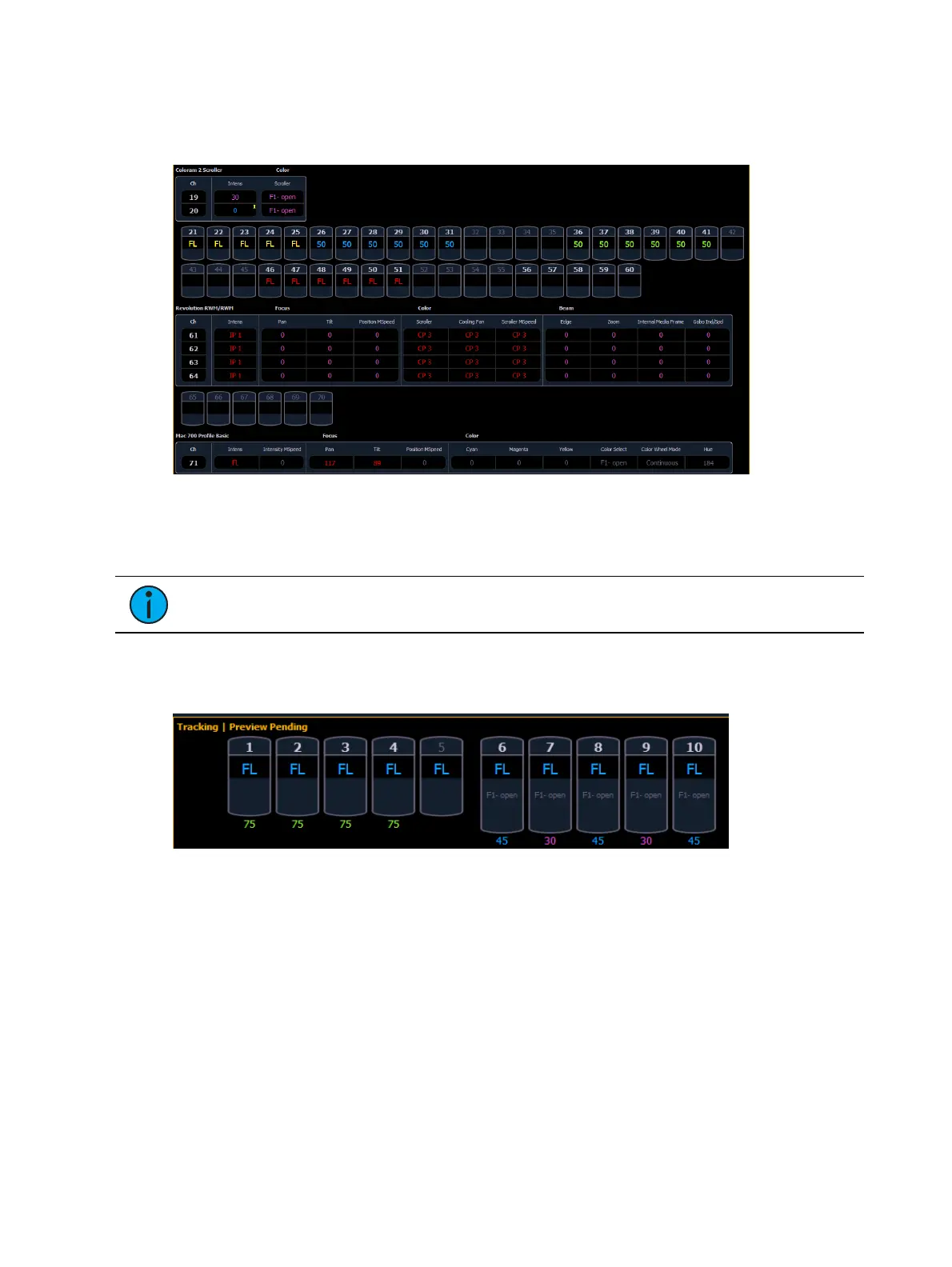
In the table, a slight space is provided between fixture types, giving a clear delineation between
them. The name of the fixture type is displayed at the top of the section for that fixture.
Channels with only intensity parameters will display the same as in summary view.
Preview Mode in Live
A {Preview} softkey is available when in Live Summary.
Note: {Preview} is not available in Live Table.
{Preview} allows you to display the intensity values for another cue under the current values in
the Live Summary tab. An indicator of what Preview mode you are in will display in the upper
left hand corner of the Live Summary display.
In {Preview} mode, the following softkeys are available:
{Previous} - previews the last cue run from the selected cue list.
{Pending} - previews the pending cue from the selected cue list.
The following examples show other functions that are available in Preview:
{Preview}[Next] will allow you to preview the cue higher than the one currently selected. If
there is no cue already selected in preview mode, [Next] will behave the same as
{Pending}.
{Preview}[Last] will allow you to preview the cue lower than the one currently selected. If
there is no cue already selected in preview mode, [Last] will behave the same as
{Previous}.
{Preview}<Cue>[5] will preview cue 5.



 To Next Page