2014-03-24
70
4.1 Setup
4.1.3.8 Etc.
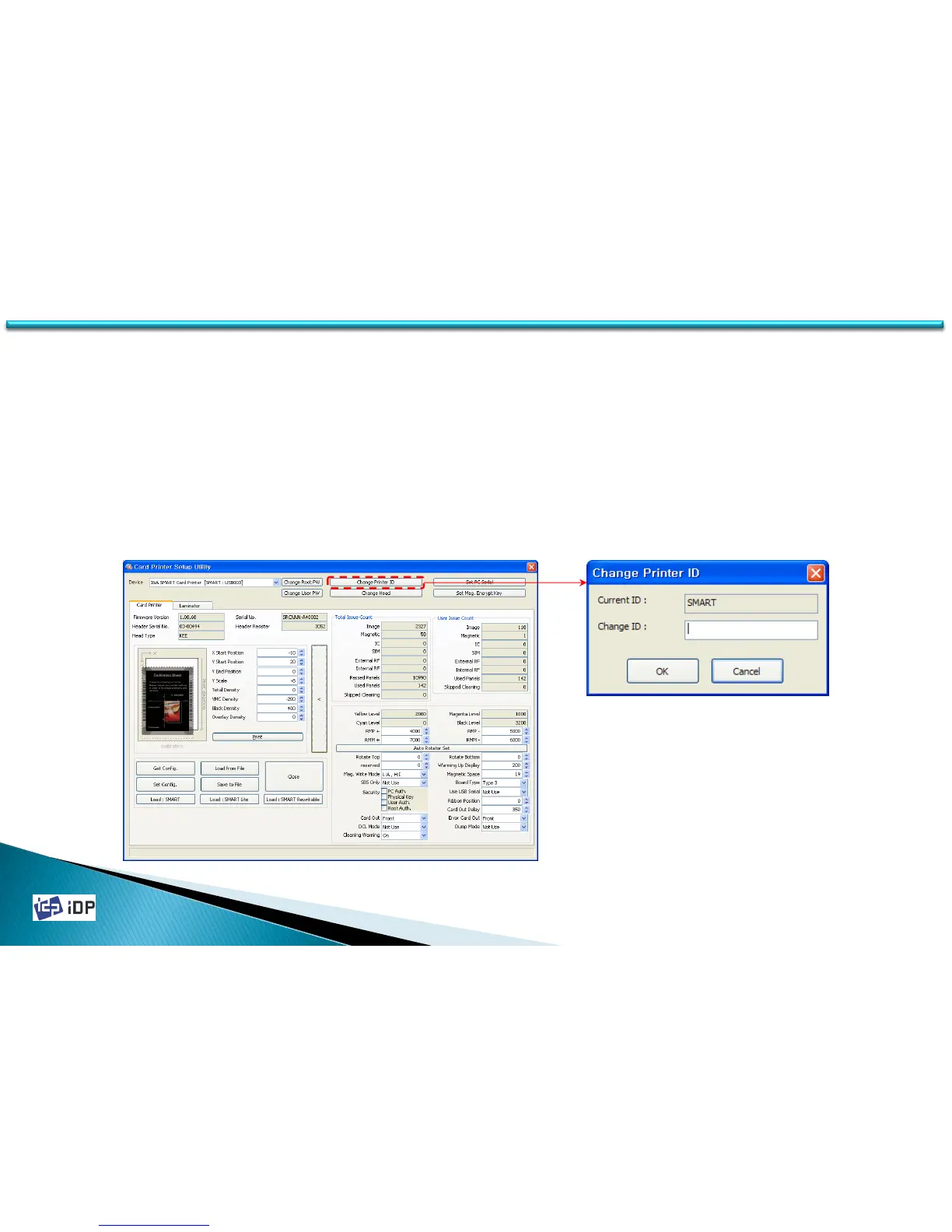
• Printer ID
To use SMART-30 printer’s SDK, you have to set the printer which you want to use. And in this case you need to
get ID to distinguish the printer and it named as Printer ID. Normally we use one PC and one SMART card printer so
do not need to concern. However if use more than one SMART card printer is connected with PC or want to use the
several card printer using networking function, you have to set the different Printer ID per each card printer.
To change Printer ID, press “Change Printer ID” and when there is pop up window, input Printer ID and press O.K.
The changed Printer ID will be activated after rebooting of SMART card printer.
The default Printer ID is “SMART.”


 To Next Page