Various settings
11
MP1020/1025/1035 11-91
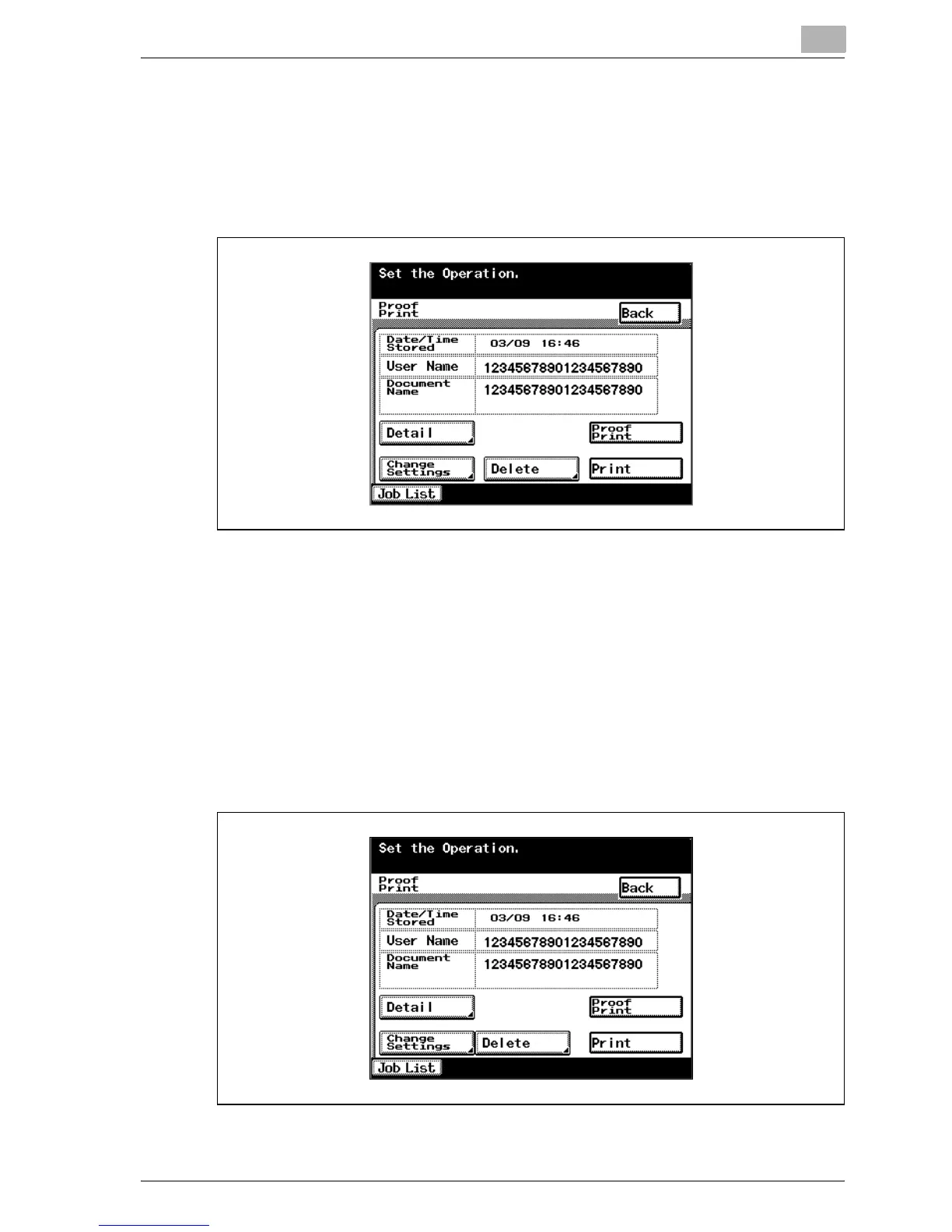
4 Touch [Action].
The Action screen appears.
– To change the settings of the printing conditions, proceed to step 5.
– If you are not changing the settings of the printing conditions, pro-
ceed to step 7.
5 Touch [Change Settings].
The Change Settings screen appears.
6 Change the printing conditions on the Change Settings screen, and
then touch [Enter].
The operation setting screen appears again.
7 Touch [Print].
The stored job is changed to an active job, then printed.



 To Next Page