1-51
PDW-700/V1 (E)
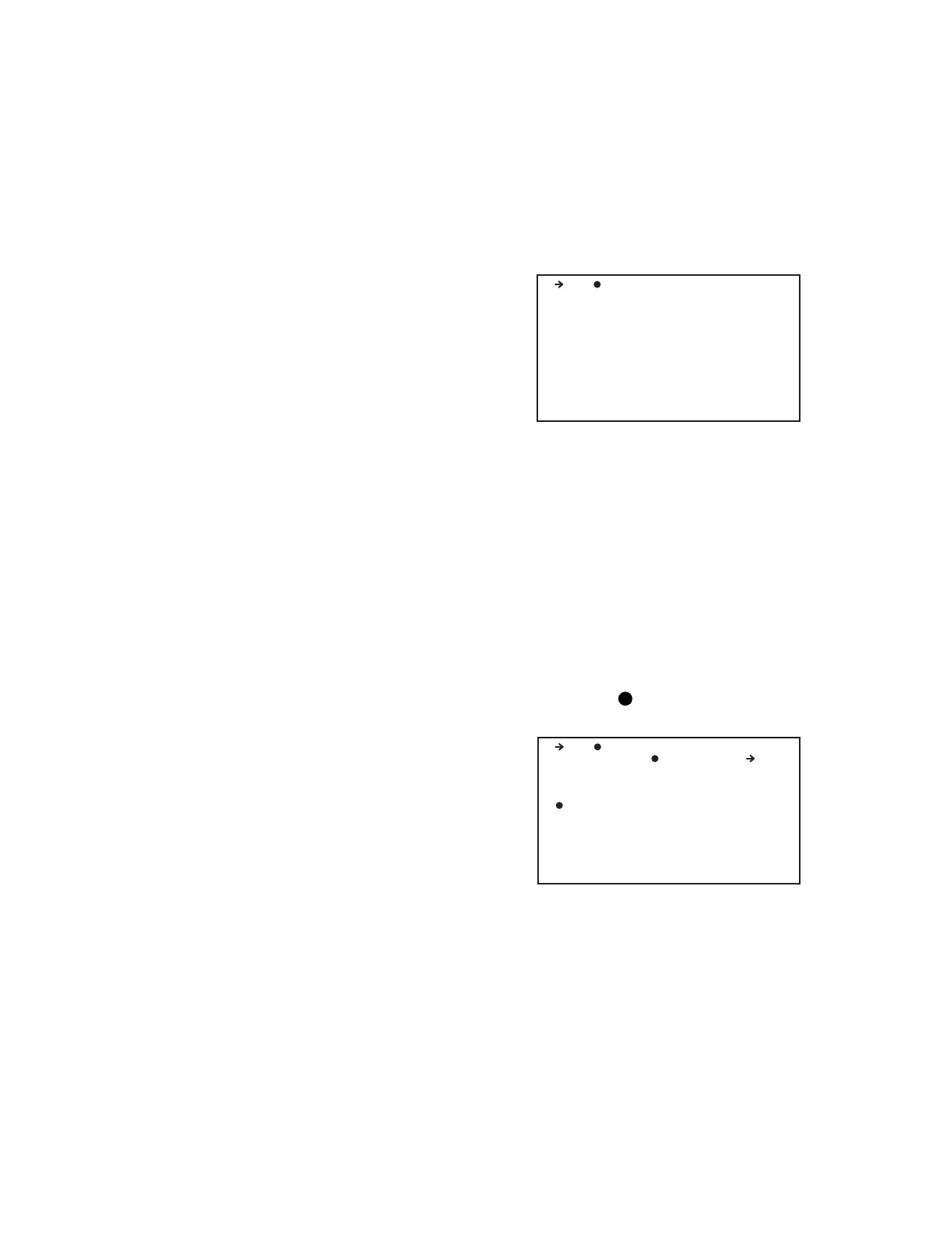
D07 OPTION TOP
SEARCHING INSTALL KEY
- HD/SD-SDI INPUT
- COMPOSITE INPUT
- SD REC & PB
- 24P REC & PB
D07 OPTION TOP
INSTALL ( )OK? YES NO
- HD/SD-SDI INPUT
- COMPOSITE INPUT
- SD REC & PB
24P REC & PB
1-11-3. Software Option Registration Method
by Using USB Memory
This unit contains the software option that can be activated
by registering the software key (Install key).
There are two methods of registering the Install key. One is
the method by using the USB memory*
1
and the other is
the method by accessing the XDCAM website. This
section describes the method by using the USB memory.
For the method by accessing the XDCAM website, refer to
“2-3-4. License Registration”.
n
*1: A general-purpose USB memory used in most comput-
ers can be used. However, there can be cases where the
message “Unknown USB” or the message “NO USB
MEMORY” appears when a USB memory is inserted in
the USB slot. These troubles may be caused by any
problem in the USB memory, or it may be caused if the
USB memory is recognized as an unsupported device.
Replace the USB memory with another equivalent USB
memory, and try again.
First of all, the process requires USB memory in which the
text file “pdw-instkey.lst” is saved for registration.
1. Input the model name, serial number and Install key in
this order by using the text editor of a PC to create the
text file “pdw-instkey.lst”.
Example of entries in the text file pdw-instkey.lst
PDW-700,10000,0123456789abcdef
PDW-700,10001,1234567890bcdefa
PDW-700,10002,2345678901cdefab
n
Each item (model name, serial number and Install key)
should be delimited by comma “
,
”.
Each character string should be terminated by the “line
break” code.
2. Save the created file in the root directory of the USB
memory.
Register the Install key by the procedure below.
1. Connect the USB memory to the USB slot of the
Camcorder.
2. Set the VDR switch on the inside panel to “STBY”.
3. After waiting for approx. 30 seconds, open the OP-
TION page of the DIAGNOSIS menu. While the
arrow pointer is pointing to the “D07 OPTION”, press
and hold the MENU knob. Then, the message
“SEARCHING INSTALL KEY” is displayed for
approx. 10 seconds, and the search for the soft key is
started in the USB memory device.
n
If the name of the required software option is not
displayed on the OPTION page, the firmware of the
unit may not support the option or the DVP board or
the DCP board may not support the option. In such a
case, check the Package Version on the ROM VER-
SION 1 page of the DIAGNOSIS menu or on the
BOARD INFO page of the SERVICE menu.
CBKZ-MD01: Package Version 1.21 or higher
CBKZ-FC02: Package Version 1.50 or higher
4. When the software key is found normally, the message
“INSTALL ( ) OK ? YES → NO” appears. Select
YES to start installation.
5. When the Install key is installed normally, the message
“Valid after power off.” is displayed. Turn OFF the
power according to the message.
6. After the equipment reboots, select the OPTION page
of the DIAGNOSIS menu and confirm that the symbol
at the top of registered option name is changed from a
dash “
_
” to a circle “
O
” symbol.


 To Next Page